×
Zoox issues software recall over lane crossings | TechCrunch

Zoox issues software recall over lane crossings | TechCrunch

Amazon-owned Zoox issued a recall Tuesday over concerns its autonomous driving system caused vehicles to cross over the center lane line near intersections or block crosswalks. The voluntary recall of its software affected 332 vehicles, according to documents filed with the National Highway Traffic Safety Administration (NHTSA).

While there have not been any collisions associated with the issue, Zoox noted in the NHTSA filing that it could increase the risk of a crash. The company provides free rides to the public in its driverless Zoox vehicles in parts of San Francisco and Las Vegas.

A Zoox spokesperson told TechCrunch the company identified some instances in which its vehicles made maneuvers that, while common for human drivers, didn’t meet its standards. For example, in an effort to avoid blocking certain intersections at a red light, the robotaxi might stop in a crosswalk. In other instances, the robotaxi made a late turn, resulting in a wide turn, according to a spokesperson’s emailed statement.

The issue was initially identified on August 26 when a Zoox robotaxi made a wide right turn, crossed partially into the opposing travel lane, and temporarily stopped in front of the oncoming travel lane, according to the NHTSA filing.

Zoox monitored its data for additional lane crossings near intersections, ultimately identifying 62 instances between August 26 and December 5. The company said in the filing it was in “ongoing conversations with NHTSA about the frequency, severity, and root causes of these occurrences.”

The company updated its software on November 7 and again in mid-December to address all of the issues.

“We have successfully identified and deployed targeted software improvements to address the root causes of these incidents,” the statement reads. “Today, we’re submitting a voluntary software recall because transparency and safety is foundational to Zoox, and we want to be open with the public and regulators about how we are constantly refining and improving our technology.”

The software recall affected Zoox vehicles operating on public roads between March 13 and December 18, according to the filing.

Zoox has issued several software recalls this year, including one in March to address unexpected hard braking. That recall followed a preliminary investigation by NHTSA that was opened after the agency received two reports of motorcyclists colliding with the back of Zoox vehicles.

In May, Zoox filed two software recalls to address concerns about the system’s ability to predict the movement of other road users. 

Source link
#Zoox #issues #software #recall #lane #crossings #TechCrunch

It turns out that even San Francisco mayor Daniel Lurie, who once declared that the city should be a testbed for emerging tech, has his limits. Especially when that emerging tech creates a massive hours-long traffic jam that leaves thousands at a standstill.

Mayor Lurie has asked state regulators to bolster rules for autonomous vehicles nearly two weeks after Waymo robotaxis became immobile in heavy July 4 traffic, ran out of power, and blocked key streets, further compounding the gridlock. The traffic jam, which trapped municipal shuttles, became a citywide problem that affected thousands of people.

In his letter to the state Department of Transportation, which was viewed by TechCrunch, Lurie pointed to two events — a widespread power outage in December and the Golden Gate Bridge fireworks show on July 4 that attracted 100,000 spectators — both of which led to dozens of stranded Waymo vehicles and paralyzed traffic. The San Francisco Chronicle first reported on the letter.

The events, he said in the letter, “demonstrated that California’s current regulatory framework does not adequately address how autonomous vehicles operate during major incidents, planned or not. California’s challenge now is not just whether autonomous vehicles can operate safely under normal conditions, but also whether they can perform reliably during extraordinary ones.”

Lurie said autonomous vehicle manufacturers should be able to demonstrate four “core operational capabilities” and asked the California Department of Transportation to establish statewide standards to prevent future problems like the July 4 gridlock incident.

Under Lurie’s vision, companies would be required to immediately remove or relocate robotaxis from active travel lanes to keep people moving and be required to be able to adapt in real time, adjusting their routes, service area, and pickup and drop-off locations. Companies would also have to share real-time operations data with local agencies, including service disruptions, the locations of immobile robotaxis, and recovery efforts as well as demonstrate through testing that they can handle large influxes of people and traffic.

TechCrunch has reached out to Waymo for comment. The article will be updated once the company responds.

Any company that wants to operate a robotaxi service in California has to successfully navigate two testing and deployment permit processes, one administered by the state’s Department of Motor Vehicles and the other by the Public Utilities Commission. California’s existing regulatory framework is stricter than that of other states like Texas and Arizona, but that hasn’t dissuaded companies from trying to operate there.

San Francisco and the wider area that stretches south into Silicon Valley have long been a testbed for autonomous vehicle technology. Six companies, including Nuro, Waymo, and Zoox, hold driverless testing permits, which allow the vehicles to drive without a human safety operator behind the wheel.

But the area has also become the launch point for commercial services, which requires other permits from the DMV and CPUC.

Waymo is the largest, with an estimated 1,000 robotaxis operating in the Bay Area today. But there are plenty of others either testing or poised to launch commercial operations, including Amazon-owned Zoox as well as a premium robotaxi service that will be operated by Uber. Tesla has a branded robotaxi service but it doesn’t use driverless vehicles, nor does it have the permits to do so. Instead, Tesla has a charter transportation permit, which allows its own drivers to pick up and drop off riders throughout San Francisco in vehicles equipped with its advanced driver-assistance system rather than fully autonomous software.

Waymo’s scale has made it the focal point for regulators in San Francisco and beyond. The company now operates in 11 cities and has said it completes more than 500,000 paid rides every week. In San Francisco, Lurie noted that Waymo had agreed to restrict its service on July 4 near the waterfront and had even assigned a representative to the city’s emergency center. But that wasn’t enough to keep the Waymos out of the heavy traffic that occurred outside of that district.

Lurie said these voluntary actions are no longer enough — a reflection of just how big Waymo’s fleet has become. He said the four proposed requirements “will not undermine autonomous vehicles; they will strengthen them.”

When you purchase through links in our articles, we may earn a small commission. This doesn’t affect our editorial independence.

#San #Francisco #mayor #pushes #tougher #rules #Waymo #traffic #fiasco #TechCrunchrobotaxis,Waymo">San Francisco mayor pushes for tougher rules after the Waymo traffic fiasco | TechCrunch
It turns out that even San Francisco mayor Daniel Lurie, who once declared that the city should be a testbed for emerging tech, has his limits. Especially when that emerging tech creates a massive hours-long traffic jam that leaves thousands at a standstill.

Mayor Lurie has asked state regulators to bolster rules for autonomous vehicles nearly two weeks after Waymo robotaxis became immobile in heavy July 4 traffic, ran out of power, and blocked key streets, further compounding the gridlock. The traffic jam, which trapped municipal shuttles, became a citywide problem that affected thousands of people. 


In his letter to the state Department of Transportation, which was viewed by TechCrunch, Lurie pointed to two events — a widespread power outage in December and the Golden Gate Bridge fireworks show on July 4 that attracted 100,000 spectators — both of which led to dozens of stranded Waymo vehicles and paralyzed traffic. The San Francisco Chronicle first reported on the letter.

The events, he said in the letter, “demonstrated that California’s current regulatory framework does not adequately address how autonomous vehicles operate during major incidents, planned or not. California’s challenge now is not just whether autonomous vehicles can operate safely under normal conditions, but also whether they can perform reliably during extraordinary ones.”

Lurie said autonomous vehicle manufacturers should be able to demonstrate four “core operational capabilities” and asked the California Department of Transportation to establish statewide standards to prevent future problems like the July 4 gridlock incident. Under Lurie’s vision, companies would be required to immediately remove or relocate robotaxis from active travel lanes to keep people moving and be required to be able to adapt in real time, adjusting their routes, service area, and pickup and drop-off locations. Companies would also have to share real-time operations data with local agencies, including service disruptions, the locations of immobile robotaxis, and recovery efforts as well as demonstrate through testing that they can handle large influxes of people and traffic.

TechCrunch has reached out to Waymo for comment. The article will be updated once the company responds.

Any company that wants to operate a robotaxi service in California has to successfully navigate two testing and deployment permit processes, one administered by the state’s Department of Motor Vehicles and the other by the Public Utilities Commission. California’s existing regulatory framework is stricter than that of other states like Texas and Arizona, but that hasn’t dissuaded companies from trying to operate there.


San Francisco and the wider area that stretches south into Silicon Valley have long been a testbed for autonomous vehicle technology. Six companies, including Nuro, Waymo, and Zoox, hold driverless testing permits, which allow the vehicles to drive without a human safety operator behind the wheel. 

But the area has also become the launch point for commercial services, which requires other permits from the DMV and CPUC.

Waymo is the largest, with an estimated 1,000 robotaxis operating in the Bay Area today. But there are plenty of others either testing or poised to launch commercial operations, including Amazon-owned Zoox as well as a premium robotaxi service that will be operated by Uber. Tesla has a branded robotaxi service but it doesn’t use driverless vehicles, nor does it have the permits to do so. Instead, Tesla has a charter transportation permit, which allows its own drivers to pick up and drop off riders throughout San Francisco in vehicles equipped with its advanced driver-assistance system rather than fully autonomous software.


Waymo’s scale has made it the focal point for regulators in San Francisco and beyond. The company now operates in 11 cities and has said it completes more than 500,000 paid rides every week. In San Francisco, Lurie noted that Waymo had agreed to restrict its service on July 4 near the waterfront and had even assigned a representative to the city’s emergency center. But that wasn’t enough to keep the Waymos out of the heavy traffic that occurred outside of that district.

Lurie said these voluntary actions are no longer enough — a reflection of just how big Waymo’s fleet has become. He said the four proposed requirements “will not undermine autonomous vehicles; they will strengthen them.”


When you purchase through links in our articles, we may earn a small commission. This doesn’t affect our editorial independence.#San #Francisco #mayor #pushes #tougher #rules #Waymo #traffic #fiasco #TechCrunchrobotaxis,Waymo

testbed for emerging tech, has his limits. Especially when that emerging tech creates a massive hours-long traffic jam that leaves thousands at a standstill.

Mayor Lurie has asked state regulators to bolster rules for autonomous vehicles nearly two weeks after Waymo robotaxis became immobile in heavy July 4 traffic, ran out of power, and blocked key streets, further compounding the gridlock. The traffic jam, which trapped municipal shuttles, became a citywide problem that affected thousands of people.

In his letter to the state Department of Transportation, which was viewed by TechCrunch, Lurie pointed to two events — a widespread power outage in December and the Golden Gate Bridge fireworks show on July 4 that attracted 100,000 spectators — both of which led to dozens of stranded Waymo vehicles and paralyzed traffic. The San Francisco Chronicle first reported on the letter.

The events, he said in the letter, “demonstrated that California’s current regulatory framework does not adequately address how autonomous vehicles operate during major incidents, planned or not. California’s challenge now is not just whether autonomous vehicles can operate safely under normal conditions, but also whether they can perform reliably during extraordinary ones.”

Lurie said autonomous vehicle manufacturers should be able to demonstrate four “core operational capabilities” and asked the California Department of Transportation to establish statewide standards to prevent future problems like the July 4 gridlock incident.

Under Lurie’s vision, companies would be required to immediately remove or relocate robotaxis from active travel lanes to keep people moving and be required to be able to adapt in real time, adjusting their routes, service area, and pickup and drop-off locations. Companies would also have to share real-time operations data with local agencies, including service disruptions, the locations of immobile robotaxis, and recovery efforts as well as demonstrate through testing that they can handle large influxes of people and traffic.

TechCrunch has reached out to Waymo for comment. The article will be updated once the company responds.

Any company that wants to operate a robotaxi service in California has to successfully navigate two testing and deployment permit processes, one administered by the state’s Department of Motor Vehicles and the other by the Public Utilities Commission. California’s existing regulatory framework is stricter than that of other states like Texas and Arizona, but that hasn’t dissuaded companies from trying to operate there.

San Francisco and the wider area that stretches south into Silicon Valley have long been a testbed for autonomous vehicle technology. Six companies, including Nuro, Waymo, and Zoox, hold driverless testing permits, which allow the vehicles to drive without a human safety operator behind the wheel.

But the area has also become the launch point for commercial services, which requires other permits from the DMV and CPUC.

Waymo is the largest, with an estimated 1,000 robotaxis operating in the Bay Area today. But there are plenty of others either testing or poised to launch commercial operations, including Amazon-owned Zoox as well as a premium robotaxi service that will be operated by Uber. Tesla has a branded robotaxi service but it doesn’t use driverless vehicles, nor does it have the permits to do so. Instead, Tesla has a charter transportation permit, which allows its own drivers to pick up and drop off riders throughout San Francisco in vehicles equipped with its advanced driver-assistance system rather than fully autonomous software.

Waymo’s scale has made it the focal point for regulators in San Francisco and beyond. The company now operates in 11 cities and has said it completes more than 500,000 paid rides every week. In San Francisco, Lurie noted that Waymo had agreed to restrict its service on July 4 near the waterfront and had even assigned a representative to the city’s emergency center. But that wasn’t enough to keep the Waymos out of the heavy traffic that occurred outside of that district.

Lurie said these voluntary actions are no longer enough — a reflection of just how big Waymo’s fleet has become. He said the four proposed requirements “will not undermine autonomous vehicles; they will strengthen them.”

When you purchase through links in our articles, we may earn a small commission. This doesn’t affect our editorial independence.

#San #Francisco #mayor #pushes #tougher #rules #Waymo #traffic #fiasco #TechCrunchrobotaxis,Waymo">San Francisco mayor pushes for tougher rules after the Waymo traffic fiasco | TechCrunch

It turns out that even San Francisco mayor Daniel Lurie, who once declared that the city should be a testbed for emerging tech, has his limits. Especially when that emerging tech creates a massive hours-long traffic jam that leaves thousands at a standstill.

Mayor Lurie has asked state regulators to bolster rules for autonomous vehicles nearly two weeks after Waymo robotaxis became immobile in heavy July 4 traffic, ran out of power, and blocked key streets, further compounding the gridlock. The traffic jam, which trapped municipal shuttles, became a citywide problem that affected thousands of people.

In his letter to the state Department of Transportation, which was viewed by TechCrunch, Lurie pointed to two events — a widespread power outage in December and the Golden Gate Bridge fireworks show on July 4 that attracted 100,000 spectators — both of which led to dozens of stranded Waymo vehicles and paralyzed traffic. The San Francisco Chronicle first reported on the letter.

The events, he said in the letter, “demonstrated that California’s current regulatory framework does not adequately address how autonomous vehicles operate during major incidents, planned or not. California’s challenge now is not just whether autonomous vehicles can operate safely under normal conditions, but also whether they can perform reliably during extraordinary ones.”

Lurie said autonomous vehicle manufacturers should be able to demonstrate four “core operational capabilities” and asked the California Department of Transportation to establish statewide standards to prevent future problems like the July 4 gridlock incident.

Under Lurie’s vision, companies would be required to immediately remove or relocate robotaxis from active travel lanes to keep people moving and be required to be able to adapt in real time, adjusting their routes, service area, and pickup and drop-off locations. Companies would also have to share real-time operations data with local agencies, including service disruptions, the locations of immobile robotaxis, and recovery efforts as well as demonstrate through testing that they can handle large influxes of people and traffic.

TechCrunch has reached out to Waymo for comment. The article will be updated once the company responds.

Any company that wants to operate a robotaxi service in California has to successfully navigate two testing and deployment permit processes, one administered by the state’s Department of Motor Vehicles and the other by the Public Utilities Commission. California’s existing regulatory framework is stricter than that of other states like Texas and Arizona, but that hasn’t dissuaded companies from trying to operate there.

San Francisco and the wider area that stretches south into Silicon Valley have long been a testbed for autonomous vehicle technology. Six companies, including Nuro, Waymo, and Zoox, hold driverless testing permits, which allow the vehicles to drive without a human safety operator behind the wheel.

But the area has also become the launch point for commercial services, which requires other permits from the DMV and CPUC.

Waymo is the largest, with an estimated 1,000 robotaxis operating in the Bay Area today. But there are plenty of others either testing or poised to launch commercial operations, including Amazon-owned Zoox as well as a premium robotaxi service that will be operated by Uber. Tesla has a branded robotaxi service but it doesn’t use driverless vehicles, nor does it have the permits to do so. Instead, Tesla has a charter transportation permit, which allows its own drivers to pick up and drop off riders throughout San Francisco in vehicles equipped with its advanced driver-assistance system rather than fully autonomous software.

Waymo’s scale has made it the focal point for regulators in San Francisco and beyond. The company now operates in 11 cities and has said it completes more than 500,000 paid rides every week. In San Francisco, Lurie noted that Waymo had agreed to restrict its service on July 4 near the waterfront and had even assigned a representative to the city’s emergency center. But that wasn’t enough to keep the Waymos out of the heavy traffic that occurred outside of that district.

Lurie said these voluntary actions are no longer enough — a reflection of just how big Waymo’s fleet has become. He said the four proposed requirements “will not undermine autonomous vehicles; they will strengthen them.”

When you purchase through links in our articles, we may earn a small commission. This doesn’t affect our editorial independence.

#San #Francisco #mayor #pushes #tougher #rules #Waymo #traffic #fiasco #TechCrunchrobotaxis,Waymo
newer iPads, it is not available on many older devices. However, you do have several options for checking your battery health. In this guide, we’ll explain how to check battery health on older iPads and share some useful tips to help extend battery life.

Which iPads Support Apple’s Built-in Battery Health Feature?

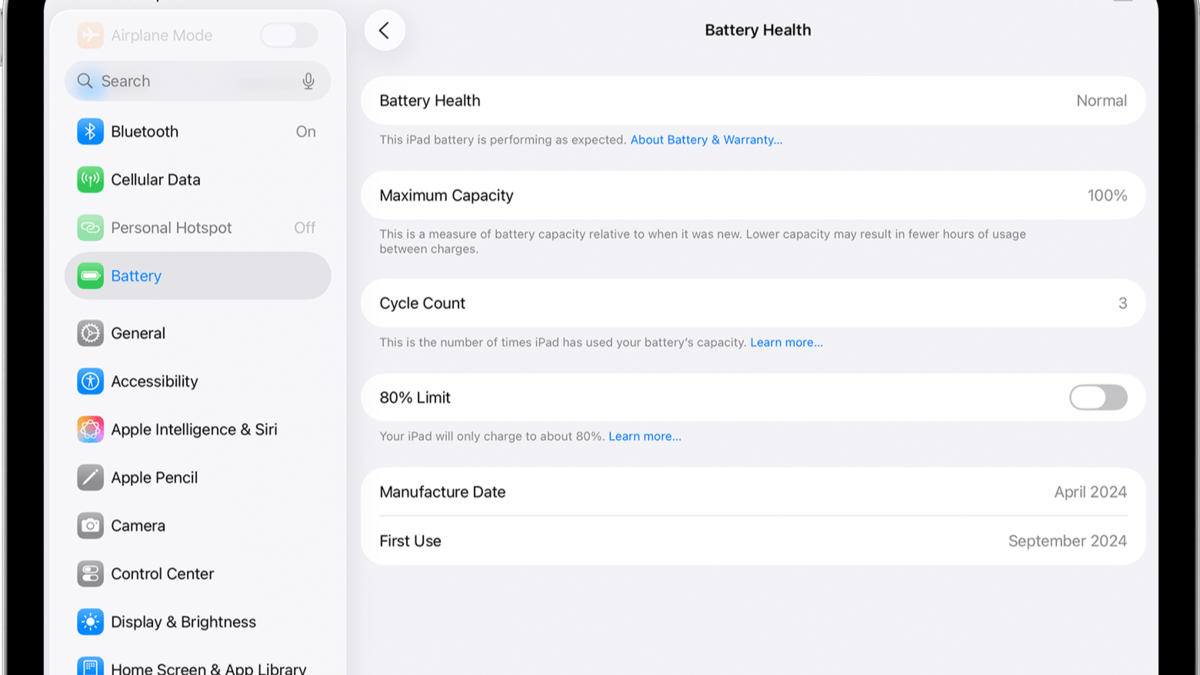
Apple provides a built-in Battery Health feature for selected iPad models. If your iPad supports it, you can view important battery information in the Settings app without installing any additional apps. This feature is available for iPad Pro M4, iPad Air M2, iPad mini (A17 Pro), iPad (A16), and newer iPads.

  1. Go to Settings.
  2. Tap Battery.
  3. Open Battery Health.
    Apple Doesn’t Show Battery Health on Older iPads—Here’s How to Check It Anyway
	
Checking your battery health will not only provide you with information about your iPad’s performance but also indicate whether you need to replace your device. Although Apple provides a built-in Battery Health feature on newer iPads, it is not available on many older devices. However, you do have several options for checking your battery health. In this guide, we’ll explain how to check battery health on older iPads and share some useful tips to help extend battery life.


Which iPads Support Apple’s Built-in Battery Health Feature?


Apple provides a built-in Battery Health feature for selected iPad models. If your iPad supports it, you can view important battery information in the Settings app without installing any additional apps. This feature is available for iPad Pro M4, iPad Air M2, iPad mini (A17 Pro), iPad (A16), and newer iPads.


Go to Settings.


Tap Battery.


Open Battery Health.


View details such as Maximum Capacity, Cycle Count, Battery Status, Manufacturing Date, First Use Date, and the 80% Charging Limit.


If you have an old iPad, you won’t see the Battery Health option in the Settings menu. The reason behind this restriction remains unknown, as Apple has not disclosed it yet. The old operating system of these iPads does not even support the Battery Health menu.


How to Check Battery Health on Older iPads


Apple provides an online battery diagnostic process for iPads that do not have the Battery Health option. This is the proper way to diagnose your device’s battery without downloading any additional software. First, contact Apple Support and describe your battery problems, which may include rapid battery drain, slow charging, and automatic shutdowns of your iPad. Apple Support will conduct a remote battery diagnostic on your iPad. They will be able to tell you all the vital information regarding your battery.


Use coconutBattery on a Mac


Another way to check your iPad’s battery health is through coconutBattery. The app is available for macOS and supports Apple devices, including iPads.


Download coconutBattery on your Mac.


Connect your iPad via a USB cable.


Launch the application.


Select your device and see its battery details.


It provides information on Battery Health, Current Capacity, Design Capacity, Charge Cycles, Battery Temperature, and Charging Status. Please note that some more advanced options will be available only in the paid version.


Tips to Keep Your Older iPad Battery Healthy


Ensure that you only use certified chargers: Your iPad should be charged by Apple-certified and MFi-certified chargers and cables.


Avoid using your iPad in extreme temperatures: it should not be exposed to direct sunlight or extremely high temperatures.


Keep your iPad software up to date: Update your device to the latest iPadOS.


Screen lock: Locking your iPad helps conserve battery power.


Airplane mode in areas with poor signal: If the signal strength is low, activate airplane mode to conserve battery.


Wi-Fi connection: Connect to Wi-Fi whenever it is possible.


Unplug unnecessary devices: Unplug any USB-C device that is no longer needed.


#Apple #Doesnt #Show #Battery #Health #Older #iPadsHeres #Checkapple
  4. View details such as Maximum Capacity, Cycle Count, Battery Status, Manufacturing Date, First Use Date, and the 80% Charging Limit.

If you have an old iPad, you won’t see the Battery Health option in the Settings menu. The reason behind this restriction remains unknown, as Apple has not disclosed it yet. The old operating system of these iPads does not even support the Battery Health menu.

How to Check Battery Health on Older iPads

ipad

Apple provides an online battery diagnostic process for iPads that do not have the Battery Health option. This is the proper way to diagnose your device’s battery without downloading any additional software. First, contact Apple Support and describe your battery problems, which may include rapid battery drain, slow charging, and automatic shutdowns of your iPad. Apple Support will conduct a remote battery diagnostic on your iPad. They will be able to tell you all the vital information regarding your battery.

Use coconutBattery on a Mac

Another way to check your iPad’s battery health is through coconutBattery. The app is available for macOS and supports Apple devices, including iPads.

  • Download coconutBattery on your Mac.
  • Connect your iPad via a USB cable.
  • Launch the application.
  • Select your device and see its battery details.
    Use coconutBattery on a Mac to check battery health

It provides information on Battery Health, Current Capacity, Design Capacity, Charge Cycles, Battery Temperature, and Charging Status. Please note that some more advanced options will be available only in the paid version.

Tips to Keep Your Older iPad Battery Healthy

  1. Ensure that you only use certified chargers: Your iPad should be charged by Apple-certified and MFi-certified chargers and cables.
  2. Avoid using your iPad in extreme temperatures: it should not be exposed to direct sunlight or extremely high temperatures.
  3. Keep your iPad software up to date: Update your device to the latest iPadOS.
  4. Screen lock: Locking your iPad helps conserve battery power.
  5. Airplane mode in areas with poor signal: If the signal strength is low, activate airplane mode to conserve battery.
  6. Wi-Fi connection: Connect to Wi-Fi whenever it is possible.
  7. Unplug unnecessary devices: Unplug any USB-C device that is no longer needed.
#Apple #Doesnt #Show #Battery #Health #Older #iPadsHeres #Checkapple">Apple Doesn’t Show Battery Health on Older iPads—Here’s How to Check It Anyway
	
Checking your battery health will not only provide you with information about your iPad’s performance but also indicate whether you need to replace your device. Although Apple provides a built-in Battery Health feature on newer iPads, it is not available on many older devices. However, you do have several options for checking your battery health. In this guide, we’ll explain how to check battery health on older iPads and share some useful tips to help extend battery life.


Which iPads Support Apple’s Built-in Battery Health Feature?


Apple provides a built-in Battery Health feature for selected iPad models. If your iPad supports it, you can view important battery information in the Settings app without installing any additional apps. This feature is available for iPad Pro M4, iPad Air M2, iPad mini (A17 Pro), iPad (A16), and newer iPads.


Go to Settings.


Tap Battery.


Open Battery Health.


View details such as Maximum Capacity, Cycle Count, Battery Status, Manufacturing Date, First Use Date, and the 80% Charging Limit.


If you have an old iPad, you won’t see the Battery Health option in the Settings menu. The reason behind this restriction remains unknown, as Apple has not disclosed it yet. The old operating system of these iPads does not even support the Battery Health menu.


How to Check Battery Health on Older iPads


Apple provides an online battery diagnostic process for iPads that do not have the Battery Health option. This is the proper way to diagnose your device’s battery without downloading any additional software. First, contact Apple Support and describe your battery problems, which may include rapid battery drain, slow charging, and automatic shutdowns of your iPad. Apple Support will conduct a remote battery diagnostic on your iPad. They will be able to tell you all the vital information regarding your battery.


Use coconutBattery on a Mac


Another way to check your iPad’s battery health is through coconutBattery. The app is available for macOS and supports Apple devices, including iPads.


Download coconutBattery on your Mac.


Connect your iPad via a USB cable.


Launch the application.


Select your device and see its battery details.


It provides information on Battery Health, Current Capacity, Design Capacity, Charge Cycles, Battery Temperature, and Charging Status. Please note that some more advanced options will be available only in the paid version.


Tips to Keep Your Older iPad Battery Healthy


Ensure that you only use certified chargers: Your iPad should be charged by Apple-certified and MFi-certified chargers and cables.


Avoid using your iPad in extreme temperatures: it should not be exposed to direct sunlight or extremely high temperatures.


Keep your iPad software up to date: Update your device to the latest iPadOS.


Screen lock: Locking your iPad helps conserve battery power.


Airplane mode in areas with poor signal: If the signal strength is low, activate airplane mode to conserve battery.


Wi-Fi connection: Connect to Wi-Fi whenever it is possible.


Unplug unnecessary devices: Unplug any USB-C device that is no longer needed.


#Apple #Doesnt #Show #Battery #Health #Older #iPadsHeres #Checkapple

, it is not available on many older devices. However, you do have several options for checking your battery health. In this guide, we’ll explain how to check battery health on older iPads and share some useful tips to help extend battery life.

Which iPads Support Apple’s Built-in Battery Health Feature?

Apple provides a built-in Battery Health feature for selected iPad models. If your iPad supports it, you can view important battery information in the Settings app without installing any additional apps. This feature is available for iPad Pro M4, iPad Air M2, iPad mini (A17 Pro), iPad (A16), and newer iPads.

  1. Go to Settings.
  2. Tap Battery.
  3. Open Battery Health.
    Apple Doesn’t Show Battery Health on Older iPads—Here’s How to Check It Anyway
	
Checking your battery health will not only provide you with information about your iPad’s performance but also indicate whether you need to replace your device. Although Apple provides a built-in Battery Health feature on newer iPads, it is not available on many older devices. However, you do have several options for checking your battery health. In this guide, we’ll explain how to check battery health on older iPads and share some useful tips to help extend battery life.


Which iPads Support Apple’s Built-in Battery Health Feature?


Apple provides a built-in Battery Health feature for selected iPad models. If your iPad supports it, you can view important battery information in the Settings app without installing any additional apps. This feature is available for iPad Pro M4, iPad Air M2, iPad mini (A17 Pro), iPad (A16), and newer iPads.


Go to Settings.


Tap Battery.


Open Battery Health.


View details such as Maximum Capacity, Cycle Count, Battery Status, Manufacturing Date, First Use Date, and the 80% Charging Limit.


If you have an old iPad, you won’t see the Battery Health option in the Settings menu. The reason behind this restriction remains unknown, as Apple has not disclosed it yet. The old operating system of these iPads does not even support the Battery Health menu.


How to Check Battery Health on Older iPads


Apple provides an online battery diagnostic process for iPads that do not have the Battery Health option. This is the proper way to diagnose your device’s battery without downloading any additional software. First, contact Apple Support and describe your battery problems, which may include rapid battery drain, slow charging, and automatic shutdowns of your iPad. Apple Support will conduct a remote battery diagnostic on your iPad. They will be able to tell you all the vital information regarding your battery.


Use coconutBattery on a Mac


Another way to check your iPad’s battery health is through coconutBattery. The app is available for macOS and supports Apple devices, including iPads.


Download coconutBattery on your Mac.


Connect your iPad via a USB cable.


Launch the application.


Select your device and see its battery details.


It provides information on Battery Health, Current Capacity, Design Capacity, Charge Cycles, Battery Temperature, and Charging Status. Please note that some more advanced options will be available only in the paid version.


Tips to Keep Your Older iPad Battery Healthy


Ensure that you only use certified chargers: Your iPad should be charged by Apple-certified and MFi-certified chargers and cables.


Avoid using your iPad in extreme temperatures: it should not be exposed to direct sunlight or extremely high temperatures.


Keep your iPad software up to date: Update your device to the latest iPadOS.


Screen lock: Locking your iPad helps conserve battery power.


Airplane mode in areas with poor signal: If the signal strength is low, activate airplane mode to conserve battery.


Wi-Fi connection: Connect to Wi-Fi whenever it is possible.


Unplug unnecessary devices: Unplug any USB-C device that is no longer needed.


#Apple #Doesnt #Show #Battery #Health #Older #iPadsHeres #Checkapple
  4. View details such as Maximum Capacity, Cycle Count, Battery Status, Manufacturing Date, First Use Date, and the 80% Charging Limit.

If you have an old iPad, you won’t see the Battery Health option in the Settings menu. The reason behind this restriction remains unknown, as Apple has not disclosed it yet. The old operating system of these iPads does not even support the Battery Health menu.

How to Check Battery Health on Older iPads

ipad

Apple provides an online battery diagnostic process for iPads that do not have the Battery Health option. This is the proper way to diagnose your device’s battery without downloading any additional software. First, contact Apple Support and describe your battery problems, which may include rapid battery drain, slow charging, and automatic shutdowns of your iPad. Apple Support will conduct a remote battery diagnostic on your iPad. They will be able to tell you all the vital information regarding your battery.

Use coconutBattery on a Mac

Another way to check your iPad’s battery health is through coconutBattery. The app is available for macOS and supports Apple devices, including iPads.

  • Download coconutBattery on your Mac.
  • Connect your iPad via a USB cable.
  • Launch the application.
  • Select your device and see its battery details.
    Use coconutBattery on a Mac to check battery health

It provides information on Battery Health, Current Capacity, Design Capacity, Charge Cycles, Battery Temperature, and Charging Status. Please note that some more advanced options will be available only in the paid version.

Tips to Keep Your Older iPad Battery Healthy

  1. Ensure that you only use certified chargers: Your iPad should be charged by Apple-certified and MFi-certified chargers and cables.
  2. Avoid using your iPad in extreme temperatures: it should not be exposed to direct sunlight or extremely high temperatures.
  3. Keep your iPad software up to date: Update your device to the latest iPadOS.
  4. Screen lock: Locking your iPad helps conserve battery power.
  5. Airplane mode in areas with poor signal: If the signal strength is low, activate airplane mode to conserve battery.
  6. Wi-Fi connection: Connect to Wi-Fi whenever it is possible.
  7. Unplug unnecessary devices: Unplug any USB-C device that is no longer needed.
#Apple #Doesnt #Show #Battery #Health #Older #iPadsHeres #Checkapple">Apple Doesn’t Show Battery Health on Older iPads—Here’s How to Check It Anyway

Checking your battery health will not only provide you with information about your iPad’s performance but also indicate whether you need to replace your device. Although Apple provides a built-in Battery Health feature on newer iPads, it is not available on many older devices. However, you do have several options for checking your battery health. In this guide, we’ll explain how to check battery health on older iPads and share some useful tips to help extend battery life.

Which iPads Support Apple’s Built-in Battery Health Feature?

Apple provides a built-in Battery Health feature for selected iPad models. If your iPad supports it, you can view important battery information in the Settings app without installing any additional apps. This feature is available for iPad Pro M4, iPad Air M2, iPad mini (A17 Pro), iPad (A16), and newer iPads.

  1. Go to Settings.
  2. Tap Battery.
  3. Open Battery Health.
    Apple Doesn’t Show Battery Health on Older iPads—Here’s How to Check It Anyway
	
Checking your battery health will not only provide you with information about your iPad’s performance but also indicate whether you need to replace your device. Although Apple provides a built-in Battery Health feature on newer iPads, it is not available on many older devices. However, you do have several options for checking your battery health. In this guide, we’ll explain how to check battery health on older iPads and share some useful tips to help extend battery life.


Which iPads Support Apple’s Built-in Battery Health Feature?


Apple provides a built-in Battery Health feature for selected iPad models. If your iPad supports it, you can view important battery information in the Settings app without installing any additional apps. This feature is available for iPad Pro M4, iPad Air M2, iPad mini (A17 Pro), iPad (A16), and newer iPads.


Go to Settings.


Tap Battery.


Open Battery Health.


View details such as Maximum Capacity, Cycle Count, Battery Status, Manufacturing Date, First Use Date, and the 80% Charging Limit.


If you have an old iPad, you won’t see the Battery Health option in the Settings menu. The reason behind this restriction remains unknown, as Apple has not disclosed it yet. The old operating system of these iPads does not even support the Battery Health menu.


How to Check Battery Health on Older iPads


Apple provides an online battery diagnostic process for iPads that do not have the Battery Health option. This is the proper way to diagnose your device’s battery without downloading any additional software. First, contact Apple Support and describe your battery problems, which may include rapid battery drain, slow charging, and automatic shutdowns of your iPad. Apple Support will conduct a remote battery diagnostic on your iPad. They will be able to tell you all the vital information regarding your battery.


Use coconutBattery on a Mac


Another way to check your iPad’s battery health is through coconutBattery. The app is available for macOS and supports Apple devices, including iPads.


Download coconutBattery on your Mac.


Connect your iPad via a USB cable.


Launch the application.


Select your device and see its battery details.


It provides information on Battery Health, Current Capacity, Design Capacity, Charge Cycles, Battery Temperature, and Charging Status. Please note that some more advanced options will be available only in the paid version.


Tips to Keep Your Older iPad Battery Healthy


Ensure that you only use certified chargers: Your iPad should be charged by Apple-certified and MFi-certified chargers and cables.


Avoid using your iPad in extreme temperatures: it should not be exposed to direct sunlight or extremely high temperatures.


Keep your iPad software up to date: Update your device to the latest iPadOS.


Screen lock: Locking your iPad helps conserve battery power.


Airplane mode in areas with poor signal: If the signal strength is low, activate airplane mode to conserve battery.


Wi-Fi connection: Connect to Wi-Fi whenever it is possible.


Unplug unnecessary devices: Unplug any USB-C device that is no longer needed.


#Apple #Doesnt #Show #Battery #Health #Older #iPadsHeres #Checkapple
  4. View details such as Maximum Capacity, Cycle Count, Battery Status, Manufacturing Date, First Use Date, and the 80% Charging Limit.

If you have an old iPad, you won’t see the Battery Health option in the Settings menu. The reason behind this restriction remains unknown, as Apple has not disclosed it yet. The old operating system of these iPads does not even support the Battery Health menu.

How to Check Battery Health on Older iPads

ipad

Apple provides an online battery diagnostic process for iPads that do not have the Battery Health option. This is the proper way to diagnose your device’s battery without downloading any additional software. First, contact Apple Support and describe your battery problems, which may include rapid battery drain, slow charging, and automatic shutdowns of your iPad. Apple Support will conduct a remote battery diagnostic on your iPad. They will be able to tell you all the vital information regarding your battery.

Use coconutBattery on a Mac

Another way to check your iPad’s battery health is through coconutBattery. The app is available for macOS and supports Apple devices, including iPads.

  • Download coconutBattery on your Mac.
  • Connect your iPad via a USB cable.
  • Launch the application.
  • Select your device and see its battery details.
    Use coconutBattery on a Mac to check battery health

It provides information on Battery Health, Current Capacity, Design Capacity, Charge Cycles, Battery Temperature, and Charging Status. Please note that some more advanced options will be available only in the paid version.

Tips to Keep Your Older iPad Battery Healthy

  1. Ensure that you only use certified chargers: Your iPad should be charged by Apple-certified and MFi-certified chargers and cables.
  2. Avoid using your iPad in extreme temperatures: it should not be exposed to direct sunlight or extremely high temperatures.
  3. Keep your iPad software up to date: Update your device to the latest iPadOS.
  4. Screen lock: Locking your iPad helps conserve battery power.
  5. Airplane mode in areas with poor signal: If the signal strength is low, activate airplane mode to conserve battery.
  6. Wi-Fi connection: Connect to Wi-Fi whenever it is possible.
  7. Unplug unnecessary devices: Unplug any USB-C device that is no longer needed.
#Apple #Doesnt #Show #Battery #Health #Older #iPadsHeres #Checkapple

Post Comment