×
Disney will pay  million to settle FTC claim it used cartoons to collect YouTube data on kids

Disney will pay $10 million to settle FTC claim it used cartoons to collect YouTube data on kids

Disney has agreed to pay $10 million to settle allegations from the Federal Trade Commission that it violated federal law by misleadingly labeling cartoons on YouTube so it could illegally collect children’s personal data.

The FTC alleges that Disney failed to label some videos of its popular kids cartoons it uploaded to YouTube as “Made for Kids” — a designation that makes such videos ineligible for certain features, like the collection of personal information. It’s a way YouTube makes it harder to target kids with personalized ads. But rather than mark individual videos as either “Made for Kids” or “Not Made for Kids,” the FTC alleges, Disney left the default designation at the channel level, so any video uploaded to a “Not Made for Kids” channel would bear that “Not Made for Kids” label instead.

The result was that videos with content from kid-friendly movies like “The Incredibles,” “Toy Story,” and “Frozen” would be marked as “Not Made for Kids,” according to the government, circumventing YouTube’s heightened restrictions, including allowing YouTube to autoplay other “Not Made for Kids” videos after the Disney ones finished. That resulted in Disney collecting information on kids and serving them targeted ads on videos that were technically designed at not for kids, the FTC alleges, in violation of the Children’s Online Privacy Protection (COPPA) Rule, which requires parental consent to collect information on kids under 13.

Disney should have known that some of its videos were marked incorrectly, the government alleges, since YouTube already told Disney in 2020 that it was labeling its videos incorrectly, changing the labels on over 300 of its videos from “Not Made for Kids” to “Made for Kids” at that time, according to the complaint. But Disney continued to upload videos with only the default designation at the channel level, the FTC says.

Under the proposed settlement, Disney will pay a $10 million civil settlement, obtain parents’ consent for collecting data from kids under 13 as required by law, and create a new program to review whether videos uploaded to YouTube should be marked as made for kids or not which it must maintain for the next ten years — unless YouTube comes up with its own system “to determine the age, age range, or age category of all YouTube users.” If so, Disney will no longer need its own system to figure out how videos should be labeled.

Source link
#Disney #pay #million #settle #FTC #claim #cartoons #collect #YouTube #data #kids

Ukraine-based app developer MacPaw has partnered up with Liquid AI to power its products with locally hosted AI models, and eventually make the tech stack available to developers. The company is also preparing its SetApp app store for AI apps with credit-based plans for users.

MacPaw is currently working on its AI assistant Eney, which it unveiled last year, and now plans to build a locally hosted version, for which it has roped in Liquid AI to develop an on-device inference system called Elix as well as a local memory system.

“Before training our models, we select an architecture that is different and tailored to the hardware. That allows us to really have the most efficient version of intelligence that runs directly on the device, with benefits like privacy and security,” Liquid AI’s co-founder and CEO Ramin Hasani told TechCrunch.

MacPaw’s CEO Oleksandr Kosovan said locally hosted AI models will also give users the ability to run assistants and agentic workflows offline.

Notably, Apple already provides its own local models to developers. But Hasani maintains that Liquid AI’s models focus on performance for different capabilities.

“We are also building a customization stack around models. This means that with user input, the models can use the data and improve. We want our models to be adaptable and become more intelligent over time,” Hasani said.

MacPaw plans to focus more on AI apps for its subscription-based app store, SetApp, which has over 150,000 paying users.

Once it locks in the local processing architecture with Liquid AI, MacPaw wants to make the tech available to developers so they can use on-device inference with their apps. Kosovan said the platform will also provide access to other cloud models from companies like Google, acting as a one-stop shop for developers.

MacPaw is already experimenting with credit-based pricing for the app store, where users can perform a certain number of AI operations based on the credits they have and the complexity of the task.

When you purchase through links in our articles, we may earn a small commission. This doesn’t affect our editorial independence.

#MacPaw #taps #Liquid #offer #ondevice #inference #devs #building #app #store #TechCrunchLiquid AI,MacPaw,offline ai,on device AI">MacPaw taps Liquid AI to offer on-device inference to devs building for its app store | TechCrunch
Ukraine-based app developer MacPaw has partnered up with Liquid AI to power its products with locally hosted AI models, and eventually make the tech stack available to developers. The company is also preparing its SetApp app store for AI apps with credit-based plans for users.

MacPaw is currently working on its AI assistant Eney, which it unveiled last year, and now plans to build a locally hosted version, for which it has roped in Liquid AI to develop an on-device inference system called Elix as well as a local memory system.


“Before training our models, we select an architecture that is different and tailored to the hardware. That allows us to really have the most efficient version of intelligence that runs directly on the device, with benefits like privacy and security,” Liquid AI’s co-founder and CEO Ramin Hasani told TechCrunch.

MacPaw’s CEO Oleksandr Kosovan said locally hosted AI models will also give users the ability to run assistants and agentic workflows offline.

Notably, Apple already provides its own local models to developers. But Hasani maintains that Liquid AI’s models focus on performance for different capabilities.

“We are also building a customization stack around models. This means that with user input, the models can use the data and improve. We want our models to be adaptable and become more intelligent over time,”  Hasani said.

MacPaw plans to focus more on AI apps for its subscription-based app store, SetApp, which has over 150,000 paying users.


Once it locks in the local processing architecture with Liquid AI, MacPaw wants to make the tech available to developers so they can use on-device inference with their apps. Kosovan said the platform will also provide access to other cloud models from companies like Google, acting as a one-stop shop for developers. 

MacPaw is already experimenting with credit-based pricing for the app store, where users can perform a certain number of AI operations based on the credits they have and the complexity of the task.
When you purchase through links in our articles, we may earn a small commission. This doesn’t affect our editorial independence.#MacPaw #taps #Liquid #offer #ondevice #inference #devs #building #app #store #TechCrunchLiquid AI,MacPaw,offline ai,on device AI

MacPaw has partnered up with Liquid AI to power its products with locally hosted AI models, and eventually make the tech stack available to developers. The company is also preparing its SetApp app store for AI apps with credit-based plans for users.

MacPaw is currently working on its AI assistant Eney, which it unveiled last year, and now plans to build a locally hosted version, for which it has roped in Liquid AI to develop an on-device inference system called Elix as well as a local memory system.

“Before training our models, we select an architecture that is different and tailored to the hardware. That allows us to really have the most efficient version of intelligence that runs directly on the device, with benefits like privacy and security,” Liquid AI’s co-founder and CEO Ramin Hasani told TechCrunch.

MacPaw’s CEO Oleksandr Kosovan said locally hosted AI models will also give users the ability to run assistants and agentic workflows offline.

Notably, Apple already provides its own local models to developers. But Hasani maintains that Liquid AI’s models focus on performance for different capabilities.

“We are also building a customization stack around models. This means that with user input, the models can use the data and improve. We want our models to be adaptable and become more intelligent over time,” Hasani said.

MacPaw plans to focus more on AI apps for its subscription-based app store, SetApp, which has over 150,000 paying users.

Once it locks in the local processing architecture with Liquid AI, MacPaw wants to make the tech available to developers so they can use on-device inference with their apps. Kosovan said the platform will also provide access to other cloud models from companies like Google, acting as a one-stop shop for developers.

MacPaw is already experimenting with credit-based pricing for the app store, where users can perform a certain number of AI operations based on the credits they have and the complexity of the task.

When you purchase through links in our articles, we may earn a small commission. This doesn’t affect our editorial independence.

#MacPaw #taps #Liquid #offer #ondevice #inference #devs #building #app #store #TechCrunchLiquid AI,MacPaw,offline ai,on device AI">MacPaw taps Liquid AI to offer on-device inference to devs building for its app store | TechCrunch

Ukraine-based app developer MacPaw has partnered up with Liquid AI to power its products with locally hosted AI models, and eventually make the tech stack available to developers. The company is also preparing its SetApp app store for AI apps with credit-based plans for users.

MacPaw is currently working on its AI assistant Eney, which it unveiled last year, and now plans to build a locally hosted version, for which it has roped in Liquid AI to develop an on-device inference system called Elix as well as a local memory system.

“Before training our models, we select an architecture that is different and tailored to the hardware. That allows us to really have the most efficient version of intelligence that runs directly on the device, with benefits like privacy and security,” Liquid AI’s co-founder and CEO Ramin Hasani told TechCrunch.

MacPaw’s CEO Oleksandr Kosovan said locally hosted AI models will also give users the ability to run assistants and agentic workflows offline.

Notably, Apple already provides its own local models to developers. But Hasani maintains that Liquid AI’s models focus on performance for different capabilities.

“We are also building a customization stack around models. This means that with user input, the models can use the data and improve. We want our models to be adaptable and become more intelligent over time,” Hasani said.

MacPaw plans to focus more on AI apps for its subscription-based app store, SetApp, which has over 150,000 paying users.

Once it locks in the local processing architecture with Liquid AI, MacPaw wants to make the tech available to developers so they can use on-device inference with their apps. Kosovan said the platform will also provide access to other cloud models from companies like Google, acting as a one-stop shop for developers.

MacPaw is already experimenting with credit-based pricing for the app store, where users can perform a certain number of AI operations based on the credits they have and the complexity of the task.

When you purchase through links in our articles, we may earn a small commission. This doesn’t affect our editorial independence.

#MacPaw #taps #Liquid #offer #ondevice #inference #devs #building #app #store #TechCrunchLiquid AI,MacPaw,offline ai,on device AI
NVIDIA app, where you can install an updated driver in a few clicks.

Update NVIDIA Drivers Using the NVIDIA App

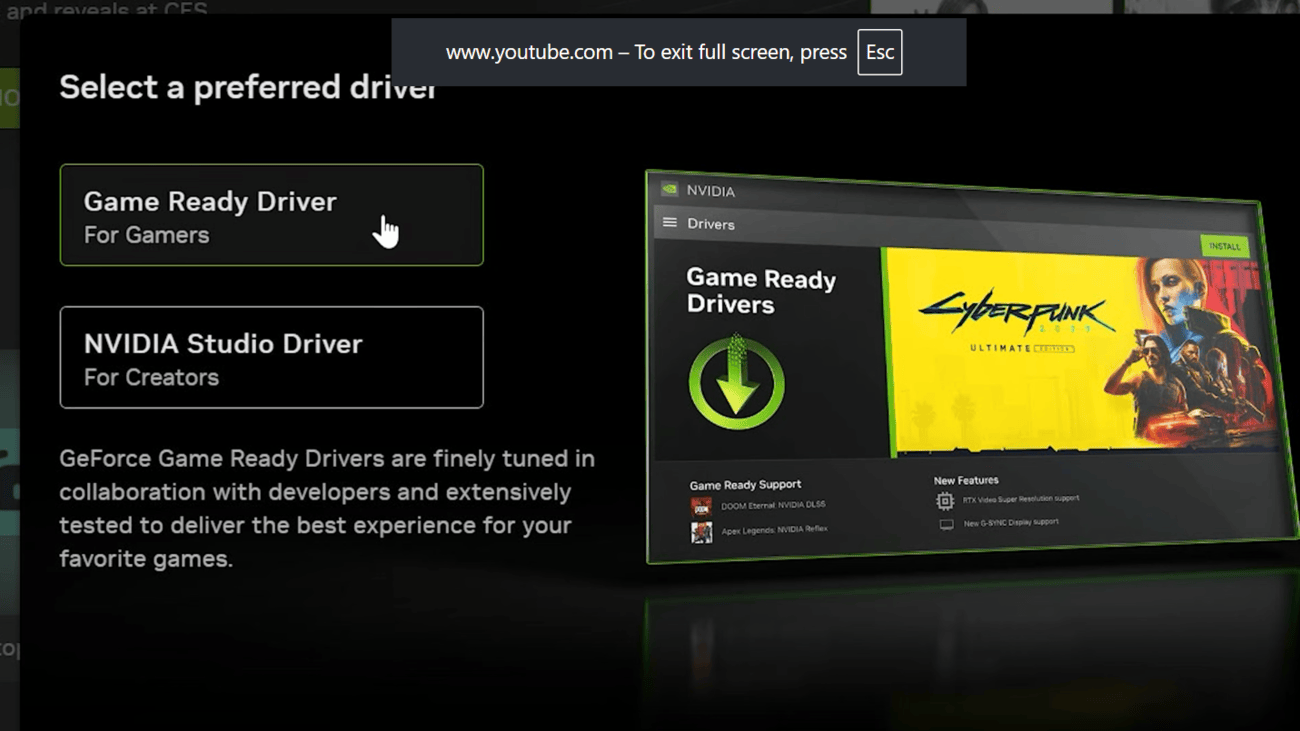
You can update your NVIDIA graphics drivers quickly through the NVIDIA app. If you don’t have the app, install it first. During installation, choose GeForce Game Ready Drivers for the best gaming experience or NVIDIA Studio Drivers for creative tasks like video editing and 3D design. Steps to update NVIDIA drivers:

  1. Open the NVIDIA app.
  2. Click Drivers from the left menu.
    How To Easily Update Your NVIDIA Drivers?
	
Whether you play games, create videos, or perform daily tasks on your computer, having up-to-date NVIDIA drivers is essential. NVIDIA drivers enable your graphics card to work effectively with Windows and programs installed on it. Upgrading your driver will improve performance, solve existing problems, make it more compatible with recently developed software, and offer new features. The most convenient method for upgrading your driver is to use the NVIDIA app, where you can install an updated driver in a few clicks.


Update NVIDIA Drivers Using the NVIDIA App


You can update your NVIDIA graphics drivers quickly through the NVIDIA app. If you don’t have the app, install it first. During installation, choose GeForce Game Ready Drivers for the best gaming experience or NVIDIA Studio Drivers for creative tasks like video editing and 3D design. Steps to update NVIDIA drivers:


Open the NVIDIA app.


Click Drivers from the left menu.


Check for the latest driver update.


Select Download.


Click Install after the download finishes.


Can NVIDIA Drivers Update Automatically?


In the NVIDIA app, there are two different kinds of drivers to choose from: Game Ready Drivers and Studio Drivers. If you play games often, then you should go with the Game Ready Driver. They include optimizations for games and compatibility with newly released titles. However, if you use creative tools such as Adobe Premiere Pro, Blender, and DaVinci Resolve, you should consider using the Studio Drivers, as they suit your purpose.


The NVIDIA app can automatically download new driver updates as soon as they become available. While the download happens in the background, you must still open the app and install the update yourself. To use this feature, go to Settings in the NVIDIA app and enable Automatically download drivers and let me choose when to install. Once enabled, new drivers download in the background, making future updates faster and more convenient.


How to Go Back to an Older NVIDIA Driver


If a new driver update causes any performance or compatibility problems, you can go back to the old driver. The NVIDIA software maintains a list of previously used drivers in the section called Previously Installed on the Drivers tab. Just click the three dots next to your chosen driver and select Reinstall.


In addition to the driver update tool, NVIDIA has several other helpful tools. One of them is an automatic optimization of game settings to improve their performance. It also supports NVIDIA ShadowPlay, which lets you record gameplay and take screenshots or video recordings. You can also check the Drivers page for updates on new games, driver releases, and NVIDIA features.

#Easily #Update #NVIDIA #DriversNVIDIA
  3. Check for the latest driver update.
  4. Select Download.
  5. Click Install after the download finishes.
    install driver

Can NVIDIA Drivers Update Automatically?

In the NVIDIA app, there are two different kinds of drivers to choose from: Game Ready Drivers and Studio Drivers. If you play games often, then you should go with the Game Ready Driver. They include optimizations for games and compatibility with newly released titles. However, if you use creative tools such as Adobe Premiere Pro, Blender, and DaVinci Resolve, you should consider using the Studio Drivers, as they suit your purpose.

The NVIDIA app can automatically download new driver updates as soon as they become available. While the download happens in the background, you must still open the app and install the update yourself. To use this feature, go to Settings in the NVIDIA app and enable Automatically download drivers and let me choose when to install. Once enabled, new drivers download in the background, making future updates faster and more convenient.

How to Go Back to an Older NVIDIA Driver

If a new driver update causes any performance or compatibility problems, you can go back to the old driver. The NVIDIA software maintains a list of previously used drivers in the section called Previously Installed on the Drivers tab. Just click the three dots next to your chosen driver and select Reinstall.

In addition to the driver update tool, NVIDIA has several other helpful tools. One of them is an automatic optimization of game settings to improve their performance. It also supports NVIDIA ShadowPlay, which lets you record gameplay and take screenshots or video recordings. You can also check the Drivers page for updates on new games, driver releases, and NVIDIA features.

#Easily #Update #NVIDIA #DriversNVIDIA">How To Easily Update Your NVIDIA Drivers?
	
Whether you play games, create videos, or perform daily tasks on your computer, having up-to-date NVIDIA drivers is essential. NVIDIA drivers enable your graphics card to work effectively with Windows and programs installed on it. Upgrading your driver will improve performance, solve existing problems, make it more compatible with recently developed software, and offer new features. The most convenient method for upgrading your driver is to use the NVIDIA app, where you can install an updated driver in a few clicks.


Update NVIDIA Drivers Using the NVIDIA App


You can update your NVIDIA graphics drivers quickly through the NVIDIA app. If you don’t have the app, install it first. During installation, choose GeForce Game Ready Drivers for the best gaming experience or NVIDIA Studio Drivers for creative tasks like video editing and 3D design. Steps to update NVIDIA drivers:


Open the NVIDIA app.


Click Drivers from the left menu.


Check for the latest driver update.


Select Download.


Click Install after the download finishes.


Can NVIDIA Drivers Update Automatically?


In the NVIDIA app, there are two different kinds of drivers to choose from: Game Ready Drivers and Studio Drivers. If you play games often, then you should go with the Game Ready Driver. They include optimizations for games and compatibility with newly released titles. However, if you use creative tools such as Adobe Premiere Pro, Blender, and DaVinci Resolve, you should consider using the Studio Drivers, as they suit your purpose.


The NVIDIA app can automatically download new driver updates as soon as they become available. While the download happens in the background, you must still open the app and install the update yourself. To use this feature, go to Settings in the NVIDIA app and enable Automatically download drivers and let me choose when to install. Once enabled, new drivers download in the background, making future updates faster and more convenient.


How to Go Back to an Older NVIDIA Driver


If a new driver update causes any performance or compatibility problems, you can go back to the old driver. The NVIDIA software maintains a list of previously used drivers in the section called Previously Installed on the Drivers tab. Just click the three dots next to your chosen driver and select Reinstall.


In addition to the driver update tool, NVIDIA has several other helpful tools. One of them is an automatic optimization of game settings to improve their performance. It also supports NVIDIA ShadowPlay, which lets you record gameplay and take screenshots or video recordings. You can also check the Drivers page for updates on new games, driver releases, and NVIDIA features.

#Easily #Update #NVIDIA #DriversNVIDIA

app, where you can install an updated driver in a few clicks.

Update NVIDIA Drivers Using the NVIDIA App

You can update your NVIDIA graphics drivers quickly through the NVIDIA app. If you don’t have the app, install it first. During installation, choose GeForce Game Ready Drivers for the best gaming experience or NVIDIA Studio Drivers for creative tasks like video editing and 3D design. Steps to update NVIDIA drivers:

  1. Open the NVIDIA app.
  2. Click Drivers from the left menu.
    How To Easily Update Your NVIDIA Drivers?
	
Whether you play games, create videos, or perform daily tasks on your computer, having up-to-date NVIDIA drivers is essential. NVIDIA drivers enable your graphics card to work effectively with Windows and programs installed on it. Upgrading your driver will improve performance, solve existing problems, make it more compatible with recently developed software, and offer new features. The most convenient method for upgrading your driver is to use the NVIDIA app, where you can install an updated driver in a few clicks.


Update NVIDIA Drivers Using the NVIDIA App


You can update your NVIDIA graphics drivers quickly through the NVIDIA app. If you don’t have the app, install it first. During installation, choose GeForce Game Ready Drivers for the best gaming experience or NVIDIA Studio Drivers for creative tasks like video editing and 3D design. Steps to update NVIDIA drivers:


Open the NVIDIA app.


Click Drivers from the left menu.


Check for the latest driver update.


Select Download.


Click Install after the download finishes.


Can NVIDIA Drivers Update Automatically?


In the NVIDIA app, there are two different kinds of drivers to choose from: Game Ready Drivers and Studio Drivers. If you play games often, then you should go with the Game Ready Driver. They include optimizations for games and compatibility with newly released titles. However, if you use creative tools such as Adobe Premiere Pro, Blender, and DaVinci Resolve, you should consider using the Studio Drivers, as they suit your purpose.


The NVIDIA app can automatically download new driver updates as soon as they become available. While the download happens in the background, you must still open the app and install the update yourself. To use this feature, go to Settings in the NVIDIA app and enable Automatically download drivers and let me choose when to install. Once enabled, new drivers download in the background, making future updates faster and more convenient.


How to Go Back to an Older NVIDIA Driver


If a new driver update causes any performance or compatibility problems, you can go back to the old driver. The NVIDIA software maintains a list of previously used drivers in the section called Previously Installed on the Drivers tab. Just click the three dots next to your chosen driver and select Reinstall.


In addition to the driver update tool, NVIDIA has several other helpful tools. One of them is an automatic optimization of game settings to improve their performance. It also supports NVIDIA ShadowPlay, which lets you record gameplay and take screenshots or video recordings. You can also check the Drivers page for updates on new games, driver releases, and NVIDIA features.

#Easily #Update #NVIDIA #DriversNVIDIA
  3. Check for the latest driver update.
  4. Select Download.
  5. Click Install after the download finishes.
    install driver

Can NVIDIA Drivers Update Automatically?

In the NVIDIA app, there are two different kinds of drivers to choose from: Game Ready Drivers and Studio Drivers. If you play games often, then you should go with the Game Ready Driver. They include optimizations for games and compatibility with newly released titles. However, if you use creative tools such as Adobe Premiere Pro, Blender, and DaVinci Resolve, you should consider using the Studio Drivers, as they suit your purpose.

The NVIDIA app can automatically download new driver updates as soon as they become available. While the download happens in the background, you must still open the app and install the update yourself. To use this feature, go to Settings in the NVIDIA app and enable Automatically download drivers and let me choose when to install. Once enabled, new drivers download in the background, making future updates faster and more convenient.

How to Go Back to an Older NVIDIA Driver

If a new driver update causes any performance or compatibility problems, you can go back to the old driver. The NVIDIA software maintains a list of previously used drivers in the section called Previously Installed on the Drivers tab. Just click the three dots next to your chosen driver and select Reinstall.

In addition to the driver update tool, NVIDIA has several other helpful tools. One of them is an automatic optimization of game settings to improve their performance. It also supports NVIDIA ShadowPlay, which lets you record gameplay and take screenshots or video recordings. You can also check the Drivers page for updates on new games, driver releases, and NVIDIA features.

#Easily #Update #NVIDIA #DriversNVIDIA">How To Easily Update Your NVIDIA Drivers?

Whether you play games, create videos, or perform daily tasks on your computer, having up-to-date NVIDIA drivers is essential. NVIDIA drivers enable your graphics card to work effectively with Windows and programs installed on it. Upgrading your driver will improve performance, solve existing problems, make it more compatible with recently developed software, and offer new features. The most convenient method for upgrading your driver is to use the NVIDIA app, where you can install an updated driver in a few clicks.

Update NVIDIA Drivers Using the NVIDIA App

You can update your NVIDIA graphics drivers quickly through the NVIDIA app. If you don’t have the app, install it first. During installation, choose GeForce Game Ready Drivers for the best gaming experience or NVIDIA Studio Drivers for creative tasks like video editing and 3D design. Steps to update NVIDIA drivers:

  1. Open the NVIDIA app.
  2. Click Drivers from the left menu.
    How To Easily Update Your NVIDIA Drivers?
	
Whether you play games, create videos, or perform daily tasks on your computer, having up-to-date NVIDIA drivers is essential. NVIDIA drivers enable your graphics card to work effectively with Windows and programs installed on it. Upgrading your driver will improve performance, solve existing problems, make it more compatible with recently developed software, and offer new features. The most convenient method for upgrading your driver is to use the NVIDIA app, where you can install an updated driver in a few clicks.


Update NVIDIA Drivers Using the NVIDIA App


You can update your NVIDIA graphics drivers quickly through the NVIDIA app. If you don’t have the app, install it first. During installation, choose GeForce Game Ready Drivers for the best gaming experience or NVIDIA Studio Drivers for creative tasks like video editing and 3D design. Steps to update NVIDIA drivers:


Open the NVIDIA app.


Click Drivers from the left menu.


Check for the latest driver update.


Select Download.


Click Install after the download finishes.


Can NVIDIA Drivers Update Automatically?


In the NVIDIA app, there are two different kinds of drivers to choose from: Game Ready Drivers and Studio Drivers. If you play games often, then you should go with the Game Ready Driver. They include optimizations for games and compatibility with newly released titles. However, if you use creative tools such as Adobe Premiere Pro, Blender, and DaVinci Resolve, you should consider using the Studio Drivers, as they suit your purpose.


The NVIDIA app can automatically download new driver updates as soon as they become available. While the download happens in the background, you must still open the app and install the update yourself. To use this feature, go to Settings in the NVIDIA app and enable Automatically download drivers and let me choose when to install. Once enabled, new drivers download in the background, making future updates faster and more convenient.


How to Go Back to an Older NVIDIA Driver


If a new driver update causes any performance or compatibility problems, you can go back to the old driver. The NVIDIA software maintains a list of previously used drivers in the section called Previously Installed on the Drivers tab. Just click the three dots next to your chosen driver and select Reinstall.


In addition to the driver update tool, NVIDIA has several other helpful tools. One of them is an automatic optimization of game settings to improve their performance. It also supports NVIDIA ShadowPlay, which lets you record gameplay and take screenshots or video recordings. You can also check the Drivers page for updates on new games, driver releases, and NVIDIA features.

#Easily #Update #NVIDIA #DriversNVIDIA
  3. Check for the latest driver update.
  4. Select Download.
  5. Click Install after the download finishes.
    install driver

Can NVIDIA Drivers Update Automatically?

In the NVIDIA app, there are two different kinds of drivers to choose from: Game Ready Drivers and Studio Drivers. If you play games often, then you should go with the Game Ready Driver. They include optimizations for games and compatibility with newly released titles. However, if you use creative tools such as Adobe Premiere Pro, Blender, and DaVinci Resolve, you should consider using the Studio Drivers, as they suit your purpose.

The NVIDIA app can automatically download new driver updates as soon as they become available. While the download happens in the background, you must still open the app and install the update yourself. To use this feature, go to Settings in the NVIDIA app and enable Automatically download drivers and let me choose when to install. Once enabled, new drivers download in the background, making future updates faster and more convenient.

How to Go Back to an Older NVIDIA Driver

If a new driver update causes any performance or compatibility problems, you can go back to the old driver. The NVIDIA software maintains a list of previously used drivers in the section called Previously Installed on the Drivers tab. Just click the three dots next to your chosen driver and select Reinstall.

In addition to the driver update tool, NVIDIA has several other helpful tools. One of them is an automatic optimization of game settings to improve their performance. It also supports NVIDIA ShadowPlay, which lets you record gameplay and take screenshots or video recordings. You can also check the Drivers page for updates on new games, driver releases, and NVIDIA features.

#Easily #Update #NVIDIA #DriversNVIDIA

Post Comment