×
OPPO F31 Pro+ Review: Durability Is Still the King

OPPO F31 Pro+ Review: Durability Is Still the King

Durability in smartphones has come a long way from the days of handling them with utmost care to now us expecting them to last in every condition. OPPO’s F series has built its reputation as the toughest smartphone money can buy, and the company has just come out with a new one. The OPPO F31 Pro+ builds on its predecessor and now comes with an even more durable body, a massive 7000 mAh cell, and the Qualcomm Snapdragon 7 Gen 3 processor.

OPPO sent over their F31 Pro+ for me to test, and this review will culminate my experience with the device over a period of two weeks, highlighting its pros and cons, and whether you should consider spending INR 32,999 of your hard-earned money or not.

OPPO F31 Pro+ Review

Hisan Kidwai

Summary

At INR 31,999, the OPPO F31 Pro+ has the same ingredients as its predecessor. It packs in a stellar battery and protection that can withstand almost every condition.

However, there are some flaws. The processor is almost two years old, and despite its smoothness, the software experience is cluttered. The F31 Pro+ is for people who value design, protection, and battery over anything else.

Design & Hardware

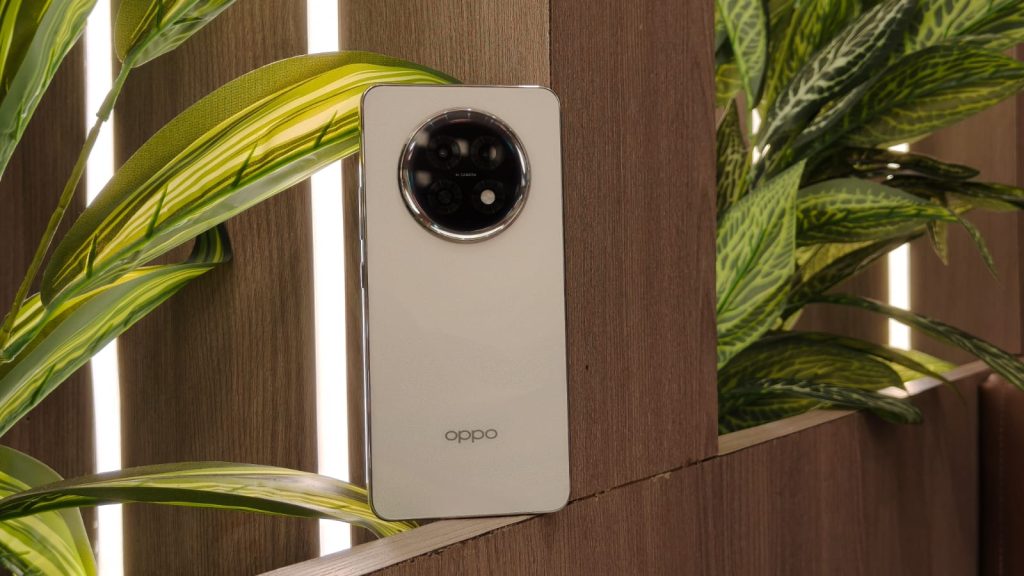
One of the pillars of the F series is the design, and OPPO has nailed it out of the park. The F31 Pro+ is available in three colors: Gemstone Blue, Himalayan White, and Festive Pink, all of which are really pretty. The Himalayan White version I received was exquisite to look at, with all the little details, the sparkles, and the light reflections. Under the correct light angle, you can also see the individual brush strokes and how they reflect a glittery green light. Plus, the finish is matte, so it doesn’t attract fingerprints, either.

The circular camera island, which doesn’t protrude much, has this white halo around it, which is a really cool effect. Almost everyone I handed the phone to loved the design and stated it adds a really “premium feel.”
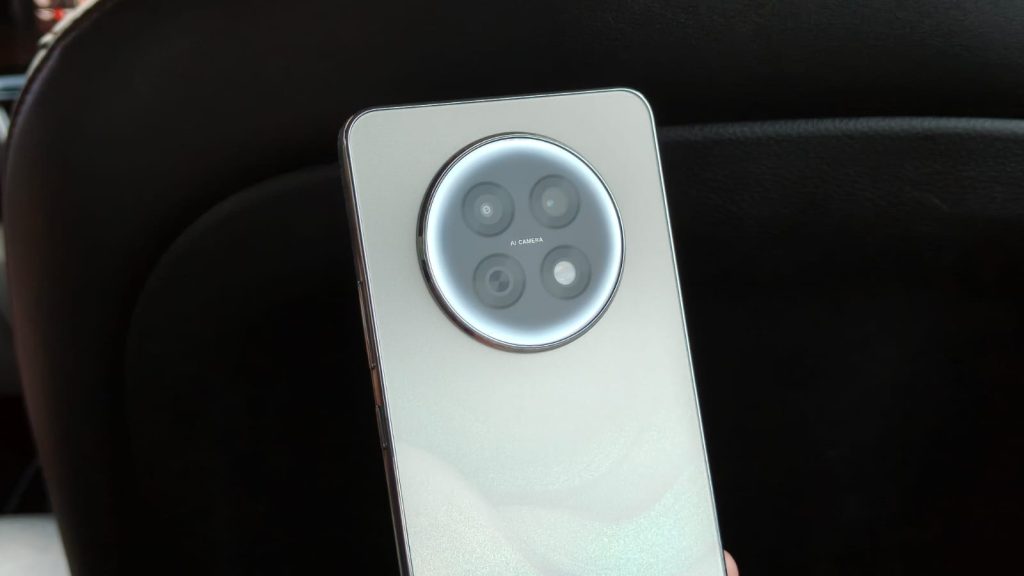
Image of the camera halo of the F31 pro+

The ergonomics, on the other hand, are solid. OPPO has gone with a flat design, which is the newest trend and something I love. The sides are made of shiny aluminum, and despite the fingerprint mess, they not only look elegant but also do a solid job of protecting the device.

Speaking of durability, there’s a lot of stuff. First up, OPPO has incorporated foam and cushioning pads inside the phone near major components like the cameras to protect them from the shock of a fall. There’s also a new motherboard cover that theoretically provides 10% more protection than last year’s models.

I don’t drop phones often, but to test these claims, I intentionally conducted a drop test from various heights, and the F31 Pro+ survived without problems. There was some scuffing on the side, but nothing too major. Also, there’s IP 65, 68, and 69 water and dust protection, meaning if you drop your phone in your food while watching reels, you can go wash it under water and it’ll come out just fine.

Display
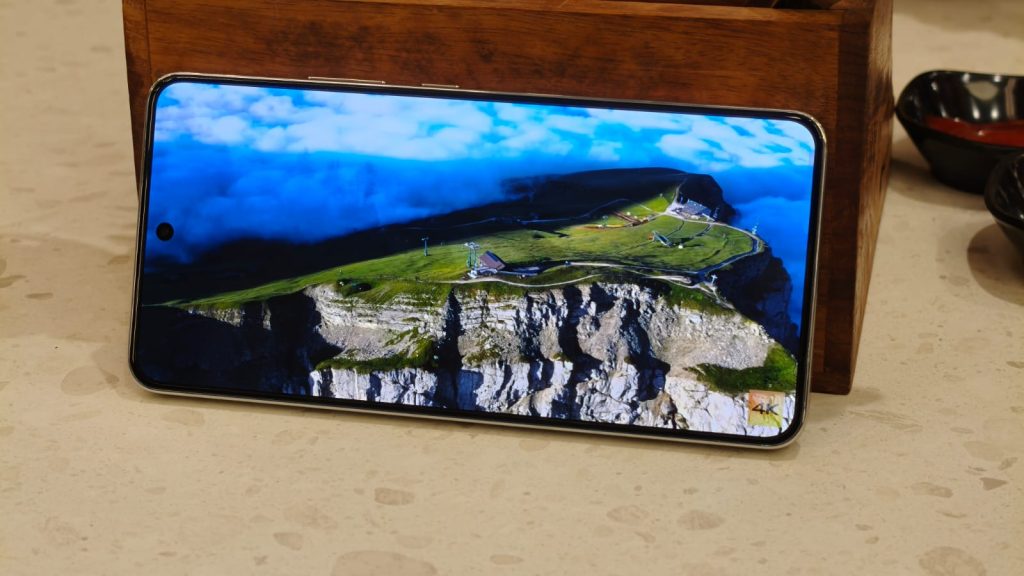
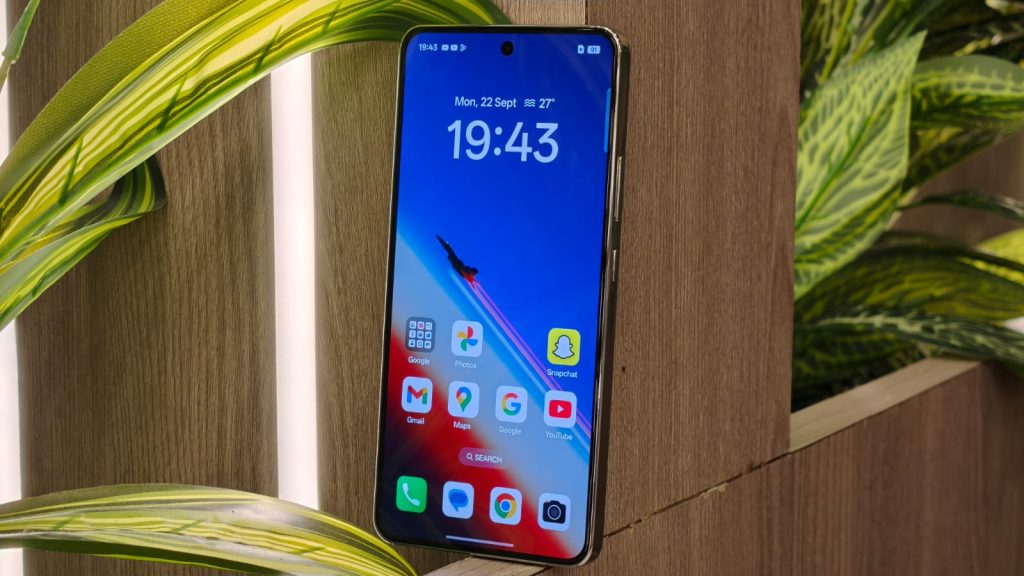
Image of the display on the F31 Pro+

The OPPO F31 Pro+ comes with a flat 6.78-inch FHD+ 120Hz AMOLED display, and it is gorgeous. The colors pop, the text is sharp, and the blacks are inky deep. This recipe makes for a super enjoyable multimedia experience on streaming platforms like Netflix and Prime Video.

Taking the phone in direct sunlight isn’t an issue either, thanks to the 1600 nits of peak brightness, which made text and content readable. There’s also  2160Hz high-frequency PWM dimming that reduces flicker, especially in low-brightness environments. I also love that OPPO has incorporated uniform bezels along the display, which adds to the premium feel.

Performance
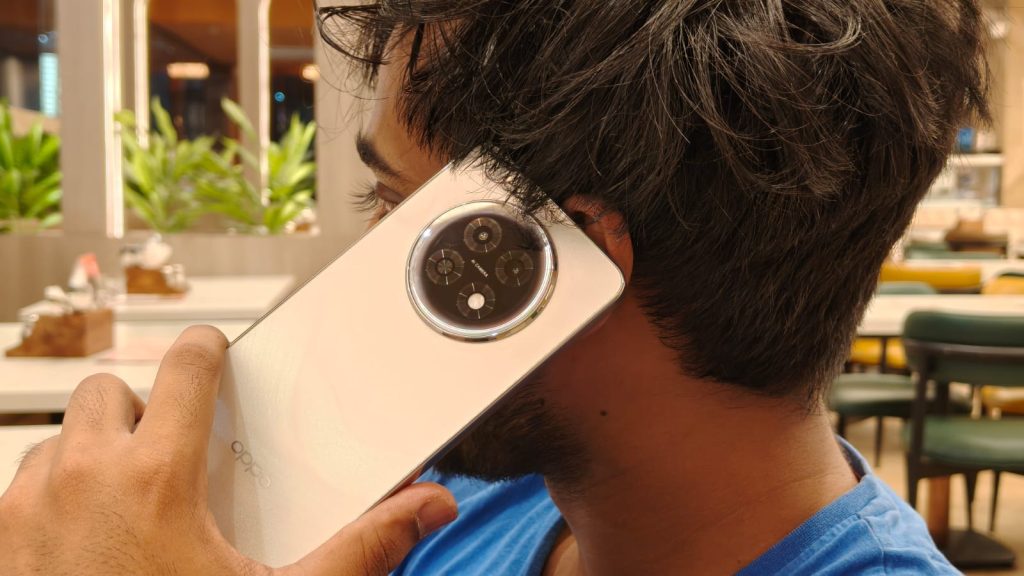
Image of a person taking a call

The OPPO F31 Pro+ runs on the last-gen Qualcomm Snapdragon 7 Gen 3 chipset, which houses one Cortex-A715 prime core at up to 2.63 GHz, three Cortex-A715 performance cores at up to 2.4 GHz, and four Cortex-A510 efficiency cores at up to 1.8 GHz, along with the Adreno 720 GPU. In addition, my unit came with 12 GB of LPDDR4X RAM and 256 GB of UFS 3.1 internal storage.

Honestly, there’s no easy way to put it, but the OPPO F31 Pro+ uses a processor that’s almost two years old, which is ancient in the tech world. Sure, it was an amazing performer back then, but Qualcomm has already released the chip’s successor, and it’s at least 30% percent faster.

If we set aside the rant about the processor and focus on the actual performance, then I have zero complaints. The 7 Gen 3 is still a capable chip that can handle every daily task, be it scrolling reels, watching Netflix, or reading. A big part of this can be attributed to ColorOS, which is the smoothest Android skin with slick animations, fast loading times, and thoughtful additions.

However, there is a LOT of bloatware. Even after I said no to installing recommended apps during setup, the phone still downloaded 20 games and apps that I did not want, and removing them was a pain. Plus, the device comes with both Google and OPPO dialers and message apps, which is weird considering you can’t uninstall the OPPO dialer.

Benchmarks & Gaming

Image of a person gaming on the OPPO f31 Pro+

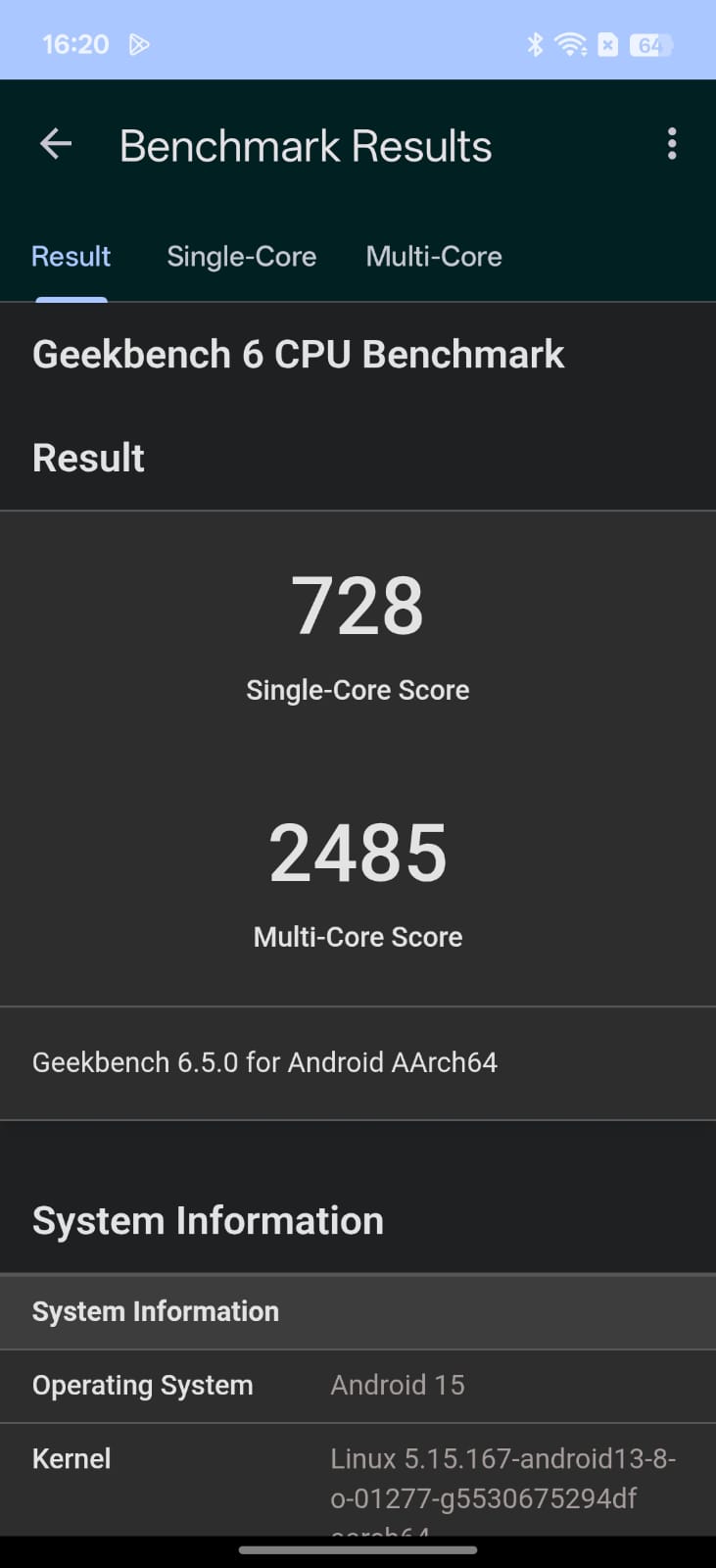
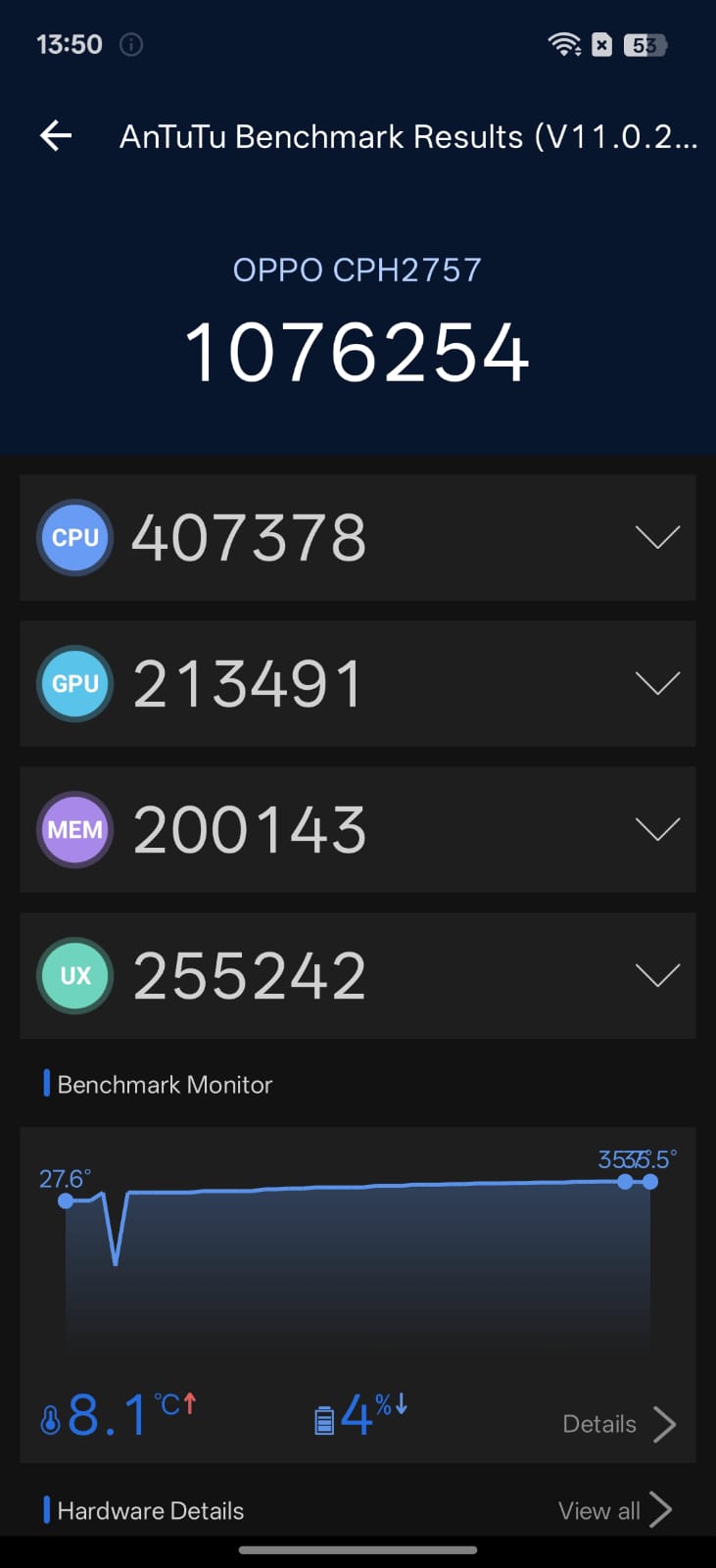
Since this is a review, I put the 7 Gen 3 chip inside the F31 Pro+ through a series of tests and benchmarks. In Geekbench’s single-core and multi-core tests, the device scored 728 and 2485, respectively. On the other hand, in AnTuTu, the chip managed to get 1,076,254 points. Finally, in the infamous 30 threat 30-minute throttle test, I observed no thermal throttling at all.
As you may have expected, the gaming performance of the OPPO F31 Pro+ is decent. In games like PUBG and CODM, the phone delivers a respectable 60 fps at high settings, without lag or overheating.

Battery Life
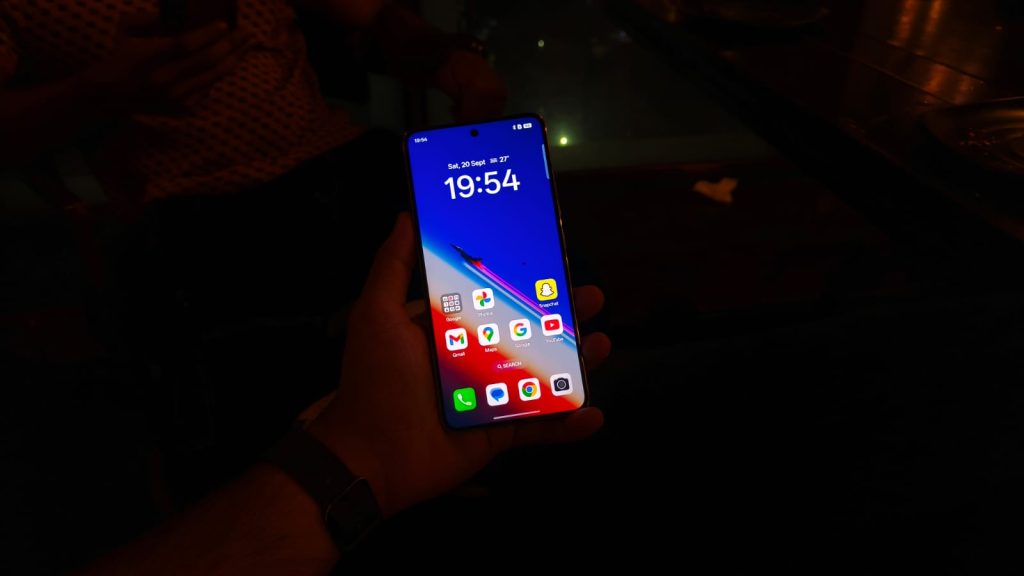
Image of a person using a phone

After the build and design, the next biggest reason why you should consider the F31 Pro+ is the battery. Standing at a massive 7,000 mAh, the phone easily lasted me two full days of moderate to heavy usage. To put this in perspective, I mindlessly scrolled reels, watched YouTube, took camera samples, and played a bit of BGMI.

The phone also comes with an 80W fast charger in the box, which juices up the battery from 20% to 80% in just under an hour.

Cameras

Image of the camera module

The OPPO F31 Pro+ comes with a single 50 MP primary sensor with an f/1.8 aperture, and despite my initial reservations, it performs quite well. Give the sensor enough light, and the photos it produces are punchy, have good skin tones and sharpness, and there’s a decent amount of HDR, too. There were a couple of scenarios where the highlights were a bit blown, but that wasn’t a big issue.

The good news continues in artificial lighting, where the results are still detailed enough and have decent colors. However, there is some shutter delay, so capturing moving objects can be a challenge. Since there’s no telephoto camera, the primary sensor also doubles as the portrait lens. And for the most part, it works just fine as the photos in daytime are detailed, have a nice shallow depth of field, and skin tones are accurate as well.

Selfies, on the other hand, were solid in both daytime and nighttime scenarios. I could easily fit multiple people in the viewfinder, the colors were accurate, and the details were on point.

Should you buy the OPPO F31 Pro+?
At INR 31,999, the OPPO F31 Pro+ has the same ingredients as its predecessor. It packs in a stellar battery and protection that can withstand almost every condition. However, there are some flaws. The processor is almost two years old, and despite its smoothness, the software experience is cluttered. The F31 Pro+ is for people who value design, protection, and battery over anything else. And if you’re that person, then the F31 Pro+ makes a ton of sense.

Source link
#OPPO #F31 #Pro #Review #Durability #King

Indian serial entrepreneur Bhavin Turakhia is making a $30 million personal bet that there is still room for another enterprise AI company. His new venture, Neo, is built on a simple premise: workplace software designed before the AI era cannot simply be upgraded with chatbots — it has to be redesigned from the ground up.

Turakhia, 46, is no stranger to ambitious enterprise technology bets. Over the past two decades, he has co-founded companies including Directi, Radix, Titan, and banking software firm Zeta, largely backing them with his own cash before bringing in outside investors. He’s doing the same with Neo.

Turakhia told TechCrunch he is bootstrapping this much money because he believes AI marks a technology shift significant enough to justify rebuilding workplace software from scratch.

“If you want to build an iPhone, you can’t take the parts of a Nokia and somehow convert it into an iPhone,” he said.

Launched internally in April this year, Neo is an enterprise work platform that combines project management, documents, file storage, and AI into a single product. The goal, Turakhia said, is to make AI an active participant in day-to-day work rather than just another assistant employees turn to separately.

Turakhia argued most incumbents face a structural disadvantage when adding AI to products designed before generative AI. Neo, he said, was designed from the ground up for AI and is model-agnostic, allowing enterprises to switch between AI models rather than being tied to a single provider.

He’s not alone in thinking this way. Investor Chamath Palihapitiya initially launched enterprise AI coding venture 8090 with his own capital before raising a $135 million funding round this week.

Still, Turakhia’s bet comes as enterprise AI has emerged as one of the most competitive areas in technology. Microsoft, Google, and Salesforce are embedding AI across their workplace software. Meanwhile every startup from the giant labs like Anthropic and OpenAI, to the productivity companies like Notion and Superhuman are racing to reshape how businesses use AI in their daily workflow.

Turakhia argued enterprise software has never been a winner-takes-all market, saying even a small share of global enterprise AI spending would represent a sizeable company.

“Even if we end up with 2% to 5% market share, that’s larger than anything I’ve built so far,” he said.

For the past few months, Neo has been in internal use across Turakhia’s companies, including Zeta. The company plans to begin rolling out the software to mid-sized businesses in the coming months, initially targeting knowledge workers across technology, consulting, and professional services firms.

Turakhia said Neo’s initial platform was built in three months, with AI extensively used in the development process, work he estimates would have taken more than a year with a much larger engineering team before generative AI.

The Bengaluru-based startup currently employs about 45 people, including 18 engineers. Turakhia told TechCrunch that it expects to grow to around 100 employees by the end of the year, with most new hires focused on AI and software engineering.

When you purchase through links in our articles, we may earn a small commission. This doesn’t affect our editorial independence.

#Indian #tech #tycoon #bets #30M #money #build #alternative #Microsoft #Office #TechCrunchBhavin Turakhia,microsoft office,neo">Indian tech tycoon bets M of his own money to build AI alternative to Microsoft Office | TechCrunch
Indian serial entrepreneur Bhavin Turakhia is making a  million personal bet that there is still room for another enterprise AI company. His new venture, Neo, is built on a simple premise: workplace software designed before the AI era cannot simply be upgraded with chatbots — it has to be redesigned from the ground up.

Turakhia, 46, is no stranger to ambitious enterprise technology bets. Over the past two decades, he has co-founded companies including Directi, Radix, Titan, and banking software firm Zeta, largely backing them with his own cash before bringing in outside investors. He’s doing the same with Neo.


Turakhia told TechCrunch he is bootstrapping this much money because he believes AI marks a technology shift significant enough to justify rebuilding workplace software from scratch.

“If you want to build an iPhone, you can’t take the parts of a Nokia and somehow convert it into an iPhone,” he said.

Launched internally in April this year, Neo is an enterprise work platform that combines project management, documents, file storage, and AI into a single product. The goal, Turakhia said, is to make AI an active participant in day-to-day work rather than just another assistant employees turn to separately.

Turakhia argued most incumbents face a structural disadvantage when adding AI to products designed before generative AI. Neo, he said, was designed from the ground up for AI and is model-agnostic, allowing enterprises to switch between AI models rather than being tied to a single provider.

He’s not alone in thinking this way. Investor Chamath Palihapitiya initially launched enterprise AI coding venture 8090 with his own capital before raising a 5 million funding round this week.


Still, Turakhia’s bet comes as enterprise AI has emerged as one of the most competitive areas in technology. Microsoft, Google, and Salesforce are embedding AI across their workplace software. Meanwhile every startup from the giant labs like Anthropic and OpenAI, to the productivity companies like Notion and Superhuman are racing to reshape how businesses use AI in their daily workflow.

Turakhia argued enterprise software has never been a winner-takes-all market, saying even a small share of global enterprise AI spending would represent a sizeable company.

“Even if we end up with 2% to 5% market share, that’s larger than anything I’ve built so far,” he said.


For the past few months, Neo has been in internal use across Turakhia’s companies, including Zeta. The company plans to begin rolling out the software to mid-sized businesses in the coming months, initially targeting knowledge workers across technology, consulting, and professional services firms.

Turakhia said Neo’s initial platform was built in three months, with AI extensively used in the development process, work he estimates would have taken more than a year with a much larger engineering team before generative AI.

The Bengaluru-based startup currently employs about 45 people, including 18 engineers. Turakhia told TechCrunch that it expects to grow to around 100 employees by the end of the year, with most new hires focused on AI and software engineering.
When you purchase through links in our articles, we may earn a small commission. This doesn’t affect our editorial independence.#Indian #tech #tycoon #bets #30M #money #build #alternative #Microsoft #Office #TechCrunchBhavin Turakhia,microsoft office,neo

Neo, is built on a simple premise: workplace software designed before the AI era cannot simply be upgraded with chatbots — it has to be redesigned from the ground up.

Turakhia, 46, is no stranger to ambitious enterprise technology bets. Over the past two decades, he has co-founded companies including Directi, Radix, Titan, and banking software firm Zeta, largely backing them with his own cash before bringing in outside investors. He’s doing the same with Neo.

Turakhia told TechCrunch he is bootstrapping this much money because he believes AI marks a technology shift significant enough to justify rebuilding workplace software from scratch.

“If you want to build an iPhone, you can’t take the parts of a Nokia and somehow convert it into an iPhone,” he said.

Launched internally in April this year, Neo is an enterprise work platform that combines project management, documents, file storage, and AI into a single product. The goal, Turakhia said, is to make AI an active participant in day-to-day work rather than just another assistant employees turn to separately.

Turakhia argued most incumbents face a structural disadvantage when adding AI to products designed before generative AI. Neo, he said, was designed from the ground up for AI and is model-agnostic, allowing enterprises to switch between AI models rather than being tied to a single provider.

He’s not alone in thinking this way. Investor Chamath Palihapitiya initially launched enterprise AI coding venture 8090 with his own capital before raising a $135 million funding round this week.

Still, Turakhia’s bet comes as enterprise AI has emerged as one of the most competitive areas in technology. Microsoft, Google, and Salesforce are embedding AI across their workplace software. Meanwhile every startup from the giant labs like Anthropic and OpenAI, to the productivity companies like Notion and Superhuman are racing to reshape how businesses use AI in their daily workflow.

Turakhia argued enterprise software has never been a winner-takes-all market, saying even a small share of global enterprise AI spending would represent a sizeable company.

“Even if we end up with 2% to 5% market share, that’s larger than anything I’ve built so far,” he said.

For the past few months, Neo has been in internal use across Turakhia’s companies, including Zeta. The company plans to begin rolling out the software to mid-sized businesses in the coming months, initially targeting knowledge workers across technology, consulting, and professional services firms.

Turakhia said Neo’s initial platform was built in three months, with AI extensively used in the development process, work he estimates would have taken more than a year with a much larger engineering team before generative AI.

The Bengaluru-based startup currently employs about 45 people, including 18 engineers. Turakhia told TechCrunch that it expects to grow to around 100 employees by the end of the year, with most new hires focused on AI and software engineering.

When you purchase through links in our articles, we may earn a small commission. This doesn’t affect our editorial independence.

#Indian #tech #tycoon #bets #30M #money #build #alternative #Microsoft #Office #TechCrunchBhavin Turakhia,microsoft office,neo">Indian tech tycoon bets $30M of his own money to build AI alternative to Microsoft Office | TechCrunch

Indian serial entrepreneur Bhavin Turakhia is making a $30 million personal bet that there is still room for another enterprise AI company. His new venture, Neo, is built on a simple premise: workplace software designed before the AI era cannot simply be upgraded with chatbots — it has to be redesigned from the ground up.

Turakhia, 46, is no stranger to ambitious enterprise technology bets. Over the past two decades, he has co-founded companies including Directi, Radix, Titan, and banking software firm Zeta, largely backing them with his own cash before bringing in outside investors. He’s doing the same with Neo.

Turakhia told TechCrunch he is bootstrapping this much money because he believes AI marks a technology shift significant enough to justify rebuilding workplace software from scratch.

“If you want to build an iPhone, you can’t take the parts of a Nokia and somehow convert it into an iPhone,” he said.

Launched internally in April this year, Neo is an enterprise work platform that combines project management, documents, file storage, and AI into a single product. The goal, Turakhia said, is to make AI an active participant in day-to-day work rather than just another assistant employees turn to separately.

Turakhia argued most incumbents face a structural disadvantage when adding AI to products designed before generative AI. Neo, he said, was designed from the ground up for AI and is model-agnostic, allowing enterprises to switch between AI models rather than being tied to a single provider.

He’s not alone in thinking this way. Investor Chamath Palihapitiya initially launched enterprise AI coding venture 8090 with his own capital before raising a $135 million funding round this week.

Still, Turakhia’s bet comes as enterprise AI has emerged as one of the most competitive areas in technology. Microsoft, Google, and Salesforce are embedding AI across their workplace software. Meanwhile every startup from the giant labs like Anthropic and OpenAI, to the productivity companies like Notion and Superhuman are racing to reshape how businesses use AI in their daily workflow.

Turakhia argued enterprise software has never been a winner-takes-all market, saying even a small share of global enterprise AI spending would represent a sizeable company.

“Even if we end up with 2% to 5% market share, that’s larger than anything I’ve built so far,” he said.

For the past few months, Neo has been in internal use across Turakhia’s companies, including Zeta. The company plans to begin rolling out the software to mid-sized businesses in the coming months, initially targeting knowledge workers across technology, consulting, and professional services firms.

Turakhia said Neo’s initial platform was built in three months, with AI extensively used in the development process, work he estimates would have taken more than a year with a much larger engineering team before generative AI.

The Bengaluru-based startup currently employs about 45 people, including 18 engineers. Turakhia told TechCrunch that it expects to grow to around 100 employees by the end of the year, with most new hires focused on AI and software engineering.

When you purchase through links in our articles, we may earn a small commission. This doesn’t affect our editorial independence.

#Indian #tech #tycoon #bets #30M #money #build #alternative #Microsoft #Office #TechCrunchBhavin Turakhia,microsoft office,neo
How Do You Get Started With Transkriptor?

To start with Transkriptor, it does not take more than 1 minute. You can sign up with Google, Microsoft, Apple, or email. Transkriptor leans on a row of recognizable logos, from Pfizer and Tesla to Harvard and Microsoft, to build your trust before using it.

Transkriptor offers a clean, easy-to-navigate dashboard with 5 ways to create a transcript. You can record live audio, upload a file, pull a video from YouTube, join a meeting, and import audio-video files from the cloud. A left rail holds the heavier tools, including text-to-speech, AI content generation, and a calendar for scheduled meetings. The core action is never more than one click; you get transcription without any technical difficulties.

How Accurate is Transkriptor at Converting Speech to Text?

Accuracy is the most important thing, and an honest answer is better than a flawless one. On clean English audio, meaning a single speaker in a quiet room, Transkriptor landed in the high-80s to low-90s percent range in my tests, which matches what independent reviewers report. If you upload a clean 30-minute file, it will take you only a few minutes to check for grammar mistakes, mostly punctuation marks.

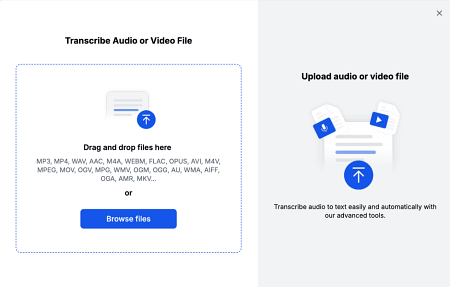
I started testing the tool by uploading different audio and video files, and Transkriptor supports a wide range of formats, so I never had to convert the file before uploading.

Transkriptor Review: Is It the Best Speech-to-Text App?
	
Manual transcription takes much time that most people do not have. I usually spend hours every week turning interviews and meetings into text, so I tried Transkriptor through a test to see if it could take notes and save me time. Transkriptor is an AI speech-to-text tool. It converts audio and video files into editable transcripts, and it supports 100+ languages. Over a week, I uploaded my clean and slightly messy recordings, ran them against accented audio, and also linked them to Zoom and Google Meet calls.


Here is how Transkriptor does well, where it goes wrong, and who should use it. 


How Do You Get Started With Transkriptor?


To start with Transkriptor, it does not take more than 1 minute. You can sign up with Google, Microsoft, Apple, or email. Transkriptor leans on a row of recognizable logos, from Pfizer and Tesla to Harvard and Microsoft, to build your trust before using it.


Transkriptor offers a clean, easy-to-navigate dashboard with 5 ways to create a transcript. You can record live audio, upload a file, pull a video from YouTube, join a meeting, and import audio-video files from the cloud. A left rail holds the heavier tools, including text-to-speech, AI content generation, and a calendar for scheduled meetings. The core action is never more than one click; you get transcription without any technical difficulties.


How Accurate is Transkriptor at Converting Speech to Text?


Accuracy is the most important thing, and an honest answer is better than a flawless one. On clean English audio, meaning a single speaker in a quiet room, Transkriptor landed in the high-80s to low-90s percent range in my tests, which matches what independent reviewers report. If you upload a clean 30-minute file, it will take you only a few minutes to check for grammar mistakes, mostly punctuation marks.


I started testing the tool by uploading different audio and video files, and Transkriptor supports a wide range of formats, so I never had to convert the file before uploading.


Audio with background noise and overlapping speakers leads to less accurate transcription. Also, non-native heavy accents reduced accuracy. Transkriptor supports 100+ languages and adds domain-specific vocabulary for medical, legal, and IT terms, which helped with a jargon-heavy recording, though non-English audio was less even than English.


Transkriptor’s editor did the real work. Every line of transcription carries a timestamp and speaker label. You can play back the audio while reading the transcription to ensure everything is up to the point. Additionally, AI chat and summary let you pull a quick recap of the whole conversation. You get richer insights, such as sentiment analysis and speaker talk time, but it is locked behind the Team plan.


Does Transkriptor Handle Zoom, Google Meet, and Teams Meetings?


Yes, Transkriptor handles Zoom, Google Meet, and Teams meetings with ease. You paste the link to add a recording bot to the live call. Or you can connect your Google or Outlook calendar so Transkriptor auto-joins scheduled meetings. I connected my Google Calendar in 2 clicks and set it to auto-detect the platform and record the meeting.


After each call, I got a transcript with speaker labels and an auto-generated summary with action items, which is exactly what a remote team wants from a note-taker. The bot-joins-the-call model is the same approach Otter uses, and Transkriptor matches it while supporting far more languages.


What Does Transkriptor Cost, and How Does It Compare to Otter and Sonix?


To get access to all features, you need to buy a Transkriptor subscription. It’s a limited free tier with a small daily allowance that lets you test it. Lite plan starts at .99 per month for 5 hours of transcription. Pro is .99 per month or .33 per month on annual billing (.99 a year) and unlocks 2,400 minutes per month with unlimited files. 


Team runs  per seat monthly, or  per seat on annual billing (0 a year per seat), adding 3,000 minutes per seat, shared workspaces, call analysis, and custom vocabulary. A custom-priced Business tier is available for larger orgs. Transkriptor is also ISO 27001, SOC 2, and GDPR compliant, which matters for regulated work.


Against the alternative transcription tools, Transkriptor lands in a useful middle ground. Otter is the polished meeting assistant with strong CRM sync, but it transcribes only 6 languages and caps your minutes. Sonix charges per hour and delivers the highest audio accuracy. Here is how the three line up.


ToolEntry pricingLanguagesBest atWatch out forTranskriptor.99/mo, free tier available100+Files plus live meeting recordings in one toolAccuracy dips on noisy or accented audioOtterFree, then .33/mo annual6 languagesLive meeting notes and CRM syncFew languages, strict minute capsSonix per audio hour, pay as you go50+High accuracy on clean filesNo live meeting recording


Who is Transkriptor Best For?


With Transkriptor, you get a practical mix of transcription, meeting recording, AI summaries, and multilingual support. During my testing, Transkriptor handled clean audio and video files well and integrated smoothly with Zoom, Google Meet, and Teams. It made it easy to turn speech into readable meeting notes and summaries.


While accuracy can vary with heavy background noise or challenging accents, the overall experience is reliable enough for most everyday transcription needs. The combination of 100+ language support, meeting integrations, and competitive pricing gives it a broader feature set than many alternatives.


For students, journalists, podcasters, and remote teams working across multiple languages, Transkriptor is a capable and cost-effective speech-to-text solution.

#Transkriptor #Review #SpeechtoText #AppAI

Audio with background noise and overlapping speakers leads to less accurate transcription. Also, non-native heavy accents reduced accuracy. Transkriptor supports 100+ languages and adds domain-specific vocabulary for medical, legal, and IT terms, which helped with a jargon-heavy recording, though non-English audio was less even than English.

Transkriptor’s editor did the real work. Every line of transcription carries a timestamp and speaker label. You can play back the audio while reading the transcription to ensure everything is up to the point. Additionally, AI chat and summary let you pull a quick recap of the whole conversation. You get richer insights, such as sentiment analysis and speaker talk time, but it is locked behind the Team plan.

Home page of transkriptor

Does Transkriptor Handle Zoom, Google Meet, and Teams Meetings?

Yes, Transkriptor handles Zoom, Google Meet, and Teams meetings with ease. You paste the link to add a recording bot to the live call. Or you can connect your Google or Outlook calendar so Transkriptor auto-joins scheduled meetings. I connected my Google Calendar in 2 clicks and set it to auto-detect the platform and record the meeting.

Live meeting section

After each call, I got a transcript with speaker labels and an auto-generated summary with action items, which is exactly what a remote team wants from a note-taker. The bot-joins-the-call model is the same approach Otter uses, and Transkriptor matches it while supporting far more languages.

What Does Transkriptor Cost, and How Does It Compare to Otter and Sonix?

To get access to all features, you need to buy a Transkriptor subscription. It’s a limited free tier with a small daily allowance that lets you test it. Lite plan starts at $9.99 per month for 5 hours of transcription. Pro is $19.99 per month or $8.33 per month on annual billing ($99.99 a year) and unlocks 2,400 minutes per month with unlimited files. 

Team runs $30 per seat monthly, or $20 per seat on annual billing ($240 a year per seat), adding 3,000 minutes per seat, shared workspaces, call analysis, and custom vocabulary. A custom-priced Business tier is available for larger orgs. Transkriptor is also ISO 27001, SOC 2, and GDPR compliant, which matters for regulated work.

Against the alternative transcription tools, Transkriptor lands in a useful middle ground. Otter is the polished meeting assistant with strong CRM sync, but it transcribes only 6 languages and caps your minutes. Sonix charges per hour and delivers the highest audio accuracy. Here is how the three line up.

ToolEntry pricingLanguagesBest atWatch out for
Transkriptor$9.99/mo, free tier available100+Files plus live meeting recordings in one toolAccuracy dips on noisy or accented audio
OtterFree, then $8.33/mo annual6 languagesLive meeting notes and CRM syncFew languages, strict minute caps
Sonix$10 per audio hour, pay as you go50+High accuracy on clean filesNo live meeting recording

Who is Transkriptor Best For?

With Transkriptor, you get a practical mix of transcription, meeting recording, AI summaries, and multilingual support. During my testing, Transkriptor handled clean audio and video files well and integrated smoothly with Zoom, Google Meet, and Teams. It made it easy to turn speech into readable meeting notes and summaries.

While accuracy can vary with heavy background noise or challenging accents, the overall experience is reliable enough for most everyday transcription needs. The combination of 100+ language support, meeting integrations, and competitive pricing gives it a broader feature set than many alternatives.

For students, journalists, podcasters, and remote teams working across multiple languages, Transkriptor is a capable and cost-effective speech-to-text solution.

#Transkriptor #Review #SpeechtoText #AppAI">Transkriptor Review: Is It the Best Speech-to-Text App?
	
Manual transcription takes much time that most people do not have. I usually spend hours every week turning interviews and meetings into text, so I tried Transkriptor through a test to see if it could take notes and save me time. Transkriptor is an AI speech-to-text tool. It converts audio and video files into editable transcripts, and it supports 100+ languages. Over a week, I uploaded my clean and slightly messy recordings, ran them against accented audio, and also linked them to Zoom and Google Meet calls.


Here is how Transkriptor does well, where it goes wrong, and who should use it. 


How Do You Get Started With Transkriptor?


To start with Transkriptor, it does not take more than 1 minute. You can sign up with Google, Microsoft, Apple, or email. Transkriptor leans on a row of recognizable logos, from Pfizer and Tesla to Harvard and Microsoft, to build your trust before using it.


Transkriptor offers a clean, easy-to-navigate dashboard with 5 ways to create a transcript. You can record live audio, upload a file, pull a video from YouTube, join a meeting, and import audio-video files from the cloud. A left rail holds the heavier tools, including text-to-speech, AI content generation, and a calendar for scheduled meetings. The core action is never more than one click; you get transcription without any technical difficulties.


How Accurate is Transkriptor at Converting Speech to Text?


Accuracy is the most important thing, and an honest answer is better than a flawless one. On clean English audio, meaning a single speaker in a quiet room, Transkriptor landed in the high-80s to low-90s percent range in my tests, which matches what independent reviewers report. If you upload a clean 30-minute file, it will take you only a few minutes to check for grammar mistakes, mostly punctuation marks.


I started testing the tool by uploading different audio and video files, and Transkriptor supports a wide range of formats, so I never had to convert the file before uploading.


Audio with background noise and overlapping speakers leads to less accurate transcription. Also, non-native heavy accents reduced accuracy. Transkriptor supports 100+ languages and adds domain-specific vocabulary for medical, legal, and IT terms, which helped with a jargon-heavy recording, though non-English audio was less even than English.


Transkriptor’s editor did the real work. Every line of transcription carries a timestamp and speaker label. You can play back the audio while reading the transcription to ensure everything is up to the point. Additionally, AI chat and summary let you pull a quick recap of the whole conversation. You get richer insights, such as sentiment analysis and speaker talk time, but it is locked behind the Team plan.


Does Transkriptor Handle Zoom, Google Meet, and Teams Meetings?


Yes, Transkriptor handles Zoom, Google Meet, and Teams meetings with ease. You paste the link to add a recording bot to the live call. Or you can connect your Google or Outlook calendar so Transkriptor auto-joins scheduled meetings. I connected my Google Calendar in 2 clicks and set it to auto-detect the platform and record the meeting.


After each call, I got a transcript with speaker labels and an auto-generated summary with action items, which is exactly what a remote team wants from a note-taker. The bot-joins-the-call model is the same approach Otter uses, and Transkriptor matches it while supporting far more languages.


What Does Transkriptor Cost, and How Does It Compare to Otter and Sonix?


To get access to all features, you need to buy a Transkriptor subscription. It’s a limited free tier with a small daily allowance that lets you test it. Lite plan starts at .99 per month for 5 hours of transcription. Pro is .99 per month or .33 per month on annual billing (.99 a year) and unlocks 2,400 minutes per month with unlimited files. 


Team runs  per seat monthly, or  per seat on annual billing (0 a year per seat), adding 3,000 minutes per seat, shared workspaces, call analysis, and custom vocabulary. A custom-priced Business tier is available for larger orgs. Transkriptor is also ISO 27001, SOC 2, and GDPR compliant, which matters for regulated work.


Against the alternative transcription tools, Transkriptor lands in a useful middle ground. Otter is the polished meeting assistant with strong CRM sync, but it transcribes only 6 languages and caps your minutes. Sonix charges per hour and delivers the highest audio accuracy. Here is how the three line up.


ToolEntry pricingLanguagesBest atWatch out forTranskriptor.99/mo, free tier available100+Files plus live meeting recordings in one toolAccuracy dips on noisy or accented audioOtterFree, then .33/mo annual6 languagesLive meeting notes and CRM syncFew languages, strict minute capsSonix per audio hour, pay as you go50+High accuracy on clean filesNo live meeting recording


Who is Transkriptor Best For?


With Transkriptor, you get a practical mix of transcription, meeting recording, AI summaries, and multilingual support. During my testing, Transkriptor handled clean audio and video files well and integrated smoothly with Zoom, Google Meet, and Teams. It made it easy to turn speech into readable meeting notes and summaries.


While accuracy can vary with heavy background noise or challenging accents, the overall experience is reliable enough for most everyday transcription needs. The combination of 100+ language support, meeting integrations, and competitive pricing gives it a broader feature set than many alternatives.


For students, journalists, podcasters, and remote teams working across multiple languages, Transkriptor is a capable and cost-effective speech-to-text solution.

#Transkriptor #Review #SpeechtoText #AppAI

Transkriptor, it does not take more than 1 minute. You can sign up with Google, Microsoft, Apple, or email. Transkriptor leans on a row of recognizable logos, from Pfizer and Tesla to Harvard and Microsoft, to build your trust before using it.

Transkriptor offers a clean, easy-to-navigate dashboard with 5 ways to create a transcript. You can record live audio, upload a file, pull a video from YouTube, join a meeting, and import audio-video files from the cloud. A left rail holds the heavier tools, including text-to-speech, AI content generation, and a calendar for scheduled meetings. The core action is never more than one click; you get transcription without any technical difficulties.

How Accurate is Transkriptor at Converting Speech to Text?

Accuracy is the most important thing, and an honest answer is better than a flawless one. On clean English audio, meaning a single speaker in a quiet room, Transkriptor landed in the high-80s to low-90s percent range in my tests, which matches what independent reviewers report. If you upload a clean 30-minute file, it will take you only a few minutes to check for grammar mistakes, mostly punctuation marks.

I started testing the tool by uploading different audio and video files, and Transkriptor supports a wide range of formats, so I never had to convert the file before uploading.

Transkriptor Review: Is It the Best Speech-to-Text App?
	
Manual transcription takes much time that most people do not have. I usually spend hours every week turning interviews and meetings into text, so I tried Transkriptor through a test to see if it could take notes and save me time. Transkriptor is an AI speech-to-text tool. It converts audio and video files into editable transcripts, and it supports 100+ languages. Over a week, I uploaded my clean and slightly messy recordings, ran them against accented audio, and also linked them to Zoom and Google Meet calls.


Here is how Transkriptor does well, where it goes wrong, and who should use it. 


How Do You Get Started With Transkriptor?


To start with Transkriptor, it does not take more than 1 minute. You can sign up with Google, Microsoft, Apple, or email. Transkriptor leans on a row of recognizable logos, from Pfizer and Tesla to Harvard and Microsoft, to build your trust before using it.


Transkriptor offers a clean, easy-to-navigate dashboard with 5 ways to create a transcript. You can record live audio, upload a file, pull a video from YouTube, join a meeting, and import audio-video files from the cloud. A left rail holds the heavier tools, including text-to-speech, AI content generation, and a calendar for scheduled meetings. The core action is never more than one click; you get transcription without any technical difficulties.


How Accurate is Transkriptor at Converting Speech to Text?


Accuracy is the most important thing, and an honest answer is better than a flawless one. On clean English audio, meaning a single speaker in a quiet room, Transkriptor landed in the high-80s to low-90s percent range in my tests, which matches what independent reviewers report. If you upload a clean 30-minute file, it will take you only a few minutes to check for grammar mistakes, mostly punctuation marks.


I started testing the tool by uploading different audio and video files, and Transkriptor supports a wide range of formats, so I never had to convert the file before uploading.


Audio with background noise and overlapping speakers leads to less accurate transcription. Also, non-native heavy accents reduced accuracy. Transkriptor supports 100+ languages and adds domain-specific vocabulary for medical, legal, and IT terms, which helped with a jargon-heavy recording, though non-English audio was less even than English.


Transkriptor’s editor did the real work. Every line of transcription carries a timestamp and speaker label. You can play back the audio while reading the transcription to ensure everything is up to the point. Additionally, AI chat and summary let you pull a quick recap of the whole conversation. You get richer insights, such as sentiment analysis and speaker talk time, but it is locked behind the Team plan.


Does Transkriptor Handle Zoom, Google Meet, and Teams Meetings?


Yes, Transkriptor handles Zoom, Google Meet, and Teams meetings with ease. You paste the link to add a recording bot to the live call. Or you can connect your Google or Outlook calendar so Transkriptor auto-joins scheduled meetings. I connected my Google Calendar in 2 clicks and set it to auto-detect the platform and record the meeting.


After each call, I got a transcript with speaker labels and an auto-generated summary with action items, which is exactly what a remote team wants from a note-taker. The bot-joins-the-call model is the same approach Otter uses, and Transkriptor matches it while supporting far more languages.


What Does Transkriptor Cost, and How Does It Compare to Otter and Sonix?


To get access to all features, you need to buy a Transkriptor subscription. It’s a limited free tier with a small daily allowance that lets you test it. Lite plan starts at .99 per month for 5 hours of transcription. Pro is .99 per month or .33 per month on annual billing (.99 a year) and unlocks 2,400 minutes per month with unlimited files. 


Team runs  per seat monthly, or  per seat on annual billing (0 a year per seat), adding 3,000 minutes per seat, shared workspaces, call analysis, and custom vocabulary. A custom-priced Business tier is available for larger orgs. Transkriptor is also ISO 27001, SOC 2, and GDPR compliant, which matters for regulated work.


Against the alternative transcription tools, Transkriptor lands in a useful middle ground. Otter is the polished meeting assistant with strong CRM sync, but it transcribes only 6 languages and caps your minutes. Sonix charges per hour and delivers the highest audio accuracy. Here is how the three line up.


ToolEntry pricingLanguagesBest atWatch out forTranskriptor.99/mo, free tier available100+Files plus live meeting recordings in one toolAccuracy dips on noisy or accented audioOtterFree, then .33/mo annual6 languagesLive meeting notes and CRM syncFew languages, strict minute capsSonix per audio hour, pay as you go50+High accuracy on clean filesNo live meeting recording


Who is Transkriptor Best For?


With Transkriptor, you get a practical mix of transcription, meeting recording, AI summaries, and multilingual support. During my testing, Transkriptor handled clean audio and video files well and integrated smoothly with Zoom, Google Meet, and Teams. It made it easy to turn speech into readable meeting notes and summaries.


While accuracy can vary with heavy background noise or challenging accents, the overall experience is reliable enough for most everyday transcription needs. The combination of 100+ language support, meeting integrations, and competitive pricing gives it a broader feature set than many alternatives.


For students, journalists, podcasters, and remote teams working across multiple languages, Transkriptor is a capable and cost-effective speech-to-text solution.

#Transkriptor #Review #SpeechtoText #AppAI

Audio with background noise and overlapping speakers leads to less accurate transcription. Also, non-native heavy accents reduced accuracy. Transkriptor supports 100+ languages and adds domain-specific vocabulary for medical, legal, and IT terms, which helped with a jargon-heavy recording, though non-English audio was less even than English.

Transkriptor’s editor did the real work. Every line of transcription carries a timestamp and speaker label. You can play back the audio while reading the transcription to ensure everything is up to the point. Additionally, AI chat and summary let you pull a quick recap of the whole conversation. You get richer insights, such as sentiment analysis and speaker talk time, but it is locked behind the Team plan.

Home page of transkriptor

Does Transkriptor Handle Zoom, Google Meet, and Teams Meetings?

Yes, Transkriptor handles Zoom, Google Meet, and Teams meetings with ease. You paste the link to add a recording bot to the live call. Or you can connect your Google or Outlook calendar so Transkriptor auto-joins scheduled meetings. I connected my Google Calendar in 2 clicks and set it to auto-detect the platform and record the meeting.

Live meeting section

After each call, I got a transcript with speaker labels and an auto-generated summary with action items, which is exactly what a remote team wants from a note-taker. The bot-joins-the-call model is the same approach Otter uses, and Transkriptor matches it while supporting far more languages.

What Does Transkriptor Cost, and How Does It Compare to Otter and Sonix?

To get access to all features, you need to buy a Transkriptor subscription. It’s a limited free tier with a small daily allowance that lets you test it. Lite plan starts at $9.99 per month for 5 hours of transcription. Pro is $19.99 per month or $8.33 per month on annual billing ($99.99 a year) and unlocks 2,400 minutes per month with unlimited files. 

Team runs $30 per seat monthly, or $20 per seat on annual billing ($240 a year per seat), adding 3,000 minutes per seat, shared workspaces, call analysis, and custom vocabulary. A custom-priced Business tier is available for larger orgs. Transkriptor is also ISO 27001, SOC 2, and GDPR compliant, which matters for regulated work.

Against the alternative transcription tools, Transkriptor lands in a useful middle ground. Otter is the polished meeting assistant with strong CRM sync, but it transcribes only 6 languages and caps your minutes. Sonix charges per hour and delivers the highest audio accuracy. Here is how the three line up.

ToolEntry pricingLanguagesBest atWatch out for
Transkriptor$9.99/mo, free tier available100+Files plus live meeting recordings in one toolAccuracy dips on noisy or accented audio
OtterFree, then $8.33/mo annual6 languagesLive meeting notes and CRM syncFew languages, strict minute caps
Sonix$10 per audio hour, pay as you go50+High accuracy on clean filesNo live meeting recording

Who is Transkriptor Best For?

With Transkriptor, you get a practical mix of transcription, meeting recording, AI summaries, and multilingual support. During my testing, Transkriptor handled clean audio and video files well and integrated smoothly with Zoom, Google Meet, and Teams. It made it easy to turn speech into readable meeting notes and summaries.

While accuracy can vary with heavy background noise or challenging accents, the overall experience is reliable enough for most everyday transcription needs. The combination of 100+ language support, meeting integrations, and competitive pricing gives it a broader feature set than many alternatives.

For students, journalists, podcasters, and remote teams working across multiple languages, Transkriptor is a capable and cost-effective speech-to-text solution.

#Transkriptor #Review #SpeechtoText #AppAI">Transkriptor Review: Is It the Best Speech-to-Text App?

Manual transcription takes much time that most people do not have. I usually spend hours every week turning interviews and meetings into text, so I tried Transkriptor through a test to see if it could take notes and save me time. Transkriptor is an AI speech-to-text tool. It converts audio and video files into editable transcripts, and it supports 100+ languages. Over a week, I uploaded my clean and slightly messy recordings, ran them against accented audio, and also linked them to Zoom and Google Meet calls.

Here is how Transkriptor does well, where it goes wrong, and who should use it. 

How Do You Get Started With Transkriptor?

To start with Transkriptor, it does not take more than 1 minute. You can sign up with Google, Microsoft, Apple, or email. Transkriptor leans on a row of recognizable logos, from Pfizer and Tesla to Harvard and Microsoft, to build your trust before using it.

Transkriptor offers a clean, easy-to-navigate dashboard with 5 ways to create a transcript. You can record live audio, upload a file, pull a video from YouTube, join a meeting, and import audio-video files from the cloud. A left rail holds the heavier tools, including text-to-speech, AI content generation, and a calendar for scheduled meetings. The core action is never more than one click; you get transcription without any technical difficulties.

How Accurate is Transkriptor at Converting Speech to Text?

Accuracy is the most important thing, and an honest answer is better than a flawless one. On clean English audio, meaning a single speaker in a quiet room, Transkriptor landed in the high-80s to low-90s percent range in my tests, which matches what independent reviewers report. If you upload a clean 30-minute file, it will take you only a few minutes to check for grammar mistakes, mostly punctuation marks.

I started testing the tool by uploading different audio and video files, and Transkriptor supports a wide range of formats, so I never had to convert the file before uploading.

Transkriptor Review: Is It the Best Speech-to-Text App?
	
Manual transcription takes much time that most people do not have. I usually spend hours every week turning interviews and meetings into text, so I tried Transkriptor through a test to see if it could take notes and save me time. Transkriptor is an AI speech-to-text tool. It converts audio and video files into editable transcripts, and it supports 100+ languages. Over a week, I uploaded my clean and slightly messy recordings, ran them against accented audio, and also linked them to Zoom and Google Meet calls.


Here is how Transkriptor does well, where it goes wrong, and who should use it. 


How Do You Get Started With Transkriptor?


To start with Transkriptor, it does not take more than 1 minute. You can sign up with Google, Microsoft, Apple, or email. Transkriptor leans on a row of recognizable logos, from Pfizer and Tesla to Harvard and Microsoft, to build your trust before using it.


Transkriptor offers a clean, easy-to-navigate dashboard with 5 ways to create a transcript. You can record live audio, upload a file, pull a video from YouTube, join a meeting, and import audio-video files from the cloud. A left rail holds the heavier tools, including text-to-speech, AI content generation, and a calendar for scheduled meetings. The core action is never more than one click; you get transcription without any technical difficulties.


How Accurate is Transkriptor at Converting Speech to Text?


Accuracy is the most important thing, and an honest answer is better than a flawless one. On clean English audio, meaning a single speaker in a quiet room, Transkriptor landed in the high-80s to low-90s percent range in my tests, which matches what independent reviewers report. If you upload a clean 30-minute file, it will take you only a few minutes to check for grammar mistakes, mostly punctuation marks.


I started testing the tool by uploading different audio and video files, and Transkriptor supports a wide range of formats, so I never had to convert the file before uploading.


Audio with background noise and overlapping speakers leads to less accurate transcription. Also, non-native heavy accents reduced accuracy. Transkriptor supports 100+ languages and adds domain-specific vocabulary for medical, legal, and IT terms, which helped with a jargon-heavy recording, though non-English audio was less even than English.


Transkriptor’s editor did the real work. Every line of transcription carries a timestamp and speaker label. You can play back the audio while reading the transcription to ensure everything is up to the point. Additionally, AI chat and summary let you pull a quick recap of the whole conversation. You get richer insights, such as sentiment analysis and speaker talk time, but it is locked behind the Team plan.


Does Transkriptor Handle Zoom, Google Meet, and Teams Meetings?


Yes, Transkriptor handles Zoom, Google Meet, and Teams meetings with ease. You paste the link to add a recording bot to the live call. Or you can connect your Google or Outlook calendar so Transkriptor auto-joins scheduled meetings. I connected my Google Calendar in 2 clicks and set it to auto-detect the platform and record the meeting.


After each call, I got a transcript with speaker labels and an auto-generated summary with action items, which is exactly what a remote team wants from a note-taker. The bot-joins-the-call model is the same approach Otter uses, and Transkriptor matches it while supporting far more languages.


What Does Transkriptor Cost, and How Does It Compare to Otter and Sonix?


To get access to all features, you need to buy a Transkriptor subscription. It’s a limited free tier with a small daily allowance that lets you test it. Lite plan starts at .99 per month for 5 hours of transcription. Pro is .99 per month or .33 per month on annual billing (.99 a year) and unlocks 2,400 minutes per month with unlimited files. 


Team runs  per seat monthly, or  per seat on annual billing (0 a year per seat), adding 3,000 minutes per seat, shared workspaces, call analysis, and custom vocabulary. A custom-priced Business tier is available for larger orgs. Transkriptor is also ISO 27001, SOC 2, and GDPR compliant, which matters for regulated work.


Against the alternative transcription tools, Transkriptor lands in a useful middle ground. Otter is the polished meeting assistant with strong CRM sync, but it transcribes only 6 languages and caps your minutes. Sonix charges per hour and delivers the highest audio accuracy. Here is how the three line up.


ToolEntry pricingLanguagesBest atWatch out forTranskriptor.99/mo, free tier available100+Files plus live meeting recordings in one toolAccuracy dips on noisy or accented audioOtterFree, then .33/mo annual6 languagesLive meeting notes and CRM syncFew languages, strict minute capsSonix per audio hour, pay as you go50+High accuracy on clean filesNo live meeting recording


Who is Transkriptor Best For?


With Transkriptor, you get a practical mix of transcription, meeting recording, AI summaries, and multilingual support. During my testing, Transkriptor handled clean audio and video files well and integrated smoothly with Zoom, Google Meet, and Teams. It made it easy to turn speech into readable meeting notes and summaries.


While accuracy can vary with heavy background noise or challenging accents, the overall experience is reliable enough for most everyday transcription needs. The combination of 100+ language support, meeting integrations, and competitive pricing gives it a broader feature set than many alternatives.


For students, journalists, podcasters, and remote teams working across multiple languages, Transkriptor is a capable and cost-effective speech-to-text solution.

#Transkriptor #Review #SpeechtoText #AppAI

Audio with background noise and overlapping speakers leads to less accurate transcription. Also, non-native heavy accents reduced accuracy. Transkriptor supports 100+ languages and adds domain-specific vocabulary for medical, legal, and IT terms, which helped with a jargon-heavy recording, though non-English audio was less even than English.

Transkriptor’s editor did the real work. Every line of transcription carries a timestamp and speaker label. You can play back the audio while reading the transcription to ensure everything is up to the point. Additionally, AI chat and summary let you pull a quick recap of the whole conversation. You get richer insights, such as sentiment analysis and speaker talk time, but it is locked behind the Team plan.

Home page of transkriptor

Does Transkriptor Handle Zoom, Google Meet, and Teams Meetings?

Yes, Transkriptor handles Zoom, Google Meet, and Teams meetings with ease. You paste the link to add a recording bot to the live call. Or you can connect your Google or Outlook calendar so Transkriptor auto-joins scheduled meetings. I connected my Google Calendar in 2 clicks and set it to auto-detect the platform and record the meeting.

Live meeting section

After each call, I got a transcript with speaker labels and an auto-generated summary with action items, which is exactly what a remote team wants from a note-taker. The bot-joins-the-call model is the same approach Otter uses, and Transkriptor matches it while supporting far more languages.

What Does Transkriptor Cost, and How Does It Compare to Otter and Sonix?

To get access to all features, you need to buy a Transkriptor subscription. It’s a limited free tier with a small daily allowance that lets you test it. Lite plan starts at $9.99 per month for 5 hours of transcription. Pro is $19.99 per month or $8.33 per month on annual billing ($99.99 a year) and unlocks 2,400 minutes per month with unlimited files. 

Team runs $30 per seat monthly, or $20 per seat on annual billing ($240 a year per seat), adding 3,000 minutes per seat, shared workspaces, call analysis, and custom vocabulary. A custom-priced Business tier is available for larger orgs. Transkriptor is also ISO 27001, SOC 2, and GDPR compliant, which matters for regulated work.

Against the alternative transcription tools, Transkriptor lands in a useful middle ground. Otter is the polished meeting assistant with strong CRM sync, but it transcribes only 6 languages and caps your minutes. Sonix charges per hour and delivers the highest audio accuracy. Here is how the three line up.

ToolEntry pricingLanguagesBest atWatch out for
Transkriptor$9.99/mo, free tier available100+Files plus live meeting recordings in one toolAccuracy dips on noisy or accented audio
OtterFree, then $8.33/mo annual6 languagesLive meeting notes and CRM syncFew languages, strict minute caps
Sonix$10 per audio hour, pay as you go50+High accuracy on clean filesNo live meeting recording

Who is Transkriptor Best For?

With Transkriptor, you get a practical mix of transcription, meeting recording, AI summaries, and multilingual support. During my testing, Transkriptor handled clean audio and video files well and integrated smoothly with Zoom, Google Meet, and Teams. It made it easy to turn speech into readable meeting notes and summaries.

While accuracy can vary with heavy background noise or challenging accents, the overall experience is reliable enough for most everyday transcription needs. The combination of 100+ language support, meeting integrations, and competitive pricing gives it a broader feature set than many alternatives.

For students, journalists, podcasters, and remote teams working across multiple languages, Transkriptor is a capable and cost-effective speech-to-text solution.

#Transkriptor #Review #SpeechtoText #AppAI

Post Comment