
It’s safe to say that the gaming handheld market in India is in its infancy. We don’t have the luxury of the brands the West or China enjoys, and after trying my hand at the Steam Deck on a recent foreign trip, it made me plenty sad. So, when rumors started circulating about a potential collaboration between Asus and Xbox to make a handheld, it got me really excited because the Taiwanese maker brings most of its products to India. And I was right, Asus recently introduced the regular Xbox Ally at a price of INR 69,990. For the money, you get a custom-built Ryzen Z2 A processor, 16GB LPDDR5 RAM, and 512GB internal storage.
I’ve read plenty of reviews from my tech journalist friends from the US, saying its price isn’t what an Xbox-branded console should cost. But the truth is, if you live anywhere outside North America—which a lot of us do—consoles aren’t really cheap. They cost significantly more, and when you factor in that other Windows handhelds cost the same, if not more, the regular ROG Xbox Ally becomes a solid option. Couple that with a fresh layer of custom Xbox software, and the console’s value becomes more apparent. But should you invest in one? To find out, I called Asus, got the Xbox Ally for review, and used it as my daily gaming machine while covering a series of events across the country.
Asus ROG Xbox Ally Review
Summary
The Asus ROG Xbox Ally is for the people who are frequently on the go, but still want to play the games they love. Its performance is really good, the FullHD 120Hz display is bright, the ergonomics and design are the best in business, and even the Xbox full-screen experience is a really good step in making Windows handhelds feel more like a console. Windows 11 also unlocks a whole new experience, transforming the Ally into a full PC that can be used for work and emulation.
ROG Xbox Ally: Specs
| Display | 7-inch FHD, 16:9, 120Hz refresh rate IPS panel |
| Dimensions | 11.5 x 4.8 x 2 inches |
| Weight | 670 g |
| CPU | AMD Ryzen Z2 A |
| RAM | 16GB LPDDR5 |
| Storage | 512GB SSD |
| Wireless connectivity | Wi-Fi 6E, Bluetooth 5.4 |
| Ports | 2x USB 3.2 Gen 2 Type C, 1x microSD card reader, 1x 3.5mm audio jack |
| Price | $599/INR 69,990 |
Design & Hardware
Even though my experience with handhelds isn’t extensive, I do really like what Asus and Xbox have cooked up with the Ally. Make no mistake, the Ally is made of plastic, but it feels sturdy. There’s no chassis flex, and given my extensive travel with the device in my backpack without a carrying case, it can handle just about everything. The white color (exclusive to the regular Ally) is a real head-turner. I was constantly asked about it by strangers at the airport and while playing at a cafe. The only gripe I have about the white color is the fact that it gets dirty. Any crumbs you have on your fingers will automatically be applied to the Ally. So, don’t forget the cleaning cloth.
Too many handheld consoles chase that small and thin form factor and end up compromising on comfort, which is the backbone of any handheld experience. Fortunately, for the new Ally, the good news continues in the comfort department. The grips that Asus incorporated make it the most comfortable gaming handheld by a long shot. Sure, it does weigh more than the Steam Deck at 670 g, but everything feels thought out in the sense that all buttons are exactly where your fingers would naturally rest. And you don’t have to perform that awkward gymnastics with your fingers to reach anything.
On top, the regular Xbox Ally houses a couple of USB-C ports (both of which can be used for charging), an SD card reader, a headphone/microphone combo jack, volume controls, and a power button that doubles as the fingerprint scanner. The more expensive Ally X swaps out the regular USB-C ports for ones that support USB 4.
Controls & Haptics
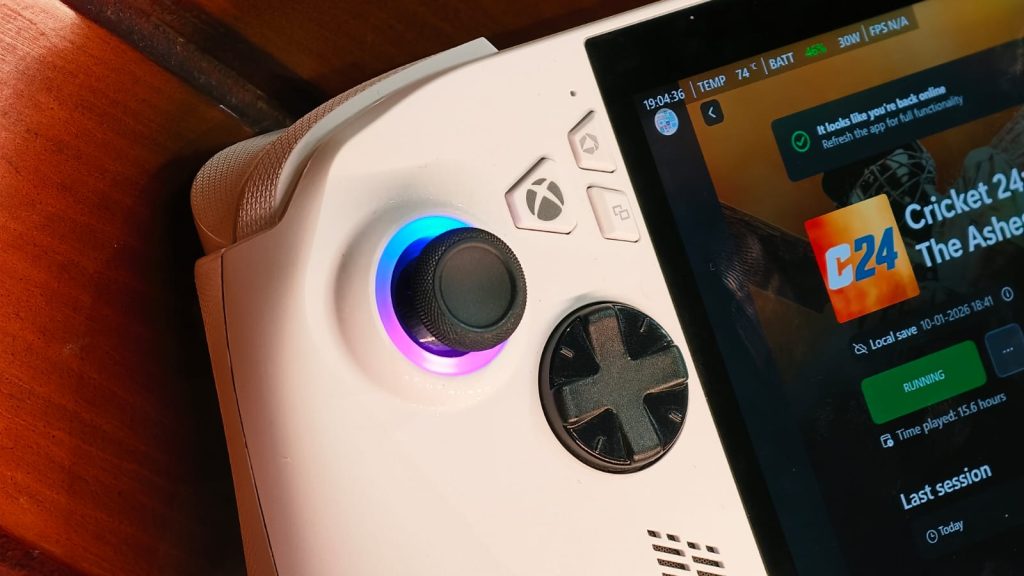
Controls are what make or break any console experience. If you can’t control your in-game character, the whole experience falls off a cliff. Fortunately, the Xbox Ally doesn’t suffer from any of that. It’s essentially an Xbox controller attached to a display, in the sense that it contains two thumbsticks, ABXY buttons, a D-Pad, shoulder triggers, and a couple of extra buttons on the back. All of which gives the console a sense of familiarity. The thumbsticks, while not Hall Effect, are snappy and accurate and have held up well during my travels. The D-Pad buttons are clicky and responsive, and the ABXY buttons have tactile feedback. The shoulder triggers are Hall Effect and are plenty accurate, which translates to a really nice gaming experience.
The couple of extra paddles on the back can be customized using the Armoury Crate app. The app also lets you remap regular buttons. To make the experience more immersive, the Ally includes haptics that sync with the game and provide rumble. While I wouldn’t call it the most impressive haptic motor, certainly not to the level of PS5’s controllers, they do a decent job of improving the overall gaming experience. Beyond that, I was hugely impressed by the speakers, which pack a real punch in terms of bass and provide a really decent multimedia experience.
Display
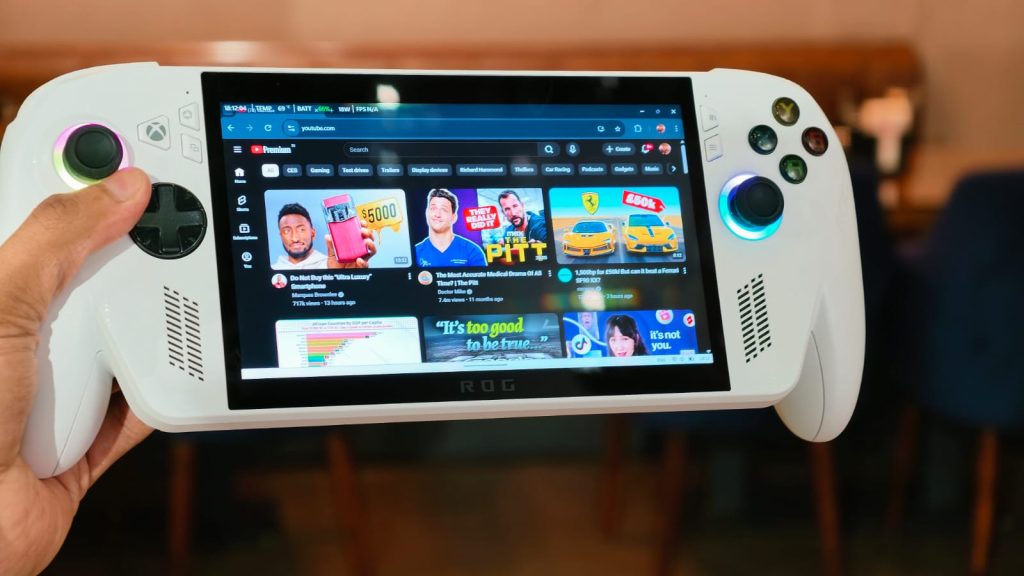
One thing that Asus hasn’t changed from the previous Ally is the display, but that doesn’t mean it’s bad. You still get the same 7-inch Full HD IPS panel that supports a variable refresh rate of up to 120Hz. While I’d have loved to see an OLED panel, the glossy IPS keeps color looking pretty for the most part. I measured 96% coverage of the sRGB color space, while DCI-P3 numbers were around 74%. Since nobody is editing videos on a display like this, the coverage is pretty decent. Unfortunately, as a consequence of the glossy texture, the panel is very prone to fingerprints, so you’ll be carrying a microfiber cloth everywhere.
When I first started using the ROG Ally in brighter environments, the brightness seemed a bit off. Like the panel wasn’t bright enough. Fortunately, I soon discovered that a Windows setting that dims brightness on battery power was enabled. After disabling it, the experience was a lot better. I measured a peak brightness of over 450 nits, which is really decent but just about gaming everywhere. The variable refresh rate also pays huge dividends in certain games, and I didn’t experience any tearing.
Software & Performance
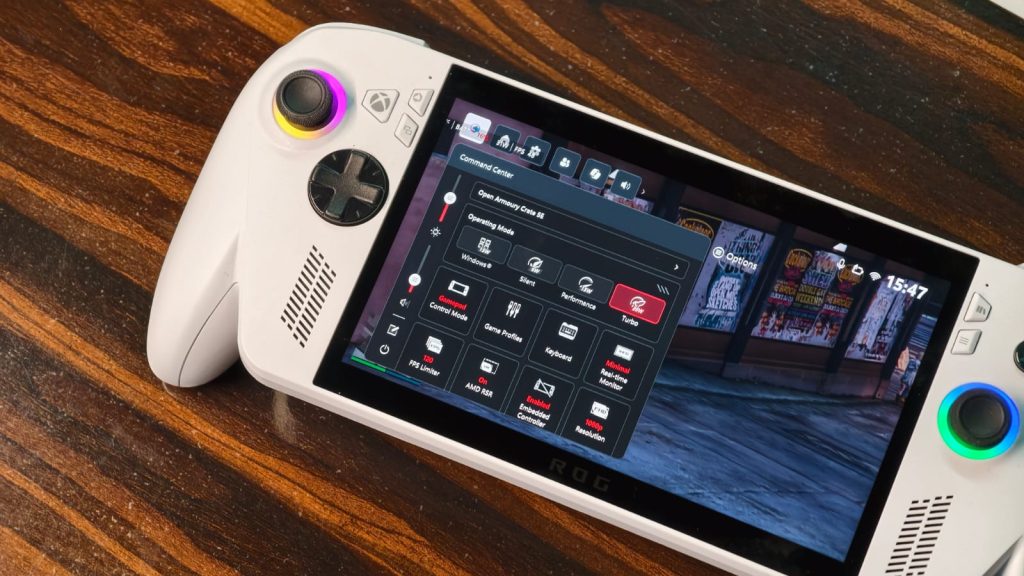
The first question I had when Asus unveiled its collaboration with Xbox was how they did it. How can they prevent Windows from creeping with its unnecessary fluff and ruining the console experience? And did they succeed? Well, the answer is both yes and no. The Xbox Full Screen Experience is what drives everything. It’s the main selling point of the Xbox Ally, and I love it. When you power up the device, it boots directly into the Xbox launcher, so you don’t have to deal with Windows. Since the OS is very resource-hungry, which is super precious on a handheld, the launcher also restricts any Windows activity.
Sure, you can switch to Windows mode with a single button press, but if you don’t want it, Windows will never appear. And that’s what every other Windows handheld lacks. Clicking the Xbox button on the console brings up a neat menu of all your games (even the ones installed from third-party launchers), along with settings to adjust sound and brightness, an Xbox Social menu to invite friends, and the Gaming Copilot. Beyond that, there’s also an Armoury Crate tab that handles all the performance metrics. You can cycle between the different performance modes, enable game overlay of the stats, change resolution, set frame limiter, and a lot more. My point is that everything is thought about.
Windows is still Windows

Like a coin, there’s another side to this story as well. The Xbox gaming experience isn’t perfect. Games sometimes don’t recognize the controls and instead display keyboard options. While clicking the Xbox button did solve this problem, it’s not what comes to mind first. You might know how to do it, but someone who hasn’t played around with PCs before might not. I also ran into a unique issue: even after buying Xbox Game Pass, I couldn’t access EA games. Typically, EA games are included in Game Pass, but for some reason, it took a week for the EA Play app to recognize that I have the subscription. Beyond that, if you open the Windows version and then launch the Xbox launcher, you’ll need to restart the device to achieve optimal performance. Otherwise, Windows will continue to run in the background.
As much as I’ve ranted about Windows, it has its perks. For starters, it unlocks a whole world of games, including emulation, which would work amazingly with the controls. Plus, the Ally can be a PC, too. Just connect it with a monitor, and voila, your handheld is a workstation capable of handling any everyday task. Speaking of being a PC, I also ran a series of benchmarks to see where the new AMD Ryzen Z2 A stands. The Ally scored 1,171 in Geekbench’s single-core test and 4,398 in the multi-core test, putting it right on par with the likes of the Steam Deck OLED.
How Does It Game?

Time to address the elephant in the room, and perhaps the only reason anyone would buy a device like this: gaming. The Ally houses the AMD Ryzen Z2 A processor, coupled with integrated RDNA 2 architecture graphics. And the performance will ultimately depend on the type of games you play. I tried pretty much the entire library there is. In demanding titles like Cyberpunk and Starfield, you’ll ideally be running the game at 720p, with low to medium settings. In Cyberpunk 2077, the Ally managed to push to around 40 fps, while Starfield was above the 30 fps threshold. I also tried AMD’s FSR 2.1, and there was a noticeable increase in the frames. Though some people don’t like these generated frames, so your mileage may vary.
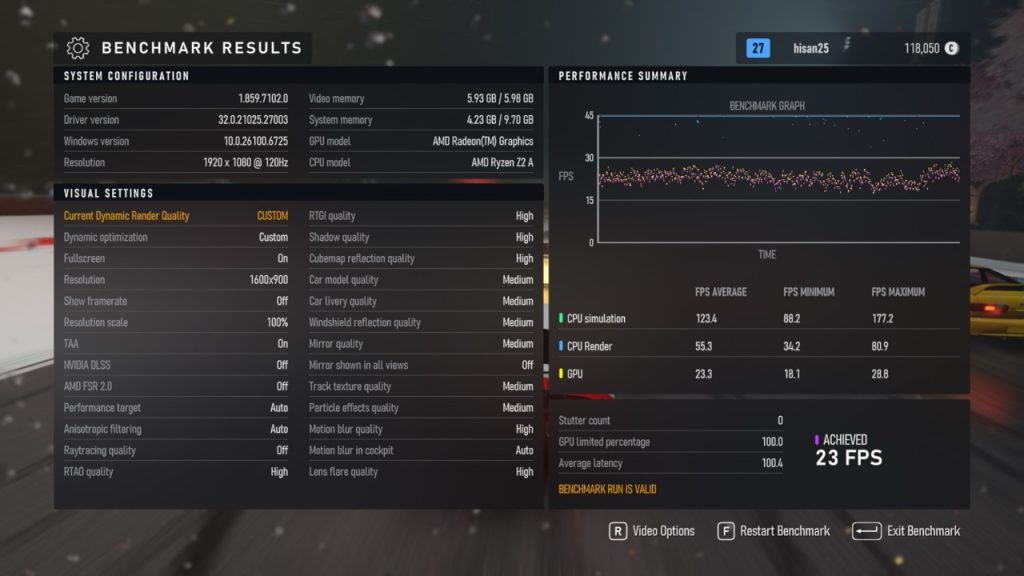
Being more sensible and turning over to titles like GTA 5 Enhanced Edition, I had a lot more fun. The graphics settings were set to medium/high, and I easily got over 40 fps, sometimes even 60 fps, while playing online. The good news continues with titles like Shadow of the Tomb Raider, Forza Motorsport, F1 2024, and Injustice, where, once again, the Ally easily managed to hit the sweet spot of 40-45 FPS on medium settings. It’s possible to get up to 60 fps with the console, but I prefer more detail. In lighter titles like Real Cricket and Rematch, the frame rates were always over 60.
Since the Ally is an Xbox console, you can also stream games. Streaming capabilities are included with the premium tier of Game Pass. I compared my GTA Online experience between the two, and given the strong internet connection, it was really decent. Of course, you obviously can’t expect to play first-person shooters, but for story games, it’s fine.
Battery Life
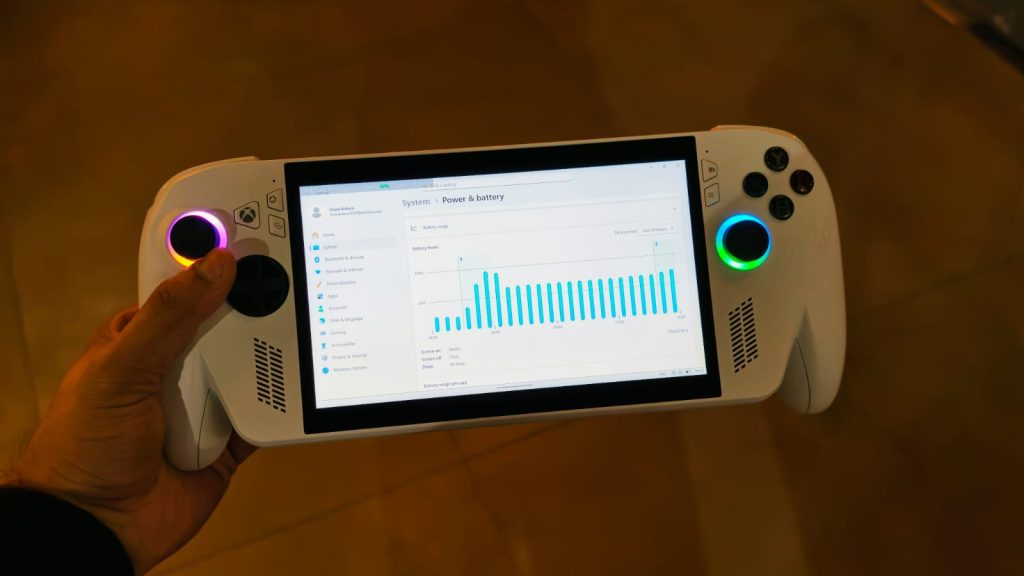
One of the big differentiators between the regular Ally and the Ally X, apart from the processor, is the battery. The normal Ally houses a 60W cell, while the X gets a beefier 80W battery. In retrospect, the Ally’s battery life is about what you’d expect. When running GTA V online from 100%, the console lasted me about 2 and a half hours before shutting down.
It is important to note that the brightness was set to maximum and the performance mode was Turbo (the highest tier). Turning the brightness and performance modes down a notch helped me cross that 3-hour threshold. Charging is handled by a 65W fast charger that can fully charge the battery from 0% to 100% in just over an hour.
Verdict
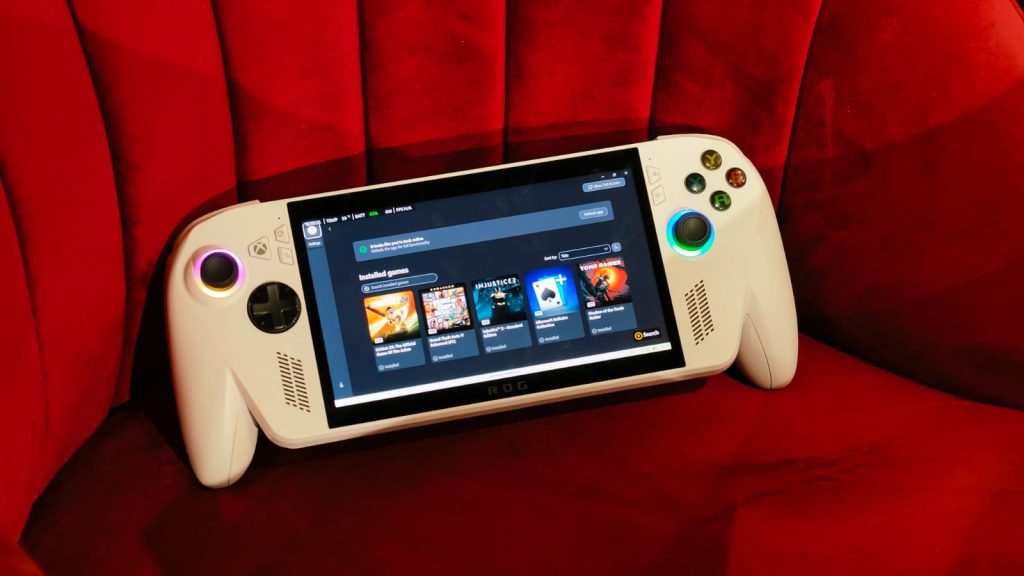
At INR 69,990, the ROG Xbox Ally is certainly a niche product. It’s for people who are frequently on the go, but still want to play the games they love. And luckily, that happens to be me. As a tech journalist, I travel regularly, which means long waits at airports, and for those times, the Ally proved to be a lifesaver. Its performance is really good, the FullHD 120Hz display is bright, the ergonomics and design are the best in business, and even the Xbox full-screen experience is a really good step in making Windows handhelds feel more like a console. Windows 11 also unlocks a whole new experience, transforming the Ally into a full PC that can be used for work and emulation.
Source link
#Daily #Drove #Asus #ROG #Xbox #Ally #Month #Windows #Handheld

![This former notorious red-light district is now one of the world’s top AI hubs | TechCrunch
What every U.K. AI startup wants to know these days is, how can I get office space in King’s Cross?
The area is so hot that a VC firm allegedly recently won a deal by promising a founder office space in the neighborhood. “We stop at nothing to win deals [for] and to support” founders, “including helping them source office space when needed,” the firm told me when asked about the rumor, declining to confirm or deny any details.
The neighborhood’s popularity began back in 2016 when DeepMind — then newly acquired by Google — moved in. Soon after, a flood of AI startups followed, wanting to be around the Google DeepMind magic. Today, they hope to take advantage of the cluster of AI talent there.
This has transformed King’s Cross into one of the world’s top AI hubs, rivaled only by San Francisco and Beijing. Around London, it’s known by the sobriquet “Knowledge Quarter,” as it’s home to names like OpenAI, Meta, Isomorphic Labs, Cusp AI, Wayne, Recursive, and, a little farther down the road, Synthesia and Anthropic. The European Technology Network (ETN) just moved into a glossy new office nearby, while University College London sits around the corner.
Mixed in with the new developments are trendy food spots like Hoppers and BAO. Hop a train from King’s Cross, and founders can be in Cambridge in 45 minutes to source talent or can be in Paris in two hours to strike a deal.
Who would have guessed that a little more than 20 years ago, this was one of the seediest areas in London?
“In the ’80s, crack and heroin made the area a major narcotics market,” Hussein Kanji, an investor at Hoxton Ventures, said, recalling syringes in tree trunks and gangs patrolling the streets. “In 1982, the local church was occupied by the English Collective of Prostitutes for 12 straight days.” Then, in the early 2000s, a real estate developer had a dream and, well, “now it is the AI hotbed of the United Kingdom,” Kanji said. “What a change.” Around 18 months ago, his portfolio company BioCorteX moved from the neighborhood Holborn to the Jellicoe building in King’s Cross, hoping to be near the action. “Lots going on in London right now,” Nik Sharma, co-founder of BioCorteX, told me. “Lots of hyperscalers moving in.” That includes, reportedly, Jeff Bezos’ AI company Prometheus, which is also said to be in talks to move into the Jellicoe.
There are around 3,600 AI startups in London, which, together, have raised around .1 billion out of the .8 billion raised in the city since late July, according to Dealroom. Since the start of June, AI-related startups have leased more than 1 million square feet of office space in London, according to the real estate firm Knight Frank. With that, prime rents in King’s Cross have risen 18% over the past three years, Chris Dunn, a commercial insight associate at the firm, told me. That percentage represents only the largest leases encompassing at least 10,000 square feet, like the ones OpenAI and Prometheus are signing. The shorter deals go for even more, he said, and now the vacancy rate for conventional office space is just 0.9%. “Demand has outstripped supply,” he continued.
Today, one of the big topics of the area is sovereignty. It was a wake-up call for many when Anthropic shut off access to Mythos and Fable this summer, leaving some in the ecosystem to conclude: “We’d better look after ourselves,” Saul Klein, co-founder of the VC firm Phoenix Court, told me.
Phoenix Court is located in the King’s Cross area and has three portfolio companies in the vicinity, including Olix (which just announced a .3 billion valuation), Early Health and CoMind. Robin Klein, co-founder of the firm, said the shutdown of Fable and Mythos access was a “small but sharp reminder that Europe can’t simply rent its AI capabilities and capacity; it needs to build and hold some of its own.” King’s Cross, he said, is where much of this building is actually happening.
“The bigger question,” he continued, “is whether the U.K. builds the infrastructure, compute, energy, capital, to make this self-reliance durable, rather than just hosting outposts of U.S. labs.”
Image Credits:Phoenix Court
Top founders want to stay
Simon Kohl, founder of Latent Labs, has offices in King’s Cross and San Francisco. The London office, at the moment, is growing faster, and he’s more bullish than ever on the ecosystem, he said. “The mood right now feels less like London trying to catch up and more like London becoming one of the default places to start a serious AI company,” he said. Look around and you are likely to see Wayve testing its autonomous cars. Founded in 2017 by co-founder Alex Kendall, the unicorn is one of London’s biggest success stories.
“Ten years ago, building a frontier AI company from London felt like an unusual choice,” Kendall told me. “Now it feels like an obvious one.” Wayve moved into King’s Cross in 2018 looking for a space that could double as a garage — “a rare combination in Central London,” Kendall said. He has watched the ecosystem mature around him — and it’s now evident that a startup can stay in London, raise serious capital, hire world-class AI talent, and remain globally competitive, he said. Down the street from Anthropic’s new 158,000-square-foot office is the AI agent builder Sierra and the AI video platform Synthesia.
Laura Gonzalez Florez, Synthesia’s chief of staff and head of people, says the company moved into its glossy new office building a year ago to accommodate its growing team. They were drawn to the area for the same reason as everyone else: “It’s very close to the airport … very close to where a lot of investors are,” she said.
Image Credits:Synthesia
Around two-thirds of Synthesia’s engineers are remote, Gonzalez Florez said, letting the company tap into an affordable, international, and diverse talent pool and helping it scale faster. “From London, we can hire and work, without any problem, people from anywhere, from Slovenia to Portugal,” she said.
Unsurprisingly, London’s AI boom is also causing a talent war.U.K. AI job postings have skyrocketed in the past few years, per data from PwC. When Anthropic announced it moved into town earlier this year, it listed, for example, a salary range of £260,000 to £630,000 for a machine learning research engineer when the average salary in London for the same role is around £102,000. Some founders in the U.K., like those in Silicon Valley, are being forced to raise more and bigger rounds to keep up.
“The real test is whether more globally significant AI companies are founded, funded, and scaled from the U.K., while continuing to attract the world’s best talent to build them here,” Zain Ali, founder of the King’s Cross-based AI legal firm Centuro, told me. “If that continues to happen, King’s Cross won’t just be an AI hub. It’ll become one of the U.K.’s most important strategic assets.”
When you purchase through links in our articles, we may earn a small commission. This doesn’t affect our editorial independence.#Thisformernotorious #redlight #districtis #nowone #worlds #top #hubs #TechCrunchUK](https://techcrunch.com/wp-content/uploads/2026/08/DM9A2852.jpg?w=680 "This former notorious red-light district is now one of the world’s top AI hubs | TechCrunch
What every U.K. AI startup wants to know these days is, how can I get office space in King’s Cross?
The area is so hot that a VC firm allegedly recently won a deal by promising a founder office space in the neighborhood. “We stop at nothing to win deals [for] and to support” founders, “including helping them source office space when needed,” the firm told me when asked about the rumor, declining to confirm or deny any details.
The neighborhood’s popularity began back in 2016 when DeepMind — then newly acquired by Google — moved in. Soon after, a flood of AI startups followed, wanting to be around the Google DeepMind magic. Today, they hope to take advantage of the cluster of AI talent there.
This has transformed King’s Cross into one of the world’s top AI hubs, rivaled only by San Francisco and Beijing. Around London, it’s known by the sobriquet “Knowledge Quarter,” as it’s home to names like OpenAI, Meta, Isomorphic Labs, Cusp AI, Wayne, Recursive, and, a little farther down the road, Synthesia and Anthropic. The European Technology Network (ETN) just moved into a glossy new office nearby, while University College London sits around the corner.
Mixed in with the new developments are trendy food spots like Hoppers and BAO. Hop a train from King’s Cross, and founders can be in Cambridge in 45 minutes to source talent or can be in Paris in two hours to strike a deal.
Who would have guessed that a little more than 20 years ago, this was one of the seediest areas in London?
“In the ’80s, crack and heroin made the area a major narcotics market,” Hussein Kanji, an investor at Hoxton Ventures, said, recalling syringes in tree trunks and gangs patrolling the streets. “In 1982, the local church was occupied by the English Collective of Prostitutes for 12 straight days.” Then, in the early 2000s, a real estate developer had a dream and, well, “now it is the AI hotbed of the United Kingdom,” Kanji said. “What a change.” Around 18 months ago, his portfolio company BioCorteX moved from the neighborhood Holborn to the Jellicoe building in King’s Cross, hoping to be near the action. “Lots going on in London right now,” Nik Sharma, co-founder of BioCorteX, told me. “Lots of hyperscalers moving in.” That includes, reportedly, Jeff Bezos’ AI company Prometheus, which is also said to be in talks to move into the Jellicoe.
There are around 3,600 AI startups in London, which, together, have raised around .1 billion out of the .8 billion raised in the city since late July, according to Dealroom. Since the start of June, AI-related startups have leased more than 1 million square feet of office space in London, according to the real estate firm Knight Frank. With that, prime rents in King’s Cross have risen 18% over the past three years, Chris Dunn, a commercial insight associate at the firm, told me. That percentage represents only the largest leases encompassing at least 10,000 square feet, like the ones OpenAI and Prometheus are signing. The shorter deals go for even more, he said, and now the vacancy rate for conventional office space is just 0.9%. “Demand has outstripped supply,” he continued.
Today, one of the big topics of the area is sovereignty. It was a wake-up call for many when Anthropic shut off access to Mythos and Fable this summer, leaving some in the ecosystem to conclude: “We’d better look after ourselves,” Saul Klein, co-founder of the VC firm Phoenix Court, told me.
Phoenix Court is located in the King’s Cross area and has three portfolio companies in the vicinity, including Olix (which just announced a .3 billion valuation), Early Health and CoMind. Robin Klein, co-founder of the firm, said the shutdown of Fable and Mythos access was a “small but sharp reminder that Europe can’t simply rent its AI capabilities and capacity; it needs to build and hold some of its own.” King’s Cross, he said, is where much of this building is actually happening.
“The bigger question,” he continued, “is whether the U.K. builds the infrastructure, compute, energy, capital, to make this self-reliance durable, rather than just hosting outposts of U.S. labs.”
Image Credits:Phoenix Court
Top founders want to stay
Simon Kohl, founder of Latent Labs, has offices in King’s Cross and San Francisco. The London office, at the moment, is growing faster, and he’s more bullish than ever on the ecosystem, he said. “The mood right now feels less like London trying to catch up and more like London becoming one of the default places to start a serious AI company,” he said. Look around and you are likely to see Wayve testing its autonomous cars. Founded in 2017 by co-founder Alex Kendall, the unicorn is one of London’s biggest success stories.
“Ten years ago, building a frontier AI company from London felt like an unusual choice,” Kendall told me. “Now it feels like an obvious one.” Wayve moved into King’s Cross in 2018 looking for a space that could double as a garage — “a rare combination in Central London,” Kendall said. He has watched the ecosystem mature around him — and it’s now evident that a startup can stay in London, raise serious capital, hire world-class AI talent, and remain globally competitive, he said. Down the street from Anthropic’s new 158,000-square-foot office is the AI agent builder Sierra and the AI video platform Synthesia.
Laura Gonzalez Florez, Synthesia’s chief of staff and head of people, says the company moved into its glossy new office building a year ago to accommodate its growing team. They were drawn to the area for the same reason as everyone else: “It’s very close to the airport … very close to where a lot of investors are,” she said.
Image Credits:Synthesia
Around two-thirds of Synthesia’s engineers are remote, Gonzalez Florez said, letting the company tap into an affordable, international, and diverse talent pool and helping it scale faster. “From London, we can hire and work, without any problem, people from anywhere, from Slovenia to Portugal,” she said.
Unsurprisingly, London’s AI boom is also causing a talent war.U.K. AI job postings have skyrocketed in the past few years, per data from PwC. When Anthropic announced it moved into town earlier this year, it listed, for example, a salary range of £260,000 to £630,000 for a machine learning research engineer when the average salary in London for the same role is around £102,000. Some founders in the U.K., like those in Silicon Valley, are being forced to raise more and bigger rounds to keep up.
“The real test is whether more globally significant AI companies are founded, funded, and scaled from the U.K., while continuing to attract the world’s best talent to build them here,” Zain Ali, founder of the King’s Cross-based AI legal firm Centuro, told me. “If that continues to happen, King’s Cross won’t just be an AI hub. It’ll become one of the U.K.’s most important strategic assets.”
When you purchase through links in our articles, we may earn a small commission. This doesn’t affect our editorial independence.#Thisformernotorious #redlight #districtis #nowone #worlds #top #hubs #TechCrunchUK")

![This former notorious red-light district is now one of the world’s top AI hubs | TechCrunch
What every U.K. AI startup wants to know these days is, how can I get office space in King’s Cross?
The area is so hot that a VC firm allegedly recently won a deal by promising a founder office space in the neighborhood. “We stop at nothing to win deals [for] and to support” founders, “including helping them source office space when needed,” the firm told me when asked about the rumor, declining to confirm or deny any details.
The neighborhood’s popularity began back in 2016 when DeepMind — then newly acquired by Google — moved in. Soon after, a flood of AI startups followed, wanting to be around the Google DeepMind magic. Today, they hope to take advantage of the cluster of AI talent there.
This has transformed King’s Cross into one of the world’s top AI hubs, rivaled only by San Francisco and Beijing. Around London, it’s known by the sobriquet “Knowledge Quarter,” as it’s home to names like OpenAI, Meta, Isomorphic Labs, Cusp AI, Wayne, Recursive, and, a little farther down the road, Synthesia and Anthropic. The European Technology Network (ETN) just moved into a glossy new office nearby, while University College London sits around the corner.
Mixed in with the new developments are trendy food spots like Hoppers and BAO. Hop a train from King’s Cross, and founders can be in Cambridge in 45 minutes to source talent or can be in Paris in two hours to strike a deal.
Who would have guessed that a little more than 20 years ago, this was one of the seediest areas in London?
“In the ’80s, crack and heroin made the area a major narcotics market,” Hussein Kanji, an investor at Hoxton Ventures, said, recalling syringes in tree trunks and gangs patrolling the streets. “In 1982, the local church was occupied by the English Collective of Prostitutes for 12 straight days.” Then, in the early 2000s, a real estate developer had a dream and, well, “now it is the AI hotbed of the United Kingdom,” Kanji said. “What a change.” Around 18 months ago, his portfolio company BioCorteX moved from the neighborhood Holborn to the Jellicoe building in King’s Cross, hoping to be near the action. “Lots going on in London right now,” Nik Sharma, co-founder of BioCorteX, told me. “Lots of hyperscalers moving in.” That includes, reportedly, Jeff Bezos’ AI company Prometheus, which is also said to be in talks to move into the Jellicoe.
There are around 3,600 AI startups in London, which, together, have raised around .1 billion out of the .8 billion raised in the city since late July, according to Dealroom. Since the start of June, AI-related startups have leased more than 1 million square feet of office space in London, according to the real estate firm Knight Frank. With that, prime rents in King’s Cross have risen 18% over the past three years, Chris Dunn, a commercial insight associate at the firm, told me. That percentage represents only the largest leases encompassing at least 10,000 square feet, like the ones OpenAI and Prometheus are signing. The shorter deals go for even more, he said, and now the vacancy rate for conventional office space is just 0.9%. “Demand has outstripped supply,” he continued.
Today, one of the big topics of the area is sovereignty. It was a wake-up call for many when Anthropic shut off access to Mythos and Fable this summer, leaving some in the ecosystem to conclude: “We’d better look after ourselves,” Saul Klein, co-founder of the VC firm Phoenix Court, told me.
Phoenix Court is located in the King’s Cross area and has three portfolio companies in the vicinity, including Olix (which just announced a .3 billion valuation), Early Health and CoMind. Robin Klein, co-founder of the firm, said the shutdown of Fable and Mythos access was a “small but sharp reminder that Europe can’t simply rent its AI capabilities and capacity; it needs to build and hold some of its own.” King’s Cross, he said, is where much of this building is actually happening.
“The bigger question,” he continued, “is whether the U.K. builds the infrastructure, compute, energy, capital, to make this self-reliance durable, rather than just hosting outposts of U.S. labs.”
Image Credits:Phoenix Court
Top founders want to stay
Simon Kohl, founder of Latent Labs, has offices in King’s Cross and San Francisco. The London office, at the moment, is growing faster, and he’s more bullish than ever on the ecosystem, he said. “The mood right now feels less like London trying to catch up and more like London becoming one of the default places to start a serious AI company,” he said. Look around and you are likely to see Wayve testing its autonomous cars. Founded in 2017 by co-founder Alex Kendall, the unicorn is one of London’s biggest success stories.
“Ten years ago, building a frontier AI company from London felt like an unusual choice,” Kendall told me. “Now it feels like an obvious one.” Wayve moved into King’s Cross in 2018 looking for a space that could double as a garage — “a rare combination in Central London,” Kendall said. He has watched the ecosystem mature around him — and it’s now evident that a startup can stay in London, raise serious capital, hire world-class AI talent, and remain globally competitive, he said. Down the street from Anthropic’s new 158,000-square-foot office is the AI agent builder Sierra and the AI video platform Synthesia.
Laura Gonzalez Florez, Synthesia’s chief of staff and head of people, says the company moved into its glossy new office building a year ago to accommodate its growing team. They were drawn to the area for the same reason as everyone else: “It’s very close to the airport … very close to where a lot of investors are,” she said.
Image Credits:Synthesia
Around two-thirds of Synthesia’s engineers are remote, Gonzalez Florez said, letting the company tap into an affordable, international, and diverse talent pool and helping it scale faster. “From London, we can hire and work, without any problem, people from anywhere, from Slovenia to Portugal,” she said.
Unsurprisingly, London’s AI boom is also causing a talent war.U.K. AI job postings have skyrocketed in the past few years, per data from PwC. When Anthropic announced it moved into town earlier this year, it listed, for example, a salary range of £260,000 to £630,000 for a machine learning research engineer when the average salary in London for the same role is around £102,000. Some founders in the U.K., like those in Silicon Valley, are being forced to raise more and bigger rounds to keep up.
“The real test is whether more globally significant AI companies are founded, funded, and scaled from the U.K., while continuing to attract the world’s best talent to build them here,” Zain Ali, founder of the King’s Cross-based AI legal firm Centuro, told me. “If that continues to happen, King’s Cross won’t just be an AI hub. It’ll become one of the U.K.’s most important strategic assets.”
When you purchase through links in our articles, we may earn a small commission. This doesn’t affect our editorial independence.#Thisformernotorious #redlight #districtis #nowone #worlds #top #hubs #TechCrunchUK](https://i0.wp.com/techcrunch.com/wp-content/uploads/2026/08/DM9A2852.jpg?w=680&ssl=1 "This former notorious red-light district is now one of the world’s top AI hubs | TechCrunch
What every U.K. AI startup wants to know these days is, how can I get office space in King’s Cross?
The area is so hot that a VC firm allegedly recently won a deal by promising a founder office space in the neighborhood. “We stop at nothing to win deals [for] and to support” founders, “including helping them source office space when needed,” the firm told me when asked about the rumor, declining to confirm or deny any details.
The neighborhood’s popularity began back in 2016 when DeepMind — then newly acquired by Google — moved in. Soon after, a flood of AI startups followed, wanting to be around the Google DeepMind magic. Today, they hope to take advantage of the cluster of AI talent there.
This has transformed King’s Cross into one of the world’s top AI hubs, rivaled only by San Francisco and Beijing. Around London, it’s known by the sobriquet “Knowledge Quarter,” as it’s home to names like OpenAI, Meta, Isomorphic Labs, Cusp AI, Wayne, Recursive, and, a little farther down the road, Synthesia and Anthropic. The European Technology Network (ETN) just moved into a glossy new office nearby, while University College London sits around the corner.
Mixed in with the new developments are trendy food spots like Hoppers and BAO. Hop a train from King’s Cross, and founders can be in Cambridge in 45 minutes to source talent or can be in Paris in two hours to strike a deal.
Who would have guessed that a little more than 20 years ago, this was one of the seediest areas in London?
“In the ’80s, crack and heroin made the area a major narcotics market,” Hussein Kanji, an investor at Hoxton Ventures, said, recalling syringes in tree trunks and gangs patrolling the streets. “In 1982, the local church was occupied by the English Collective of Prostitutes for 12 straight days.” Then, in the early 2000s, a real estate developer had a dream and, well, “now it is the AI hotbed of the United Kingdom,” Kanji said. “What a change.” Around 18 months ago, his portfolio company BioCorteX moved from the neighborhood Holborn to the Jellicoe building in King’s Cross, hoping to be near the action. “Lots going on in London right now,” Nik Sharma, co-founder of BioCorteX, told me. “Lots of hyperscalers moving in.” That includes, reportedly, Jeff Bezos’ AI company Prometheus, which is also said to be in talks to move into the Jellicoe.
There are around 3,600 AI startups in London, which, together, have raised around .1 billion out of the .8 billion raised in the city since late July, according to Dealroom. Since the start of June, AI-related startups have leased more than 1 million square feet of office space in London, according to the real estate firm Knight Frank. With that, prime rents in King’s Cross have risen 18% over the past three years, Chris Dunn, a commercial insight associate at the firm, told me. That percentage represents only the largest leases encompassing at least 10,000 square feet, like the ones OpenAI and Prometheus are signing. The shorter deals go for even more, he said, and now the vacancy rate for conventional office space is just 0.9%. “Demand has outstripped supply,” he continued.
Today, one of the big topics of the area is sovereignty. It was a wake-up call for many when Anthropic shut off access to Mythos and Fable this summer, leaving some in the ecosystem to conclude: “We’d better look after ourselves,” Saul Klein, co-founder of the VC firm Phoenix Court, told me.
Phoenix Court is located in the King’s Cross area and has three portfolio companies in the vicinity, including Olix (which just announced a .3 billion valuation), Early Health and CoMind. Robin Klein, co-founder of the firm, said the shutdown of Fable and Mythos access was a “small but sharp reminder that Europe can’t simply rent its AI capabilities and capacity; it needs to build and hold some of its own.” King’s Cross, he said, is where much of this building is actually happening.
“The bigger question,” he continued, “is whether the U.K. builds the infrastructure, compute, energy, capital, to make this self-reliance durable, rather than just hosting outposts of U.S. labs.”
Image Credits:Phoenix Court
Top founders want to stay
Simon Kohl, founder of Latent Labs, has offices in King’s Cross and San Francisco. The London office, at the moment, is growing faster, and he’s more bullish than ever on the ecosystem, he said. “The mood right now feels less like London trying to catch up and more like London becoming one of the default places to start a serious AI company,” he said. Look around and you are likely to see Wayve testing its autonomous cars. Founded in 2017 by co-founder Alex Kendall, the unicorn is one of London’s biggest success stories.
“Ten years ago, building a frontier AI company from London felt like an unusual choice,” Kendall told me. “Now it feels like an obvious one.” Wayve moved into King’s Cross in 2018 looking for a space that could double as a garage — “a rare combination in Central London,” Kendall said. He has watched the ecosystem mature around him — and it’s now evident that a startup can stay in London, raise serious capital, hire world-class AI talent, and remain globally competitive, he said. Down the street from Anthropic’s new 158,000-square-foot office is the AI agent builder Sierra and the AI video platform Synthesia.
Laura Gonzalez Florez, Synthesia’s chief of staff and head of people, says the company moved into its glossy new office building a year ago to accommodate its growing team. They were drawn to the area for the same reason as everyone else: “It’s very close to the airport … very close to where a lot of investors are,” she said.
Image Credits:Synthesia
Around two-thirds of Synthesia’s engineers are remote, Gonzalez Florez said, letting the company tap into an affordable, international, and diverse talent pool and helping it scale faster. “From London, we can hire and work, without any problem, people from anywhere, from Slovenia to Portugal,” she said.
Unsurprisingly, London’s AI boom is also causing a talent war.U.K. AI job postings have skyrocketed in the past few years, per data from PwC. When Anthropic announced it moved into town earlier this year, it listed, for example, a salary range of £260,000 to £630,000 for a machine learning research engineer when the average salary in London for the same role is around £102,000. Some founders in the U.K., like those in Silicon Valley, are being forced to raise more and bigger rounds to keep up.
“The real test is whether more globally significant AI companies are founded, funded, and scaled from the U.K., while continuing to attract the world’s best talent to build them here,” Zain Ali, founder of the King’s Cross-based AI legal firm Centuro, told me. “If that continues to happen, King’s Cross won’t just be an AI hub. It’ll become one of the U.K.’s most important strategic assets.”
When you purchase through links in our articles, we may earn a small commission. This doesn’t affect our editorial independence.#Thisformernotorious #redlight #districtis #nowone #worlds #top #hubs #TechCrunchUK")

Post Comment