×
Kim Kardashian Blames ChatGPT for Failing Law Exams

Kim Kardashian Blames ChatGPT for Failing Law Exams

Kim Kardashian was asked about her AI use in a new video from Vanity Fair published this week. And the reality TV star blamed OpenAI’s ChatGPT for giving her the wrong answers while studying for tests.

Kardashian has been pursuing a law career through non-traditional means since 2019 and took what’s called the “baby bar” in 2021. She earned her law degree in May and took the bar exam in July, though she’s still awaiting the results, according to Entertainment Weekly.

The actress talked about her use of ChatGPT during a Vanity Fair YouTube video—part of a series where celebrities answer questions while hooked up to a lie detector. Teyana Taylor, star of the recent film One Battle After Another, asked Kardashian questions like whether she considers AI a friend.

“No. I use it for legal advice,” Kardashian said. “So when I am needing to know the answer to a question, I’ll take a picture and snap it and like put it in there.”

Taylor jokingly asked whether she was cheating and Kardashian clarified that it was just to study for her tests, but it often gave the wrong answer. “They’re always wrong,” Kardashian said, stone-faced. “It has made me fail tests all the time. And then I’ll get mad and I’ll like yell at it and be like, ‘You made me fail, why did you do this?’”

Kardashian then said that “she,” referring to ChatGPT, will “talk back to me.” Kardashian said that she tells the robot that it will make her fail, asking it how that makes “her” feel.

“And then it’ll say back to me, ‘This is just teaching you to trust your own instincts. You knew the answer all along,’” Kardashian explained.

Generative AI is notorious for giving bullshit answers because the technology fundamentally doesn’t understand what it’s saying. The responses are perhaps best compared to a magic trick that sounds like it’s capable of reasoning and logic, but it’s really just guessing at the most statistically likely word to put in front of the other. It’s a neat magic trick, but a magic trick just the same. And it’s the reason that AI chatbots struggle with seemingly simple questions like how many R’s are in the word strawberry.

But Kardashian’s response about trying to guilt ChatGPT about giving the wrong answer speak to what’s going on under the hood with all of these AI chatbot. That glimpse at a reassuring voice trying to encourage the user to trust their own instincts is yet another part of the magic trick. ChatGPT’s o4 was notorious for being overly supportive of the user in an almost disturbing way. The upgrade to version 5 was troubling for many users who found o4 to be just what they needed in their lives.

Kardashian and Taylor are both promoting a new show on Hulu called All’s Fair that debuts Tuesday. It’s apparently one of the worst reviewed TV shows in existence, with a Metacritic score of just 18 out of 100.

Source link
#Kim #Kardashian #Blames #ChatGPT #Failing #Law #Exams

A pattern is emerging among people who’ve already made it big. They’re rolling up their sleeves again, seemingly out of fear of missing AI’s defining moment and, presumably, the irresistible allure of making even more money — potentially a lot more.

Tom Blomfield, who co-founded GoCardless and Monzo before spending 4.5 years mentoring founders as a Y Combinator Group Partner, announced on Monday that he is taking a leave of absence to join Anthropic’s compute team — not as an executive, but as a member of technical staff.

He’s not alone in making that kind of move. Instagram co-founder Mike Krieger joined Anthropic as Chief Product Officer in 2024, and Andrej Karpathy, a founding member of OpenAI who went on to lead AI at Tesla and start his own company, Eureka Labs, joined Anthropic’s pre-training team in May, framing the decision almost identically to Blomfield’s, writing that “the next few years at the frontier of LLMs will be especially formative.”

Not everyone is joining someone else’s lab. Chamath Palihapitiya, the “SPAC King” who has mostly stuck to boardrooms and all things “All In” since leaving Facebook in 2011, just took his first full-time operating role in over a decade as CEO of 8090 Labs, his enterprise AI coding startup, which he announced a couple of weeks ago along with a $135 million Series A led by Salesforce Ventures. Wrote Palihapitiya on X, “I am convinced that what we are building now is even more important, so there was no decision to make except to be all in.”

Similarly, Eric Wu, who ran Opendoor for a decade before stepping back in 2023, recently launched NavigateAI, an AI “copilot” for construction workers, with $25 million in seed funding. Wu told me directly on a recent call about his decision to dive into an AI startup, “I knew if I looked back in 10 years and didn’t do something related to it, I would probably regret that.”

The clearest sign of how keen people who’ve already “made it” are to work on what they view as the still-early-innings of AI might be the job title itself. “Member of technical staff” is the deliberately flat, non-hierarchical label that Anthropic and OpenAI use for nearly everyone on their technical teams, regardless of seniority. It’s the same title Blomfield is taking.

It’s also the title that Peter Bailis took this March, just months after becoming Workday’s CTO, a role overseeing AI strategy across an $8 billion-revenue business. Bailis lasted less than a year before trading it for a spot at Anthropic.

When you purchase through links in our articles, we may earn a small commission. This doesn’t affect our editorial independence.

#rich #successful #wave #tech #winners #grinding #TechCrunch">Already rich, already successful, why the last wave of tech winners is grinding again | TechCrunch
A pattern is emerging among people who’ve already made it big. They’re rolling up their sleeves again, seemingly out of fear of missing AI’s defining moment and, presumably, the irresistible allure of making even more money — potentially a lot more.

Tom Blomfield, who co-founded GoCardless and Monzo before spending 4.5 years mentoring founders as a Y Combinator Group Partner, announced on Monday that he is taking a leave of absence to join Anthropic’s compute team — not as an executive, but as a member of technical staff.


He’s not alone in making that kind of move. Instagram co-founder Mike Krieger joined Anthropic as Chief Product Officer in 2024, and Andrej Karpathy, a founding member of OpenAI who went on to lead AI at Tesla and start his own company, Eureka Labs, joined Anthropic’s pre-training team in May, framing the decision almost identically to Blomfield’s, writing that “the next few years at the frontier of LLMs will be especially formative.”

Not everyone is joining someone else’s lab. Chamath Palihapitiya, the “SPAC King” who has mostly stuck to boardrooms and all things “All In” since leaving Facebook in 2011, just took his first full-time operating role in over a decade as CEO of 8090 Labs, his enterprise AI coding startup, which he announced a couple of weeks ago along with a 5 million Series A led by Salesforce Ventures. Wrote Palihapitiya on X,  “I am convinced that what we are building now is even more important, so there was no decision to make except to be all in.”

Similarly, Eric Wu, who ran Opendoor for a decade before stepping back in 2023, recently launched NavigateAI, an AI “copilot” for construction workers, with  million in seed funding. Wu told me directly on a recent call about his decision to dive into an AI startup, “I knew if I looked back in 10 years and didn’t do something related to it, I would probably regret that.”

The clearest sign of how keen people who’ve already “made it” are to work on what they view as the still-early-innings of AI might be the job title itself. “Member of technical staff” is the deliberately flat, non-hierarchical label that Anthropic and OpenAI use for nearly everyone on their technical teams, regardless of seniority. It’s the same title Blomfield is taking. 

It’s also the title that Peter Bailis took this March, just months after becoming Workday’s CTO, a role overseeing AI strategy across an  billion-revenue business. Bailis lasted less than a year before trading it for a spot at Anthropic.

When you purchase through links in our articles, we may earn a small commission. This doesn’t affect our editorial independence.#rich #successful #wave #tech #winners #grinding #TechCrunch

announced on Monday that he is taking a leave of absence to join Anthropic’s compute team — not as an executive, but as a member of technical staff.

He’s not alone in making that kind of move. Instagram co-founder Mike Krieger joined Anthropic as Chief Product Officer in 2024, and Andrej Karpathy, a founding member of OpenAI who went on to lead AI at Tesla and start his own company, Eureka Labs, joined Anthropic’s pre-training team in May, framing the decision almost identically to Blomfield’s, writing that “the next few years at the frontier of LLMs will be especially formative.”

Not everyone is joining someone else’s lab. Chamath Palihapitiya, the “SPAC King” who has mostly stuck to boardrooms and all things “All In” since leaving Facebook in 2011, just took his first full-time operating role in over a decade as CEO of 8090 Labs, his enterprise AI coding startup, which he announced a couple of weeks ago along with a $135 million Series A led by Salesforce Ventures. Wrote Palihapitiya on X, “I am convinced that what we are building now is even more important, so there was no decision to make except to be all in.”

Similarly, Eric Wu, who ran Opendoor for a decade before stepping back in 2023, recently launched NavigateAI, an AI “copilot” for construction workers, with $25 million in seed funding. Wu told me directly on a recent call about his decision to dive into an AI startup, “I knew if I looked back in 10 years and didn’t do something related to it, I would probably regret that.”

The clearest sign of how keen people who’ve already “made it” are to work on what they view as the still-early-innings of AI might be the job title itself. “Member of technical staff” is the deliberately flat, non-hierarchical label that Anthropic and OpenAI use for nearly everyone on their technical teams, regardless of seniority. It’s the same title Blomfield is taking.

It’s also the title that Peter Bailis took this March, just months after becoming Workday’s CTO, a role overseeing AI strategy across an $8 billion-revenue business. Bailis lasted less than a year before trading it for a spot at Anthropic.

When you purchase through links in our articles, we may earn a small commission. This doesn’t affect our editorial independence.

#rich #successful #wave #tech #winners #grinding #TechCrunch">Already rich, already successful, why the last wave of tech winners is grinding again | TechCrunch

A pattern is emerging among people who’ve already made it big. They’re rolling up their sleeves again, seemingly out of fear of missing AI’s defining moment and, presumably, the irresistible allure of making even more money — potentially a lot more.

Tom Blomfield, who co-founded GoCardless and Monzo before spending 4.5 years mentoring founders as a Y Combinator Group Partner, announced on Monday that he is taking a leave of absence to join Anthropic’s compute team — not as an executive, but as a member of technical staff.

He’s not alone in making that kind of move. Instagram co-founder Mike Krieger joined Anthropic as Chief Product Officer in 2024, and Andrej Karpathy, a founding member of OpenAI who went on to lead AI at Tesla and start his own company, Eureka Labs, joined Anthropic’s pre-training team in May, framing the decision almost identically to Blomfield’s, writing that “the next few years at the frontier of LLMs will be especially formative.”

Not everyone is joining someone else’s lab. Chamath Palihapitiya, the “SPAC King” who has mostly stuck to boardrooms and all things “All In” since leaving Facebook in 2011, just took his first full-time operating role in over a decade as CEO of 8090 Labs, his enterprise AI coding startup, which he announced a couple of weeks ago along with a $135 million Series A led by Salesforce Ventures. Wrote Palihapitiya on X, “I am convinced that what we are building now is even more important, so there was no decision to make except to be all in.”

Similarly, Eric Wu, who ran Opendoor for a decade before stepping back in 2023, recently launched NavigateAI, an AI “copilot” for construction workers, with $25 million in seed funding. Wu told me directly on a recent call about his decision to dive into an AI startup, “I knew if I looked back in 10 years and didn’t do something related to it, I would probably regret that.”

The clearest sign of how keen people who’ve already “made it” are to work on what they view as the still-early-innings of AI might be the job title itself. “Member of technical staff” is the deliberately flat, non-hierarchical label that Anthropic and OpenAI use for nearly everyone on their technical teams, regardless of seniority. It’s the same title Blomfield is taking.

It’s also the title that Peter Bailis took this March, just months after becoming Workday’s CTO, a role overseeing AI strategy across an $8 billion-revenue business. Bailis lasted less than a year before trading it for a spot at Anthropic.

When you purchase through links in our articles, we may earn a small commission. This doesn’t affect our editorial independence.

#rich #successful #wave #tech #winners #grinding #TechCrunch
What Happens When a File Is Permanently Deleted?

Normal deletion and permanent deletion operate differently. A normal deletion means the file goes to the Recycle Bin, where it can be recovered later. Permanent deletion means the file will be deleted immediately or after the Recycle Bin is cleared. This can occur when deleting files on the USB drive or the SD card, or when deleting large files that cannot fit in the Recycle Bin. Until new files overwrite that space, the deleted file may still be recoverable.

Before proceeding with recovering your deleted files, ensure you stop using the drive containing them. Avoid copying, saving, installing, or downloading any data to this drive, as additional data could overwrite your deleted files. It is also a good idea to verify whether your file exists within your backup system or in your online storage. If your files have been deleted from a USB drive, an SD card, or an external hard drive, then do not use the drive anymore. Remember that SSDs use the TRIM feature, which can make file recovery more difficult if you wait too long.

Different Free Ways to Recover Permanently Deleted Files

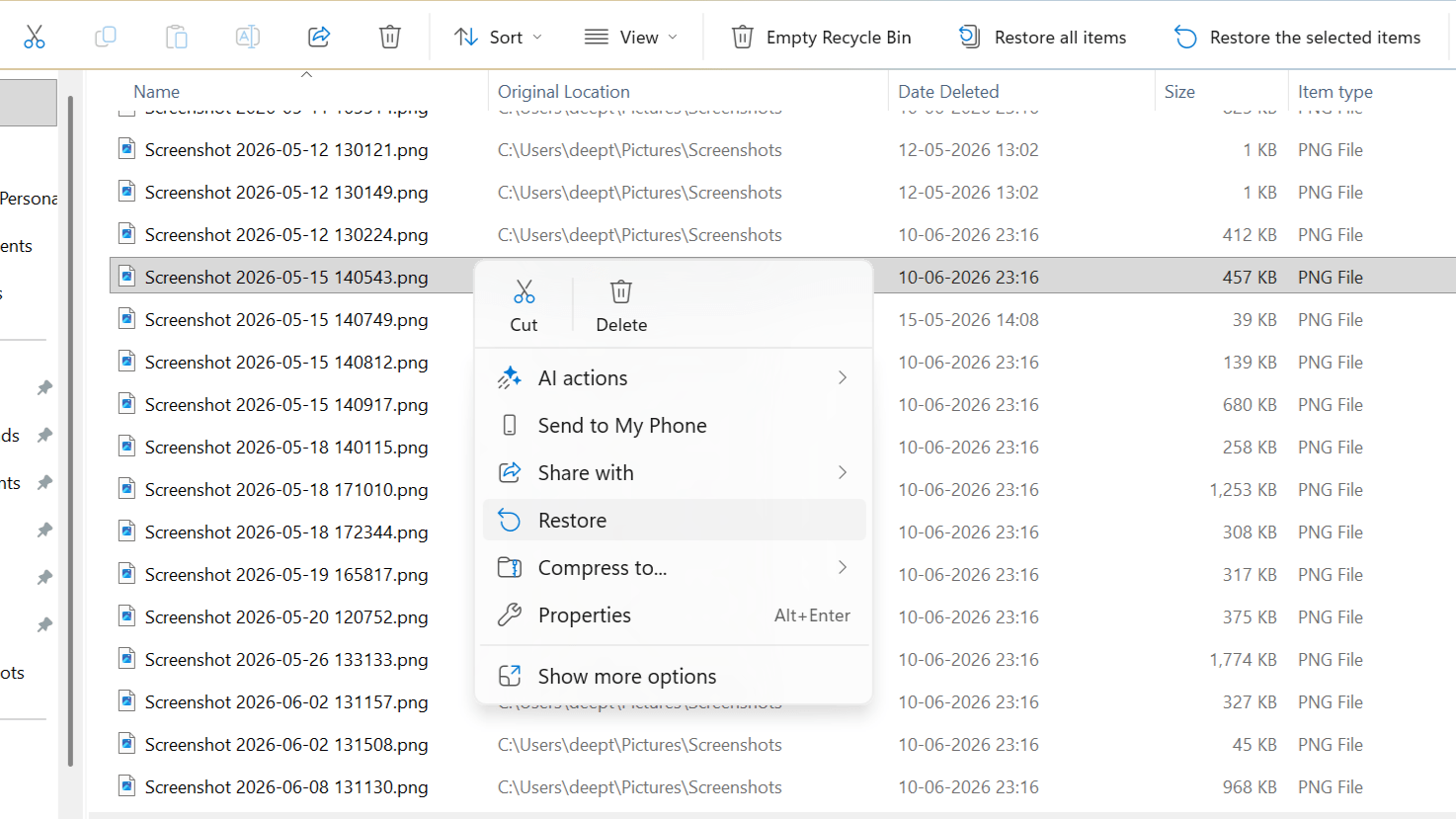
1. Check the Recycle Bin

If you have deleted the files using the Recycle Bin or Shift + Delete, you can proceed directly to the next recovery steps. This approach will only work if the file is still in the Recycle Bin.

  • Open the Recycle Bin.
  • Search for the deleted file by name or file type.
  • Right-click on the file and choose ‘Restore.’How to Recover Permanently Deleted Files for Free?
	
Losing an important file by mistake can be frustrating, especially if you’ve already emptied the Recycle Bin or deleted it using Shift + Delete. While it may seem like the file is gone forever, that’s not always the case. Deleted files often remain on the drive until new data overwrites them, giving you a chance to recover them. That’s why it’s important to stop using the affected drive as soon as possible. In this article, we’ll cover the best free ways to permanently recover deleted files and share important tips to avoid making the situation worse.


What Happens When a File Is Permanently Deleted?


Normal deletion and permanent deletion operate differently. A normal deletion means the file goes to the Recycle Bin, where it can be recovered later. Permanent deletion means the file will be deleted immediately or after the Recycle Bin is cleared. This can occur when deleting files on the USB drive or the SD card, or when deleting large files that cannot fit in the Recycle Bin. Until new files overwrite that space, the deleted file may still be recoverable.


Before proceeding with recovering your deleted files, ensure you stop using the drive containing them. Avoid copying, saving, installing, or downloading any data to this drive, as additional data could overwrite your deleted files. It is also a good idea to verify whether your file exists within your backup system or in your online storage. If your files have been deleted from a USB drive, an SD card, or an external hard drive, then do not use the drive anymore. Remember that SSDs use the TRIM feature, which can make file recovery more difficult if you wait too long.


Different Free Ways to Recover Permanently Deleted Files


1. Check the Recycle Bin


If you have deleted the files using the Recycle Bin or Shift + Delete, you can proceed directly to the next recovery steps. This approach will only work if the file is still in the Recycle Bin.


Open the Recycle Bin.


Search for the deleted file by name or file type.


Right-click on the file and choose ‘Restore.’


The file will be restored to its original place.


2. Restore from File History


Another way to recover deleted files is File History. It is a Windows feature that provides backup copies of your files. If it was enabled, you may be able to recover a previous version of your deleted file.


Search for “Restore your files with File History” on Windows.


Open the recovery window.


Browse the available file versions.


Select the file or folder you want to recover.


Click Restore to save it back to its original location.


3. Check Cloud Storage


Deleted files may remain in cloud storage for some time before being permanently deleted. If you previously uploaded the file to a cloud storage service, you may be able to restore it.


Log in to your OneDrive, Google Drive, Dropbox, or another cloud account.


Browse to the folder where the file was saved.


Open the Trash or Deleted Files folder.


Restore the file to its original location or download a copy.


4. Restore from a Backup


If you have a backup of your files, recovering them is usually quick and easy. Check your external hard drive, USB backup, or any manually created backup folders for the missing file.


Recover Permanently Deleted Files for Free Using Stellar Data Recovery Free Edition


When manual recovery methods fail, you can try Stellar Data Recovery Free Edition. This software will help retrieve deleted files from a Windows PC, a USB drive, an SD card, or other external media. The program allows scanning the disk, browsing, and restoring the retrieved files. In the Free Edition, there is up to 2GB of free data retrieval, including 1GB by default and an additional 1 GB through social networking.


Follow these steps to recover permanently deleted files using Stellar Data Recovery Free Edition.


Download and install Stellar Data Recovery Free Edition.


Launch the software.


Choose the type of files to recover or select Recover Everything.


Select the drive where the files were deleted.


Run a scan and use Deep Scan if needed.


Preview recoverable files.


Recover the selected files.


Save recovered files to a different drive.


If you need more recovery space, you can unlock an extra 1GB for free.


Steps to Get Your 2 GB Free Data Recovery


You can increase the free recovery limit by following these steps.


Click Get it Now in the activation window.


Select Upgrade Later to continue with the 1GB free version.


When you reach the limit, click the option to unlock an additional 1GB.


Share your experience on social media. 


Enter the review link, your name, and your email address. 


Submit the form to activate the 1GB bonus using the key sent to your email.


When Should You Use Deep Scan?


Most recovery tools start with a Quick Scan because it is faster. However, it may not find every deleted file. If the Quick Scan doesn’t show your file, try Deep Scan instead. It is also useful if the drive was formatted, the storage device became inaccessible, or the file was deleted a long time ago. Deep Scan takes longer to complete but may find additional recoverable files.


You can recover many different files that were deleted, depending on the storage device’s status. It can be documents, pictures, videos, emails, and ZIP files. The types of document files that can be recovered include Word, Excel, PDF, and PowerPoint files. At the same time, among the types of picture files that can be recovered are JPG, PNG, HEIC, and RAW. File recovery software is also compatible with Windows PCs/Laptops, SSDs, hard disks, USB drives/ SD cards.


Things to Keep in Mind


File recovery is not always successful, so it’s important to keep your expectations realistic. Once your files have been overwritten with new data, there is no way to recover them successfully. Another problem that might affect the success of file recovery is the TRIM functionality in SSDs. With the Stellar Data Recovery Free Edition, one can restore up to 2GB of data free of charge. If one needs to recover data larger than 2GB, they will have to purchase the software.


Tips to Improve Your Recovery Chances


The actions you perform after deletion could affect the ability to recover your files. It is important not to use the drive containing the deleted files, as you may overwrite them with fresh data. If possible, try installing the software on another drive. This helps avoid writing new data to the same storage location.


Always make sure to transfer the recovered files to another drive, not back to the original one. If your files are not found during a Quick Scan, a Deep Scan is available. Preview your recoverable files before recovery to ensure they are the right ones. Complete the file recovery process immediately and keep regular backups to reduce the risk of future data loss.


Final Verdict


Recovering permanently deleted files depends on how the files were deleted and whether the data has been overwritten. For instance, restoring files from the Recycle Bin or a backup is the preferred method when they are available. Whereas, when the files are deleted by pressing “Shift” and “Delete”, deleted from the Recycle Bin, or deleted from an external hard drive, then the use of Stellar Data Recovery Free Edition will be useful. It lets you scan your storage device, preview recoverable files, and recover up to 2 GB of data for free, with the option to upgrade to a paid edition if needed. For users who need to recover more than the free limit, Stellar offers paid plans starting at around . The paid plans are worth considering if you need to recover more than the free limit. However, the Stellar Data Recovery Free Edition is one of the best options to recover files.

#Recover #Permanently #Deleted #Files #FreeStellar Data Recovery
  • The file will be restored to its original place.

2. Restore from File History

Another way to recover deleted files is File History. It is a Windows feature that provides backup copies of your files. If it was enabled, you may be able to recover a previous version of your deleted file.

  • Search for “Restore your files with File History” on Windows.
  • Open the recovery window.
  • Browse the available file versions.
    Restore from File History to Recover Permanently Deleted Files
  • Select the file or folder you want to recover.
  • Click Restore to save it back to its original location.

3. Check Cloud Storage

Deleted files may remain in cloud storage for some time before being permanently deleted. If you previously uploaded the file to a cloud storage service, you may be able to restore it.

  • Log in to your OneDrive, Google Drive, Dropbox, or another cloud account.
  • Browse to the folder where the file was saved.
  • Open the Trash or Deleted Files folder.
  • Restore the file to its original location or download a copy.
    image for Check Cloud Storage to recover Permanently Deleted Files

4. Restore from a Backup

If you have a backup of your files, recovering them is usually quick and easy. Check your external hard drive, USB backup, or any manually created backup folders for the missing file.

Recover Permanently Deleted Files for Free Using Stellar Data Recovery Free Edition

When manual recovery methods fail, you can try Stellar Data Recovery Free Edition. This software will help retrieve deleted files from a Windows PC, a USB drive, an SD card, or other external media. The program allows scanning the disk, browsing, and restoring the retrieved files. In the Free Edition, there is up to 2GB of free data retrieval, including 1GB by default and an additional 1 GB through social networking.

Follow these steps to recover permanently deleted files using Stellar Data Recovery Free Edition.

  1. Download and install Stellar Data Recovery Free Edition.
  2. Launch the software.
  3. Choose the type of files to recover or select Recover Everything.
    Choose the type of files to recover
  4. Select the drive where the files were deleted.
  5. Run a scan and use Deep Scan if needed.
    Run a scan and use Deep Scan
  6. Preview recoverable files.
  7. Recover the selected files.
  8. Save recovered files to a different drive.
  9. If you need more recovery space, you can unlock an extra 1GB for free.

Steps to Get Your 2 GB Free Data Recovery

You can increase the free recovery limit by following these steps.

  1. Click Get it Now in the activation window.
  2. Select Upgrade Later to continue with the 1GB free version.
  3. When you reach the limit, click the option to unlock an additional 1GB.
  4. Share your experience on social media.
  5. Enter the review link, your name, and your email address.
  6. Submit the form to activate the 1GB bonus using the key sent to your email.

When Should You Use Deep Scan?

Most recovery tools start with a Quick Scan because it is faster. However, it may not find every deleted file. If the Quick Scan doesn’t show your file, try Deep Scan instead. It is also useful if the drive was formatted, the storage device became inaccessible, or the file was deleted a long time ago. Deep Scan takes longer to complete but may find additional recoverable files.

You can recover many different files that were deleted, depending on the storage device’s status. It can be documents, pictures, videos, emails, and ZIP files. The types of document files that can be recovered include Word, Excel, PDF, and PowerPoint files. At the same time, among the types of picture files that can be recovered are JPG, PNG, HEIC, and RAW. File recovery software is also compatible with Windows PCs/Laptops, SSDs, hard disks, USB drives/ SD cards.

Things to Keep in Mind

File recovery is not always successful, so it’s important to keep your expectations realistic. Once your files have been overwritten with new data, there is no way to recover them successfully. Another problem that might affect the success of file recovery is the TRIM functionality in SSDs. With the Stellar Data Recovery Free Edition, one can restore up to 2GB of data free of charge. If one needs to recover data larger than 2GB, they will have to purchase the software.

Tips to Improve Your Recovery Chances

The actions you perform after deletion could affect the ability to recover your files. It is important not to use the drive containing the deleted files, as you may overwrite them with fresh data. If possible, try installing the software on another drive. This helps avoid writing new data to the same storage location.

Always make sure to transfer the recovered files to another drive, not back to the original one. If your files are not found during a Quick Scan, a Deep Scan is available. Preview your recoverable files before recovery to ensure they are the right ones. Complete the file recovery process immediately and keep regular backups to reduce the risk of future data loss.

Final Verdict

Recovering permanently deleted files depends on how the files were deleted and whether the data has been overwritten. For instance, restoring files from the Recycle Bin or a backup is the preferred method when they are available. Whereas, when the files are deleted by pressing “Shift” and “Delete”, deleted from the Recycle Bin, or deleted from an external hard drive, then the use of Stellar Data Recovery Free Edition will be useful. It lets you scan your storage device, preview recoverable files, and recover up to 2 GB of data for free, with the option to upgrade to a paid edition if needed. For users who need to recover more than the free limit, Stellar offers paid plans starting at around $49. The paid plans are worth considering if you need to recover more than the free limit. However, the Stellar Data Recovery Free Edition is one of the best options to recover files.

#Recover #Permanently #Deleted #Files #FreeStellar Data Recovery">How to Recover Permanently Deleted Files for Free?
	
Losing an important file by mistake can be frustrating, especially if you’ve already emptied the Recycle Bin or deleted it using Shift + Delete. While it may seem like the file is gone forever, that’s not always the case. Deleted files often remain on the drive until new data overwrites them, giving you a chance to recover them. That’s why it’s important to stop using the affected drive as soon as possible. In this article, we’ll cover the best free ways to permanently recover deleted files and share important tips to avoid making the situation worse.


What Happens When a File Is Permanently Deleted?


Normal deletion and permanent deletion operate differently. A normal deletion means the file goes to the Recycle Bin, where it can be recovered later. Permanent deletion means the file will be deleted immediately or after the Recycle Bin is cleared. This can occur when deleting files on the USB drive or the SD card, or when deleting large files that cannot fit in the Recycle Bin. Until new files overwrite that space, the deleted file may still be recoverable.


Before proceeding with recovering your deleted files, ensure you stop using the drive containing them. Avoid copying, saving, installing, or downloading any data to this drive, as additional data could overwrite your deleted files. It is also a good idea to verify whether your file exists within your backup system or in your online storage. If your files have been deleted from a USB drive, an SD card, or an external hard drive, then do not use the drive anymore. Remember that SSDs use the TRIM feature, which can make file recovery more difficult if you wait too long.


Different Free Ways to Recover Permanently Deleted Files


1. Check the Recycle Bin


If you have deleted the files using the Recycle Bin or Shift + Delete, you can proceed directly to the next recovery steps. This approach will only work if the file is still in the Recycle Bin.


Open the Recycle Bin.


Search for the deleted file by name or file type.


Right-click on the file and choose ‘Restore.’


The file will be restored to its original place.


2. Restore from File History


Another way to recover deleted files is File History. It is a Windows feature that provides backup copies of your files. If it was enabled, you may be able to recover a previous version of your deleted file.


Search for “Restore your files with File History” on Windows.


Open the recovery window.


Browse the available file versions.


Select the file or folder you want to recover.


Click Restore to save it back to its original location.


3. Check Cloud Storage


Deleted files may remain in cloud storage for some time before being permanently deleted. If you previously uploaded the file to a cloud storage service, you may be able to restore it.


Log in to your OneDrive, Google Drive, Dropbox, or another cloud account.


Browse to the folder where the file was saved.


Open the Trash or Deleted Files folder.


Restore the file to its original location or download a copy.


4. Restore from a Backup


If you have a backup of your files, recovering them is usually quick and easy. Check your external hard drive, USB backup, or any manually created backup folders for the missing file.


Recover Permanently Deleted Files for Free Using Stellar Data Recovery Free Edition


When manual recovery methods fail, you can try Stellar Data Recovery Free Edition. This software will help retrieve deleted files from a Windows PC, a USB drive, an SD card, or other external media. The program allows scanning the disk, browsing, and restoring the retrieved files. In the Free Edition, there is up to 2GB of free data retrieval, including 1GB by default and an additional 1 GB through social networking.


Follow these steps to recover permanently deleted files using Stellar Data Recovery Free Edition.


Download and install Stellar Data Recovery Free Edition.


Launch the software.


Choose the type of files to recover or select Recover Everything.


Select the drive where the files were deleted.


Run a scan and use Deep Scan if needed.


Preview recoverable files.


Recover the selected files.


Save recovered files to a different drive.


If you need more recovery space, you can unlock an extra 1GB for free.


Steps to Get Your 2 GB Free Data Recovery


You can increase the free recovery limit by following these steps.


Click Get it Now in the activation window.


Select Upgrade Later to continue with the 1GB free version.


When you reach the limit, click the option to unlock an additional 1GB.


Share your experience on social media. 


Enter the review link, your name, and your email address. 


Submit the form to activate the 1GB bonus using the key sent to your email.


When Should You Use Deep Scan?


Most recovery tools start with a Quick Scan because it is faster. However, it may not find every deleted file. If the Quick Scan doesn’t show your file, try Deep Scan instead. It is also useful if the drive was formatted, the storage device became inaccessible, or the file was deleted a long time ago. Deep Scan takes longer to complete but may find additional recoverable files.


You can recover many different files that were deleted, depending on the storage device’s status. It can be documents, pictures, videos, emails, and ZIP files. The types of document files that can be recovered include Word, Excel, PDF, and PowerPoint files. At the same time, among the types of picture files that can be recovered are JPG, PNG, HEIC, and RAW. File recovery software is also compatible with Windows PCs/Laptops, SSDs, hard disks, USB drives/ SD cards.


Things to Keep in Mind


File recovery is not always successful, so it’s important to keep your expectations realistic. Once your files have been overwritten with new data, there is no way to recover them successfully. Another problem that might affect the success of file recovery is the TRIM functionality in SSDs. With the Stellar Data Recovery Free Edition, one can restore up to 2GB of data free of charge. If one needs to recover data larger than 2GB, they will have to purchase the software.


Tips to Improve Your Recovery Chances


The actions you perform after deletion could affect the ability to recover your files. It is important not to use the drive containing the deleted files, as you may overwrite them with fresh data. If possible, try installing the software on another drive. This helps avoid writing new data to the same storage location.


Always make sure to transfer the recovered files to another drive, not back to the original one. If your files are not found during a Quick Scan, a Deep Scan is available. Preview your recoverable files before recovery to ensure they are the right ones. Complete the file recovery process immediately and keep regular backups to reduce the risk of future data loss.


Final Verdict


Recovering permanently deleted files depends on how the files were deleted and whether the data has been overwritten. For instance, restoring files from the Recycle Bin or a backup is the preferred method when they are available. Whereas, when the files are deleted by pressing “Shift” and “Delete”, deleted from the Recycle Bin, or deleted from an external hard drive, then the use of Stellar Data Recovery Free Edition will be useful. It lets you scan your storage device, preview recoverable files, and recover up to 2 GB of data for free, with the option to upgrade to a paid edition if needed. For users who need to recover more than the free limit, Stellar offers paid plans starting at around . The paid plans are worth considering if you need to recover more than the free limit. However, the Stellar Data Recovery Free Edition is one of the best options to recover files.

#Recover #Permanently #Deleted #Files #FreeStellar Data Recovery

  1. Stellar Data Recovery Free Edition.
  2. Launch the software.
  3. Choose the type of files to recover or select Recover Everything.
    Choose the type of files to recover
  4. Select the drive where the files were deleted.
  5. Run a scan and use Deep Scan if needed.
    Run a scan and use Deep Scan
  6. Preview recoverable files.
  7. Recover the selected files.
  8. Save recovered files to a different drive.
  9. If you need more recovery space, you can unlock an extra 1GB for free.

Steps to Get Your 2 GB Free Data Recovery

You can increase the free recovery limit by following these steps.

  1. Click Get it Now in the activation window.
  2. Select Upgrade Later to continue with the 1GB free version.
  3. When you reach the limit, click the option to unlock an additional 1GB.
  4. Share your experience on social media.
  5. Enter the review link, your name, and your email address.
  6. Submit the form to activate the 1GB bonus using the key sent to your email.

When Should You Use Deep Scan?

Most recovery tools start with a Quick Scan because it is faster. However, it may not find every deleted file. If the Quick Scan doesn’t show your file, try Deep Scan instead. It is also useful if the drive was formatted, the storage device became inaccessible, or the file was deleted a long time ago. Deep Scan takes longer to complete but may find additional recoverable files.

You can recover many different files that were deleted, depending on the storage device’s status. It can be documents, pictures, videos, emails, and ZIP files. The types of document files that can be recovered include Word, Excel, PDF, and PowerPoint files. At the same time, among the types of picture files that can be recovered are JPG, PNG, HEIC, and RAW. File recovery software is also compatible with Windows PCs/Laptops, SSDs, hard disks, USB drives/ SD cards.

Things to Keep in Mind

File recovery is not always successful, so it’s important to keep your expectations realistic. Once your files have been overwritten with new data, there is no way to recover them successfully. Another problem that might affect the success of file recovery is the TRIM functionality in SSDs. With the Stellar Data Recovery Free Edition, one can restore up to 2GB of data free of charge. If one needs to recover data larger than 2GB, they will have to purchase the software.

Tips to Improve Your Recovery Chances

The actions you perform after deletion could affect the ability to recover your files. It is important not to use the drive containing the deleted files, as you may overwrite them with fresh data. If possible, try installing the software on another drive. This helps avoid writing new data to the same storage location.

Always make sure to transfer the recovered files to another drive, not back to the original one. If your files are not found during a Quick Scan, a Deep Scan is available. Preview your recoverable files before recovery to ensure they are the right ones. Complete the file recovery process immediately and keep regular backups to reduce the risk of future data loss.

Final Verdict

Recovering permanently deleted files depends on how the files were deleted and whether the data has been overwritten. For instance, restoring files from the Recycle Bin or a backup is the preferred method when they are available. Whereas, when the files are deleted by pressing “Shift” and “Delete”, deleted from the Recycle Bin, or deleted from an external hard drive, then the use of Stellar Data Recovery Free Edition will be useful. It lets you scan your storage device, preview recoverable files, and recover up to 2 GB of data for free, with the option to upgrade to a paid edition if needed. For users who need to recover more than the free limit, Stellar offers paid plans starting at around $49. The paid plans are worth considering if you need to recover more than the free limit. However, the Stellar Data Recovery Free Edition is one of the best options to recover files.

#Recover #Permanently #Deleted #Files #FreeStellar Data Recovery">How to Recover Permanently Deleted Files for Free?

Losing an important file by mistake can be frustrating, especially if you’ve already emptied the Recycle Bin or deleted it using Shift + Delete. While it may seem like the file is gone forever, that’s not always the case. Deleted files often remain on the drive until new data overwrites them, giving you a chance to recover them. That’s why it’s important to stop using the affected drive as soon as possible. In this article, we’ll cover the best free ways to permanently recover deleted files and share important tips to avoid making the situation worse.

What Happens When a File Is Permanently Deleted?

Normal deletion and permanent deletion operate differently. A normal deletion means the file goes to the Recycle Bin, where it can be recovered later. Permanent deletion means the file will be deleted immediately or after the Recycle Bin is cleared. This can occur when deleting files on the USB drive or the SD card, or when deleting large files that cannot fit in the Recycle Bin. Until new files overwrite that space, the deleted file may still be recoverable.

Before proceeding with recovering your deleted files, ensure you stop using the drive containing them. Avoid copying, saving, installing, or downloading any data to this drive, as additional data could overwrite your deleted files. It is also a good idea to verify whether your file exists within your backup system or in your online storage. If your files have been deleted from a USB drive, an SD card, or an external hard drive, then do not use the drive anymore. Remember that SSDs use the TRIM feature, which can make file recovery more difficult if you wait too long.

Different Free Ways to Recover Permanently Deleted Files

1. Check the Recycle Bin

If you have deleted the files using the Recycle Bin or Shift + Delete, you can proceed directly to the next recovery steps. This approach will only work if the file is still in the Recycle Bin.

  • Open the Recycle Bin.
  • Search for the deleted file by name or file type.
  • Right-click on the file and choose ‘Restore.’How to Recover Permanently Deleted Files for Free?
	
Losing an important file by mistake can be frustrating, especially if you’ve already emptied the Recycle Bin or deleted it using Shift + Delete. While it may seem like the file is gone forever, that’s not always the case. Deleted files often remain on the drive until new data overwrites them, giving you a chance to recover them. That’s why it’s important to stop using the affected drive as soon as possible. In this article, we’ll cover the best free ways to permanently recover deleted files and share important tips to avoid making the situation worse.


What Happens When a File Is Permanently Deleted?


Normal deletion and permanent deletion operate differently. A normal deletion means the file goes to the Recycle Bin, where it can be recovered later. Permanent deletion means the file will be deleted immediately or after the Recycle Bin is cleared. This can occur when deleting files on the USB drive or the SD card, or when deleting large files that cannot fit in the Recycle Bin. Until new files overwrite that space, the deleted file may still be recoverable.


Before proceeding with recovering your deleted files, ensure you stop using the drive containing them. Avoid copying, saving, installing, or downloading any data to this drive, as additional data could overwrite your deleted files. It is also a good idea to verify whether your file exists within your backup system or in your online storage. If your files have been deleted from a USB drive, an SD card, or an external hard drive, then do not use the drive anymore. Remember that SSDs use the TRIM feature, which can make file recovery more difficult if you wait too long.


Different Free Ways to Recover Permanently Deleted Files


1. Check the Recycle Bin


If you have deleted the files using the Recycle Bin or Shift + Delete, you can proceed directly to the next recovery steps. This approach will only work if the file is still in the Recycle Bin.


Open the Recycle Bin.


Search for the deleted file by name or file type.


Right-click on the file and choose ‘Restore.’


The file will be restored to its original place.


2. Restore from File History


Another way to recover deleted files is File History. It is a Windows feature that provides backup copies of your files. If it was enabled, you may be able to recover a previous version of your deleted file.


Search for “Restore your files with File History” on Windows.


Open the recovery window.


Browse the available file versions.


Select the file or folder you want to recover.


Click Restore to save it back to its original location.


3. Check Cloud Storage


Deleted files may remain in cloud storage for some time before being permanently deleted. If you previously uploaded the file to a cloud storage service, you may be able to restore it.


Log in to your OneDrive, Google Drive, Dropbox, or another cloud account.


Browse to the folder where the file was saved.


Open the Trash or Deleted Files folder.


Restore the file to its original location or download a copy.


4. Restore from a Backup


If you have a backup of your files, recovering them is usually quick and easy. Check your external hard drive, USB backup, or any manually created backup folders for the missing file.


Recover Permanently Deleted Files for Free Using Stellar Data Recovery Free Edition


When manual recovery methods fail, you can try Stellar Data Recovery Free Edition. This software will help retrieve deleted files from a Windows PC, a USB drive, an SD card, or other external media. The program allows scanning the disk, browsing, and restoring the retrieved files. In the Free Edition, there is up to 2GB of free data retrieval, including 1GB by default and an additional 1 GB through social networking.


Follow these steps to recover permanently deleted files using Stellar Data Recovery Free Edition.


Download and install Stellar Data Recovery Free Edition.


Launch the software.


Choose the type of files to recover or select Recover Everything.


Select the drive where the files were deleted.


Run a scan and use Deep Scan if needed.


Preview recoverable files.


Recover the selected files.


Save recovered files to a different drive.


If you need more recovery space, you can unlock an extra 1GB for free.


Steps to Get Your 2 GB Free Data Recovery


You can increase the free recovery limit by following these steps.


Click Get it Now in the activation window.


Select Upgrade Later to continue with the 1GB free version.


When you reach the limit, click the option to unlock an additional 1GB.


Share your experience on social media. 


Enter the review link, your name, and your email address. 


Submit the form to activate the 1GB bonus using the key sent to your email.


When Should You Use Deep Scan?


Most recovery tools start with a Quick Scan because it is faster. However, it may not find every deleted file. If the Quick Scan doesn’t show your file, try Deep Scan instead. It is also useful if the drive was formatted, the storage device became inaccessible, or the file was deleted a long time ago. Deep Scan takes longer to complete but may find additional recoverable files.


You can recover many different files that were deleted, depending on the storage device’s status. It can be documents, pictures, videos, emails, and ZIP files. The types of document files that can be recovered include Word, Excel, PDF, and PowerPoint files. At the same time, among the types of picture files that can be recovered are JPG, PNG, HEIC, and RAW. File recovery software is also compatible with Windows PCs/Laptops, SSDs, hard disks, USB drives/ SD cards.


Things to Keep in Mind


File recovery is not always successful, so it’s important to keep your expectations realistic. Once your files have been overwritten with new data, there is no way to recover them successfully. Another problem that might affect the success of file recovery is the TRIM functionality in SSDs. With the Stellar Data Recovery Free Edition, one can restore up to 2GB of data free of charge. If one needs to recover data larger than 2GB, they will have to purchase the software.


Tips to Improve Your Recovery Chances


The actions you perform after deletion could affect the ability to recover your files. It is important not to use the drive containing the deleted files, as you may overwrite them with fresh data. If possible, try installing the software on another drive. This helps avoid writing new data to the same storage location.


Always make sure to transfer the recovered files to another drive, not back to the original one. If your files are not found during a Quick Scan, a Deep Scan is available. Preview your recoverable files before recovery to ensure they are the right ones. Complete the file recovery process immediately and keep regular backups to reduce the risk of future data loss.


Final Verdict


Recovering permanently deleted files depends on how the files were deleted and whether the data has been overwritten. For instance, restoring files from the Recycle Bin or a backup is the preferred method when they are available. Whereas, when the files are deleted by pressing “Shift” and “Delete”, deleted from the Recycle Bin, or deleted from an external hard drive, then the use of Stellar Data Recovery Free Edition will be useful. It lets you scan your storage device, preview recoverable files, and recover up to 2 GB of data for free, with the option to upgrade to a paid edition if needed. For users who need to recover more than the free limit, Stellar offers paid plans starting at around . The paid plans are worth considering if you need to recover more than the free limit. However, the Stellar Data Recovery Free Edition is one of the best options to recover files.

#Recover #Permanently #Deleted #Files #FreeStellar Data Recovery
  • The file will be restored to its original place.

2. Restore from File History

Another way to recover deleted files is File History. It is a Windows feature that provides backup copies of your files. If it was enabled, you may be able to recover a previous version of your deleted file.

  • Search for “Restore your files with File History” on Windows.
  • Open the recovery window.
  • Browse the available file versions.
    Restore from File History to Recover Permanently Deleted Files
  • Select the file or folder you want to recover.
  • Click Restore to save it back to its original location.

3. Check Cloud Storage

Deleted files may remain in cloud storage for some time before being permanently deleted. If you previously uploaded the file to a cloud storage service, you may be able to restore it.

  • Log in to your OneDrive, Google Drive, Dropbox, or another cloud account.
  • Browse to the folder where the file was saved.
  • Open the Trash or Deleted Files folder.
  • Restore the file to its original location or download a copy.
    image for Check Cloud Storage to recover Permanently Deleted Files

4. Restore from a Backup

If you have a backup of your files, recovering them is usually quick and easy. Check your external hard drive, USB backup, or any manually created backup folders for the missing file.

Recover Permanently Deleted Files for Free Using Stellar Data Recovery Free Edition

When manual recovery methods fail, you can try Stellar Data Recovery Free Edition. This software will help retrieve deleted files from a Windows PC, a USB drive, an SD card, or other external media. The program allows scanning the disk, browsing, and restoring the retrieved files. In the Free Edition, there is up to 2GB of free data retrieval, including 1GB by default and an additional 1 GB through social networking.

Follow these steps to recover permanently deleted files using Stellar Data Recovery Free Edition.

  1. Download and install Stellar Data Recovery Free Edition.
  2. Launch the software.
  3. Choose the type of files to recover or select Recover Everything.
    Choose the type of files to recover
  4. Select the drive where the files were deleted.
  5. Run a scan and use Deep Scan if needed.
    Run a scan and use Deep Scan
  6. Preview recoverable files.
  7. Recover the selected files.
  8. Save recovered files to a different drive.
  9. If you need more recovery space, you can unlock an extra 1GB for free.

Steps to Get Your 2 GB Free Data Recovery

You can increase the free recovery limit by following these steps.

  1. Click Get it Now in the activation window.
  2. Select Upgrade Later to continue with the 1GB free version.
  3. When you reach the limit, click the option to unlock an additional 1GB.
  4. Share your experience on social media.
  5. Enter the review link, your name, and your email address.
  6. Submit the form to activate the 1GB bonus using the key sent to your email.

When Should You Use Deep Scan?

Most recovery tools start with a Quick Scan because it is faster. However, it may not find every deleted file. If the Quick Scan doesn’t show your file, try Deep Scan instead. It is also useful if the drive was formatted, the storage device became inaccessible, or the file was deleted a long time ago. Deep Scan takes longer to complete but may find additional recoverable files.

You can recover many different files that were deleted, depending on the storage device’s status. It can be documents, pictures, videos, emails, and ZIP files. The types of document files that can be recovered include Word, Excel, PDF, and PowerPoint files. At the same time, among the types of picture files that can be recovered are JPG, PNG, HEIC, and RAW. File recovery software is also compatible with Windows PCs/Laptops, SSDs, hard disks, USB drives/ SD cards.

Things to Keep in Mind

File recovery is not always successful, so it’s important to keep your expectations realistic. Once your files have been overwritten with new data, there is no way to recover them successfully. Another problem that might affect the success of file recovery is the TRIM functionality in SSDs. With the Stellar Data Recovery Free Edition, one can restore up to 2GB of data free of charge. If one needs to recover data larger than 2GB, they will have to purchase the software.

Tips to Improve Your Recovery Chances

The actions you perform after deletion could affect the ability to recover your files. It is important not to use the drive containing the deleted files, as you may overwrite them with fresh data. If possible, try installing the software on another drive. This helps avoid writing new data to the same storage location.

Always make sure to transfer the recovered files to another drive, not back to the original one. If your files are not found during a Quick Scan, a Deep Scan is available. Preview your recoverable files before recovery to ensure they are the right ones. Complete the file recovery process immediately and keep regular backups to reduce the risk of future data loss.

Final Verdict

Recovering permanently deleted files depends on how the files were deleted and whether the data has been overwritten. For instance, restoring files from the Recycle Bin or a backup is the preferred method when they are available. Whereas, when the files are deleted by pressing “Shift” and “Delete”, deleted from the Recycle Bin, or deleted from an external hard drive, then the use of Stellar Data Recovery Free Edition will be useful. It lets you scan your storage device, preview recoverable files, and recover up to 2 GB of data for free, with the option to upgrade to a paid edition if needed. For users who need to recover more than the free limit, Stellar offers paid plans starting at around $49. The paid plans are worth considering if you need to recover more than the free limit. However, the Stellar Data Recovery Free Edition is one of the best options to recover files.

#Recover #Permanently #Deleted #Files #FreeStellar Data Recovery
Post Comment